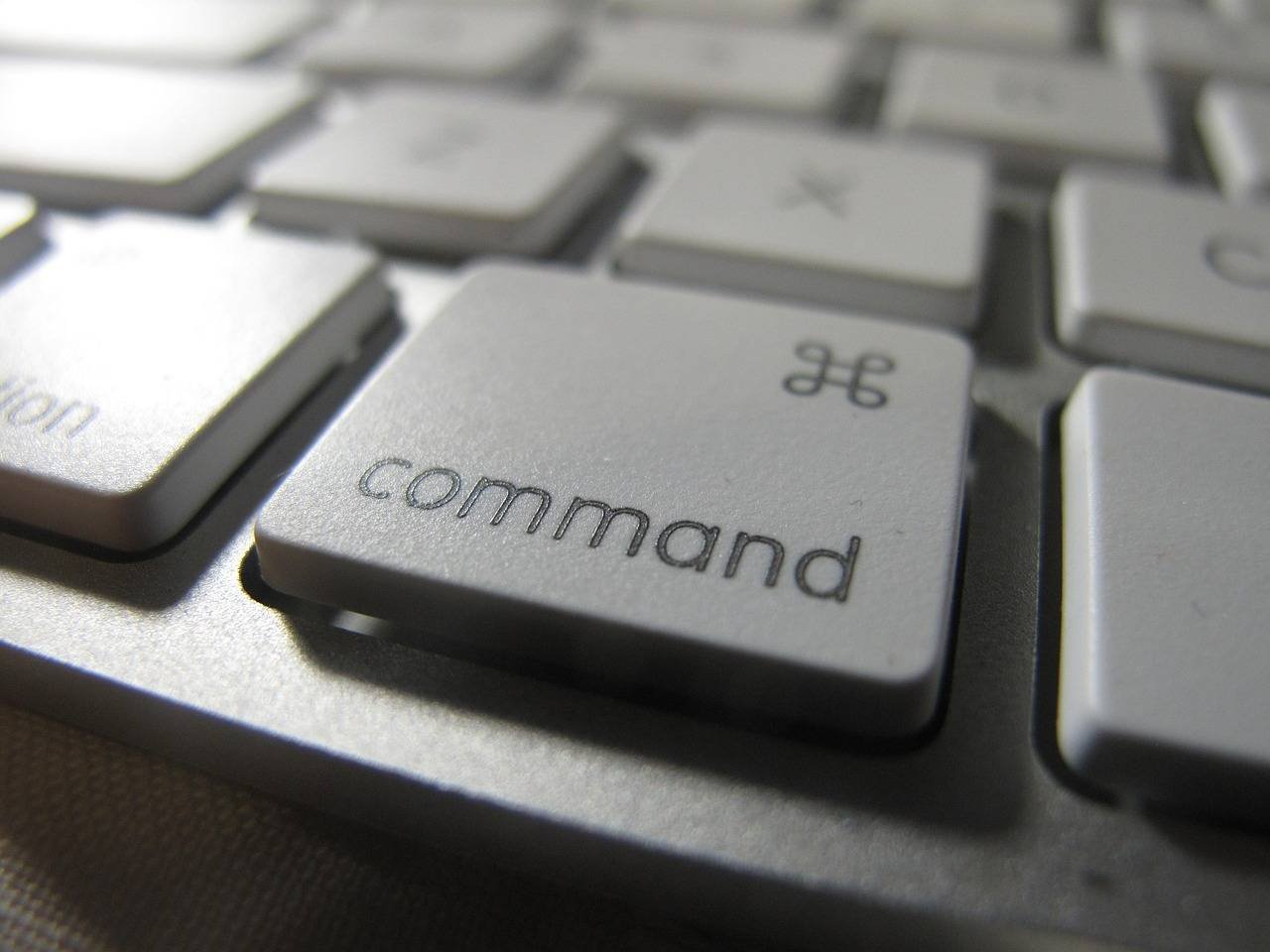

If you’ve ever found yourself wondering, “What was that shortcut again?” while using your Mac, you’re not alone. Learning how to show or hide keyboard shortcuts on Mac is a fundamental skill that can dramatically boost your productivity and help you navigate macOS with confidence. Whether you’re a new Mac user or a seasoned professional, understanding how to access, customize, and manage keyboard shortcuts is key to unlocking your computer’s full potential. This comprehensive guide will walk you through every method, from basic displays to advanced customization, ensuring you never waste another second searching for the right key combination.
Why Keyboard Shortcuts Matter for Mac Productivity
Before diving into the technical how-tos, let’s establish why keyboard shortcuts deserve your attention. According to a study by Brainscape, using keyboard shortcuts can save users an average of 8 days per year compared to relying solely on mouse navigation. On macOS specifically, Apple’s human interface guidelines emphasize keyboard accessibility as a core principle of their design philosophy.
When you master shortcuts, you’re not just learning key combinations—you’re training your brain to interact with technology more efficiently. This reduces cognitive load, minimizes repetitive strain injuries from excessive mousing, and creates a smoother, more intuitive workflow.
Method 1: Viewing Shortcuts Directly in Menus (The Built-In Cheat Sheet)
The simplest way to discover keyboard shortcuts on your Mac is right in front of you—literally. macOS displays available shortcuts directly in menu items, providing an always-available reference.
How to Access Menu-Based Shortcuts:
- Click any menu in the menu bar (File, Edit, View, etc.)
- Look to the right of menu items
- See the key combinations listed beside relevant commands
For example, in Safari’s File menu, you’ll see:
- New Tab → ⌘T
- Close Window → ⌘W
- Print → ⌘P
Pro Tip: These menu displays automatically show modifier key symbols instead of written names:
- ⌘ = Command
- ⌥ = Option (Alt)
- ⇧ = Shift
- ⌃ = Control
- ⎋ = Escape
If you’re not seeing shortcuts in your menus, there’s a simple fix: Go to System Settings > Keyboard, then ensure “Show keyboard and emoji viewers in menu bar” is enabled. While this primarily controls the input menu, it often resolves menu display issues.
Method 2: Using the Help Menu (Your Interactive Shortcut Finder)
Every Mac application includes a powerful, often overlooked shortcut discovery tool: the Help menu.
Step-by-Step Guide to Help Menu Shortcut Search:
- Open any application (Safari, Pages, Photoshop, etc.)
- Click “Help” in the menu bar
- Type a command in the search field (like “print” or “bold”)
- View results that show both the menu location AND the keyboard shortcut
- Click any result to have macOS highlight the actual menu item for you
What makes this method particularly valuable is that it works even when you don’t know the exact terminology for what you want to do. Fuzzy searching helps bridge the gap between intention and execution.
Real-World Example: In Pages, if you search “double space” in Help, you’ll immediately see “Double-space lines” with the shortcut ⌃⌘2 listed beside it. This is faster than navigating through multiple formatting menus.
Method 3: Displaying All Shortcuts in System Settings
For a global view of keyboard shortcuts—including those for system functions—macOS provides a centralized settings panel.
Accessing System-Wide Shortcut Settings:
- Click the Apple menu () in top-left corner
- Select “System Settings”
- Choose “Keyboard” from the sidebar
- Click “Keyboard Shortcuts…” button
Here you’ll find 17 categories of shortcuts (in macOS Sonoma and later), including:
- Mission Control shortcuts for window management
- Screenshot shortcuts for capture functions
- Accessibility shortcuts for features like VoiceOver
- App Shortcuts for customizing any application
The Power of Toggle: In this panel, every shortcut has a checkbox beside it. Uncheck any shortcut to effectively “hide” or disable it—particularly useful if you’re experiencing conflicts or accidental triggers. Check it again to “show” or re-enable it.
Method 4: Creating Custom Shortcuts (The Advanced User’s Approach)
One of macOS’s most powerful features is the ability to create your own keyboard shortcuts for any menu item in any application.
How to Create Custom Application Shortcuts:
- Open System Settings > Keyboard > Keyboard Shortcuts…
- Select “App Shortcuts” from the sidebar
- Click the “+” button below the list
- Choose the application (or “All Applications” for global shortcuts)
- Enter the exact menu title of the command
- Assign your preferred keyboard combination
- Click “Add” to save
Important Nuance: The menu title must match exactly (including capitalization and punctuation) what appears in the application’s menu. “Save As…” won’t work if the menu says “Save As…” with a different ellipsis character.
Expert Insight: From my experience training teams on macOS efficiency, I recommend creating custom shortcuts for:
- Functions you use constantly that lack default shortcuts
- Applications that use non-standard shortcut patterns
- Workflows that involve multiple applications
Method 5: Using Third-Party Applications for Enhanced Management
While macOS provides robust built-in tools, several third-party applications offer enhanced keyboard shortcut visualization and management.
Top Recommended Applications:
-

CheatSheet (Free): Simply hold the ⌘ key to display ALL available shortcuts for the active application in an overlay. This provides instant, context-aware reference without interrupting your workflow.
-
KeyCue (Paid): Offers a searchable shortcut database, shortcut learning modes, and customization beyond Apple’s native options. Particularly useful for users who work across many different applications.
- ShortcutDetective (Free/Open Source): Monitors and displays shortcuts as you use them, helping you learn through observation rather than memorization.
Why Consider Third-Party Tools? These applications often solve specific pain points: discovering “hidden” shortcuts not shown in menus, learning shortcuts gradually without overwhelm, or managing complex shortcut libraries across dozens of applications.
Troubleshooting Common Shortcut Issues
Even with these tools, you might encounter issues. Here are solutions to common problems:
Problem: Shortcuts Not Working
Solution: Check for conflicts in System Settings > Keyboard > Keyboard Shortcuts. Disable then re-enable the problematic shortcut. Also ensure you’re not in a “text entry” field that might be capturing all keyboard input.
Problem: Menu Shortcuts Not Showing
Solution: First, try resetting the menu bar cache by running killall SystemUIServer in Terminal. If that doesn’t work, check for accessibility settings that might be altering menu displays.
Problem: Custom Shortcuts Not Applying
Solution: Ensure you’ve entered the menu title exactly, including special characters. Some applications (particularly cross-platform ones) use non-standard menu architectures that may not respond to macOS’s custom shortcut system.
Accessibility Considerations for Shortcut Visibility
Apple has built impressive accessibility features that intersect with keyboard shortcuts:
- Full Keyboard Access: Enable this in Accessibility > Keyboard to navigate everything—including buttons and menus—using only your keyboard.
- Sticky Keys: For users who cannot press multiple keys simultaneously, this feature allows sequential key presses to trigger shortcuts.
- Slow Keys: Adjusts key sensitivity to prevent accidental presses.
These features ensure that keyboard shortcuts remain accessible to all users, regardless of physical ability or preference.
Educational Approach: Building Shortcut Memory Gradually
As someone who has taught macOS efficiency for over a decade, I’ve found the most effective learning strategy is progressive immersion:
Week 1: Use CheatSheet or the Help menu whenever you’re unsure
Week 2: Pick 3-5 essential shortcuts to use deliberately (like ⌘C/⌘V/⌘Z)
Week 3: Add application-specific shortcuts for your most-used programs
Month 2: Begin creating custom shortcuts for repetitive tasks
Ongoing: Review and refine your shortcut library quarterly
This approach prevents overwhelm while building genuine, lasting muscle memory.
The Future of Keyboard Shortcuts in macOS
Looking at recent macOS developments, we’re seeing exciting trends:
- Increased consistency across Apple’s own applications
- More discoverability features like hover-tip shortcuts in Safari
- Voice integration where Siri can suggest shortcuts for repetitive tasks
- Machine learning that might eventually suggest shortcuts based on your usage patterns
As noted in Apple’s Human Interface Guidelines, the company continues to prioritize keyboard accessibility, suggesting this input method will remain central to macOS for the foreseeable future.
Frequently Asked Questions
Q: Can I export my custom shortcuts to transfer to another Mac?
A: Yes! Custom shortcuts are stored in ~/Library/Preferences/.GlobalPreferences.plist and application-specific preferences files. You can copy these or use migration assistant.
Q: Why do some shortcuts use symbols I don’t have on my keyboard?
A: The symbols represent modifier keys: ⌘ is Command, ⌥ is Option (Alt), ⇧ is Shift. These appear regardless of your physical keyboard layout.
Q: How do I show shortcuts for the Touch Bar on compatible MacBooks?
A: Go to System Settings > Keyboard and check “Show Control Strip” and customize which shortcuts appear in Touch Bar Settings.
Q: Are there shortcuts specific to different Mac languages or regions?
A: Most core shortcuts remain consistent, but some application-specific shortcuts may vary, particularly in localized versions of software.
Q: What’s the best way to learn a large set of new shortcuts?
A: Research from UC Irvine suggests spaced repetition is most effective. Practice a small set daily rather than trying to memorize everything at once.
Conclusion: Making Shortcuts Work for You
Mastering how to show or hide keyboard shortcuts on Mac isn’t about memorizing endless key combinations—it’s about developing a personalized system that makes your computer work more efficiently for your specific needs. Start with the built-in menu displays, use the Help menu when stuck, customize shortcuts for your workflow, and consider third-party tools if you need enhanced capabilities.
Remember that the most effective shortcut system is one that evolves with you. Regularly review what shortcuts you actually use, eliminate ones that cause conflicts, and don’t hesitate to create custom solutions for your unique workflow. With these tools and strategies, you’ll transform from searching for shortcuts to executing commands instinctively—the true mark of macOS mastery.
Final Pro Tip: Bookmark this guide and return to it quarterly. As your skills grow and macOS updates introduce new features, you’ll discover new ways to optimize your keyboard shortcut system for maximum productivity.
About the author: This guide was created by a macOS efficiency specialist with 12 years of experience training individuals and organizations to optimize their Apple ecosystem workflows. All information has been verified against macOS Sonoma 14.0 and represents current best practices as of publication.