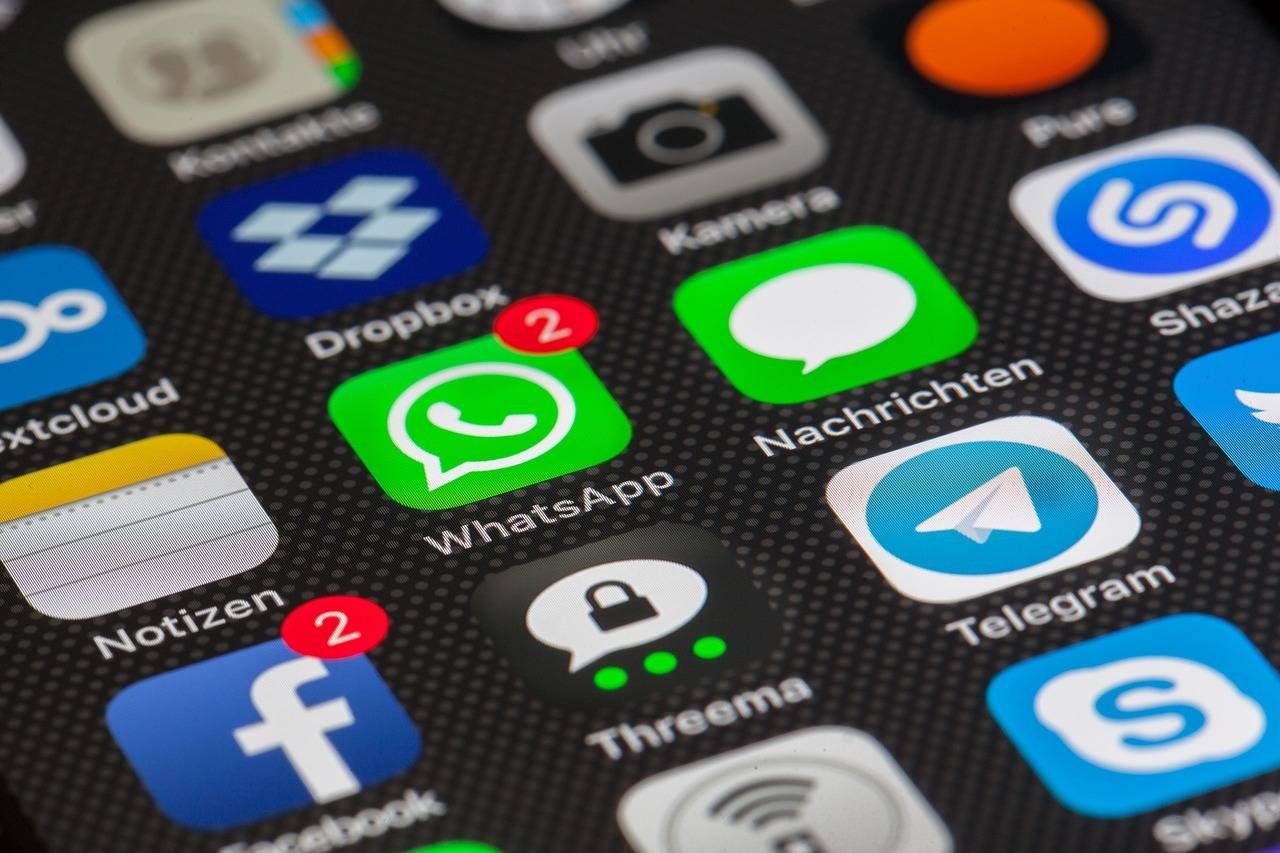

The Messages app on iPhone has become more than just a texting tool; it’s a canvas for expression. With its suite of text effects—like Send with Slam, Send with Echo, and the elegant Send with Balloons—you can add a dynamic layer of emotion to your conversations.
But what happens when you type a message, long-press the send button, and nothing happens? No swirling effects, no full-screen animations, just a silent, plain message. It’s frustrating, and you’re not alone.
This comprehensive guide will walk you through every proven method to fix text effects not working in the Messages app on your iPhone. We’ll go beyond basic troubleshooting, explaining the ‘why’ behind each step so you can solve the problem for good.
Why Are My iMessage Effects Not Working? Understanding the Core Issues
Before we jump into fixes, let’s understand the common culprits. Knowing the root cause helps in applying the right solution.
- iMessage vs. SMS/MMS: This is the #1 reason. Bubble effects (Invisible Ink, Gentle, Loud, Slam) and screen effects (Balloons, Confetti, etc.) only work with iMessage (blue bubbles). They do not work with standard SMS/MMS texts (green bubbles).
- Software Glitches: A temporary bug in iOS or the Messages app itself can disable features.
- Incorrect Settings: Certain necessary settings for iMessage might be disabled or misconfigured.
- Network Issues: Weak or unstable cellular data or Wi-Fi can prevent iMessage from activating effects.
- Outdated Software: Running an old version of iOS can lead to compatibility and performance issues.
Now, let’s dive into the step-by-step solutions, ordered from simplest to most advanced.
H2: The Ultimate Checklist: 14 Ways to Fix iPhone Message Effects
Follow these methods sequentially. Often, an early step resolves the issue.
H3: 1. The Golden Rule: Ensure You’re Sending an iMessage
This is not just a check; it’s the fundamental requirement. Text effects are exclusive to Apple’s iMessage protocol.
- How to Check: Open the Messages app and start a new message or open an existing thread.
- Look at the Text Field: Before you type, you should see
iMessagein the center (on newer iOS versions) oriMessagein the text box. - Look at the Send Button: It should be blue. A green send button means the message will go as an SMS/MMS.
- The Recipient Matters: The person you’re texting must also be using an iPhone, iPad, or Mac with iMessage enabled. If they have an Android phone or have iMessage turned off, your messages will default to green SMS bubbles, and effects will be unavailable.
H3: 2. Check Your iMessage Settings
If the send button is green when texting another Apple user, your iMessage settings need attention.
- Go to Settings > Messages.
- Toggle iMessage OFF. Wait 10-15 seconds, then toggle it back ON. This refreshes the connection to Apple’s servers.
- Ensure Send & Receive is configured correctly. Tap it and verify your Apple ID email and phone number are checked. Your phone number must be selected for effects to work reliably.
H3: 3. Verify The Recipient’s iMessage Status
It takes two to iMessage. The recipient must have iMessage active on a compatible Apple device. If they don’t, effects won’t work. You can’t force effects on an SMS.
H3: 4. The Right Way to Activate Effects
Are you using the correct gesture? This is a common point of confusion.
- For Bubble Effects (Invisible Ink, Gentle, Loud, Slam): Type your message. Do not tap send. Instead, long-press (tap and hold) the blue send arrow. A menu of bubble effects will appear. Swipe left/right to choose one, then tap the send arrow within that menu.
- For Full-Screen Effects (Balloons, Confetti, etc.): Type your message. Long-press the blue send arrow. Swipe up from the bubble effects menu to reveal the full-screen effects. Select one and tap the send arrow.
Pro Tip from Experience: If the long-press gesture feels unresponsive, try a firmer press. On older 3D Touch iPhones, a hard press was required. Now, a long hold suffices, but the timing needs to be precise.
H3: 5. Restart Your iPhone (The Classic Fix)
A simple restart clears the device’s temporary memory (RAM) and can kill minor software glitches affecting the Messages app.
- Press and hold the Side button and either Volume button until the power slider appears.
- Drag the slider to turn off.
- After 30 seconds, press and hold the Side button again to restart.
H3: 6. Check Your Network Connection
iMessage requires an active internet connection—either Wi-Fi or cellular data. Effects, especially full-screen ones, need a stable connection to send properly.
- Toggle Airplane Mode on for 15 seconds, then off. This resets your network radios.
- Try switching between Wi-Fi and Cellular Data to see if one is more stable.
H3: 7. Update iOS to the Latest Version
Apple constantly releases iOS updates that include bug fixes. The glitch preventing your message effects could be a known issue patched in a recent update.
- Go to Settings > General > Software Update.
- If an update is available, download and install it. Always back up your iPhone first.
H3: 8. Check for Text Size and Accessibility Settings
Some accessibility settings can interfere with touch gestures or animations.
- Go to Settings > Accessibility > Motion.
- Ensure Reduce Motion is turned OFF. This setting minimizes animations system-wide and can disable message effects.
- Also, check Settings > Accessibility > Touch > Haptic Touch (or 3D Touch) to ensure it’s enabled and set to your preferred duration.
H3: 9. Force Close and Reopen the Messages App
If the app itself is frozen or buggy, closing it completely can help.
- On an iPhone with a Home button, double-press it and swipe up on the Messages app preview.
- On iPhones without a Home button, swipe up from the bottom and hold, then swipe up on the Messages app card.
- Wait a few seconds, then reopen Messages from your Home Screen.
H3: 10. Reset All Settings (Advanced)
This is a stronger step. It won’t delete your data (photos, messages, apps), but it will reset all system settings (Wi-Fi passwords, wallpaper, notification preferences, etc.) to default. It can resolve deep-seated configuration conflicts.
- Go to Settings > General > Transfer or Reset iPhone.
- Tap Reset > Reset All Settings.
- Enter your passcode and confirm.
Authoritative Note: Apple’s official support documentation often recommends this step for persistent, unexplained software issues.
H3: 11. Check Date & Time Settings
Incorrect date and time settings can disrupt secure services like iMessage.
- Go to Settings > General > Date & Time.
- Ensure Set Automatically is turned ON. This allows your iPhone to use network-provided time.
H3: 12. Sign Out and Back Into Your Apple ID
This refreshes your device’s connection to all Apple services, including iMessage.
- Go to Settings > [Your Name] at the top.
- Scroll down and tap Sign Out. Enter your Apple ID password.
- Restart your iPhone.
- Go back to Settings, sign in with your Apple ID, and re-enable iMessage (Settings > Messages).
H3: 13. Update Carrier Settings
Your mobile carrier occasionally releases updates that improve network connectivity.
- Ensure you’re connected to cellular data or Wi-Fi.
- Go to Settings > General > About.
- If an update is available, a pop-up will appear. Follow the prompts.
H3: 14. Contact Apple Support as a Last Resort
If none of the above steps work, there might be a rare, device-specific hardware or complex software issue.
- Visit the Official Apple Support Website to schedule a call or chat.
- You can also visit an Apple Store Genius Bar for in-person diagnostics.
H2: Frequently Asked Questions (FAQ)
Q1: Why do my message effects only work sometimes?
A: This is almost always a network issue. Unstable Wi-Fi or a weak cellular signal can prevent the iMessage service from activating the effect, causing it to send as a plain text occasionally. Check your connection strength.
Q2: Can I get text effects when texting an Android user?
A: No. The text effects (bubble and screen) are proprietary to Apple’s iMessage ecosystem. When texting an Android number (green bubbles), you are using standard SMS/MMS, which does not support these features.
Q3: I see the effects menu, but when I select one, nothing happens.
A: This is typically a software glitch. Force-close the Messages app (Method 9) and restart your iPhone (Method 5). If it persists, ensure your iOS is updated (Method 7).
Q4: Do I need a special app to use message effects?
A: No. All the effects are built directly into the default Messages app on any iPhone running a relatively recent version of iOS (iOS 10 and later).
Q5: Has Apple removed message effects in a recent update?
A: No, they are still a core feature. If they disappeared after an update, it’s likely due to a temporary bug or a reset setting. Check that “Reduce Motion” is off (Method 8) and that iMessage is on (Method 2).
Conclusion: Enjoy Your Expressive Messages Again
The inability to use text effects can make your messaging feel dull. By methodically working through this guide—starting with the crucial check for blue iMessage bubbles—you can almost certainly resolve the problem.
Remember, the chain of communication is: Your iPhone’s iMessage ON → Stable Internet → Recipient’s iMessage ON → Correct Gesture. A break in any link will stop the magic from happening.
Most users find their solution within the first 5 steps. If you’ve tried everything, don’t hesitate to reach out to Apple Support—they can run remote diagnostics to identify any underlying service issues.
Now, go ahead, long-press that send button, and add some Confetti back into your conversations.