
Facing the dreaded “Proxy Authentication Required” error (2606) when trying to sync your OneDrive on Windows 11? You’re not alone. This stubborn error halts cloud synchronization, leaving your files stranded and workflows disrupted. It’s a common yet complex issue tied to your system’s network configuration, specifically how it authenticates with a proxy server. This comprehensive guide will not only walk you through proven, step-by-step fixes but will also explain the “why” behind the error, giving you the knowledge to prevent it from recurring. We’ll delve deep into Windows 11 settings, credential management, and advanced network configurations to get your OneDrive syncing seamlessly again.
Understanding the OneDrive Error 2606: The Root Cause
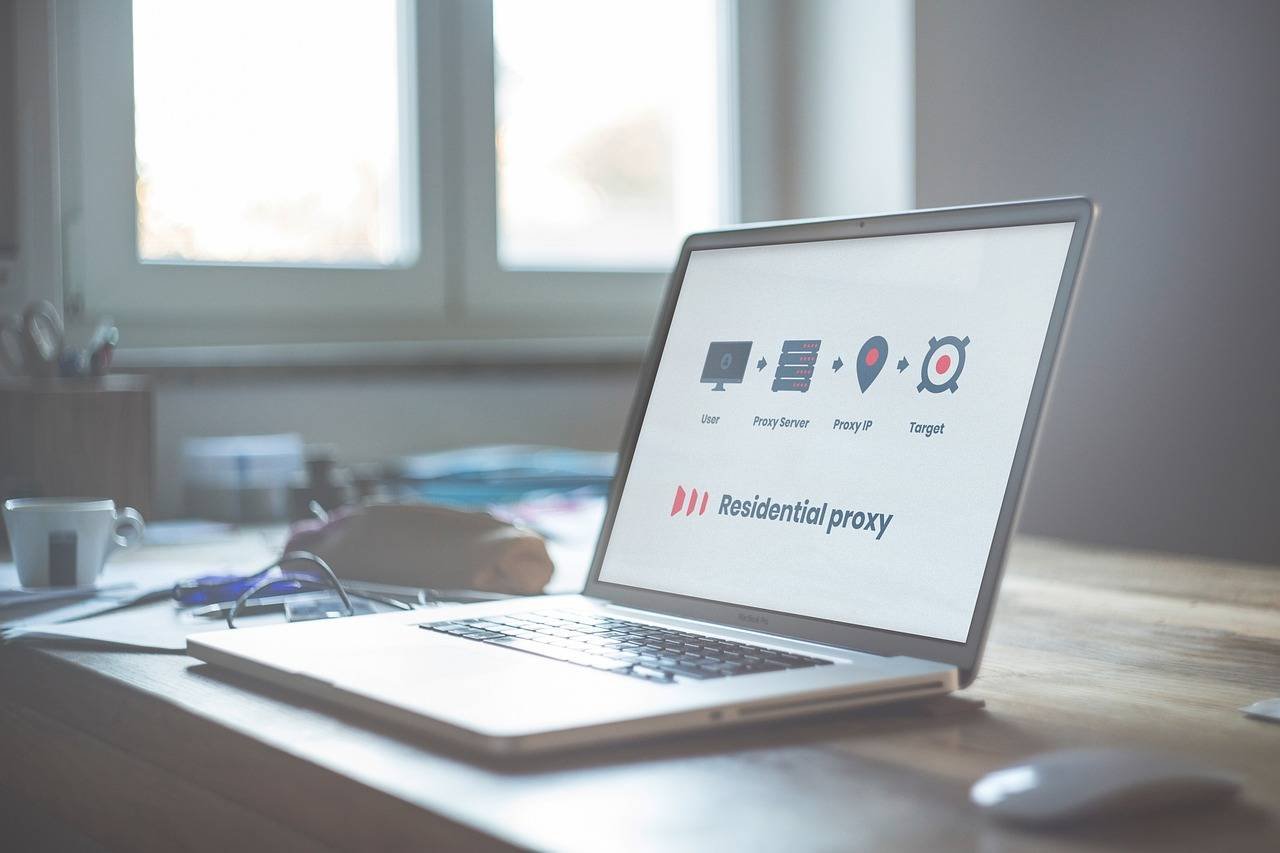
Before we jump into solutions, let’s demystify the problem. Error 2606, “Proxy Authentication Required,” is a network-level error. It occurs when your OneDrive application attempts to connect to Microsoft’s servers through a proxy server that requires credentials (username/password), but OneDrive either isn’t provided with these credentials or the provided ones are incorrect/rejected.
Common Scenarios:
- Corporate/Work Networks: Many offices use authenticated proxy servers to monitor and secure internet traffic.
- Educational Institutions: Schools and universities often employ similar security measures.
- Misconfigured Personal VPNs or Security Software: Some VPNs or firewalls can inject proxy-like settings.
- Stale or Cached Windows Credentials: Windows might be trying to use old, expired login details.
Now, let’s move from understanding to solving. Follow these methods in order, starting with the simplest.
Method 1: The Quick Checks & Basic Troubleshooting
Start here. These steps resolve the issue in many cases.
- Check Your Internet Connection: Ensure you have a stable, working internet connection. Try accessing a website like
https://www.microsoft.comin your browser. - Restart OneDrive: Often, a simple restart can clear temporary glitches.
- Right-click the OneDrive cloud icon in your system tray (notification area).
- Click Settings > Pause syncing > 2 hours.
- Wait a minute, then right-click again and choose Resume syncing.
- Restart Your Computer: A full reboot refreshes all network components and services.
Method 2: Provide Proxy Credentials Directly to Windows
This is the most direct fix if you know your proxy credentials.
- Open Settings (Win + I) > Network & internet > Proxy.
- Under Manual proxy setup, ensure Use a proxy server is turned on (if your network requires it). You should see the proxy address and port filled in, likely by your IT department or network policy.
- Click Set up next to “Use a proxy server.”
- In the new window, check the box for “Use the same proxy server for all protocols.”
- Crucially, check the box that says “Use this proxy server except for addresses defined below.”
- In the exception field, add the following Microsoft domains to bypass the proxy for OneDrive traffic, which often resolves the authentication hang-up:
*.onedrive.com;*.sharepoint.com;*.microsoft.com;*.windows.net;login.microsoftonline.com - Click Save.
Method 3: Clear Windows Credential Manager Cache
Windows stores proxy/server passwords in its Credential Manager. Corrupted or outdated entries cause Error 2606.
- Press Win + R, type
control.exeand press Enter to open the old Control Panel. - Go to User Accounts > Credential Manager.
- Click on Windows Credentials.
- In the list, look for any entries related to MicrosoftOneDrive, live.com, proxy, or your organization’s proxy server address.
- Click on each relevant entry and select Remove. Confirm the deletion.
- Restart your PC. Upon restart and launching OneDrive, Windows should prompt you for fresh proxy credentials. Enter the correct ones provided by your network administrator.
Method 4: Configure OneDrive’s Proxy Settings via Registry (Advanced)
This method directly tells the OneDrive executable to use system proxy settings.
Warning: Editing the Registry is serious. Back up your registry first or create a system restore point.

- Press Win + R, type
regedit, and press Enter. - Navigate to:
HKEY_CURRENT_USERSoftwareMicrosoftOneDrive - Right-click in the right pane > New > DWORD (32-bit) Value. Name it
ProxyHttp1.1. - Double-click the new
ProxyHttp1.1value and set its Value data to1. - If you need to specify an explicit proxy for OneDrive (less common), you can also create String Values named:
ProxyServer(e.g.,http=proxyserver:port;https=proxyserver:port)ProxyUser(your username)ProxyPass(your password – be cautious, as this is stored in plain text)
- Close Registry Editor and restart your PC.
Method 5: Reset and Reinstall OneDrive
If the above fails, a clean slate might be necessary.
- Reset OneDrive:
- Press Win + R, type
%localappdata%MicrosoftOneDriveonedrive.exe /resetand press Enter. A command window will flash briefly. - Wait a few minutes for the process to complete.
- Press Win + R, type
- Full Reinstall:
- Press Win + I > Apps > Installed apps.
- Find Microsoft OneDrive, click the three dots, and select Uninstall.
- Download the latest OneDrive installer directly from Microsoft’s official site.
- Run the installer and set up your account again. This fresh start often bypasses deep-seated configuration corruptions.
Method 6: Temporarily Disable VPN & Third-Party Firewall/Antivirus
Sometimes, security software interferes with OneDrive’s network traffic.
- Disable your VPN: Completely exit your VPN client software and try syncing.
- Check Firewall/Antivirus: Temporarily disable your third-party firewall or antivirus suite (Windows Defender is usually fine). If this works, add OneDrive (
onedrive.exe) to your security software’s exclusion/allowed list. Consult your security software’s help docs for instructions.
Preventing Future Proxy Authentication Errors in OneDrive
Fixing is good; preventing is better.
- Keep Windows and OneDrive Updated: Updates often contain connectivity and security fixes. Enable automatic updates.
- Use Reliable Network Connections: Avoid public networks with complex captive portals for critical syncing.
- Document Your Proxy Settings: Know your network’s proxy address, port, and your authentication credentials.
- Consider Work/School Account Specifics: If using a work/school account, your IT department may enforce specific policies. Contact them if issues persist—they might need to whitelist OneDrive URLs on the corporate proxy.
When All Else Fails: Seeking Further Help
If you’ve exhausted all methods, consider these avenues:
- Contact Your IT Department: If on a corporate or school network, this is your best next step. The issue may be on the server-side of the proxy.
- Microsoft Support: Use the Help & Feedback option within the OneDrive settings panel or visit the Microsoft OneDrive Community Forums. Often, others have posted specific solutions for similar environments.
Conclusion
The OneDrive Proxy Authentication Error 2606 on Windows 11 is a solvable obstacle rooted in network configuration. By methodically working through these solutions—from providing correct credentials and clearing cached data to advanced registry tweaks and clean reinstalls—you can restore your vital cloud synchronization. The key is understanding that this error is a communication problem between OneDrive and your network’s gateway (the proxy). By ensuring both sides have the correct “handshake” (credentials and settings), you can get back to a seamless sync experience.
Did this guide help you solve Error 2606? Have you found another unique solution in your specific environment? Share your experience in the comments below to help others in our community!
FAQ Schema (For Webmaster Implementation)
{
  "@context": "https://schema.org",
  "@type": "FAQPage",
  "mainEntity": [{
    "@type": "Question",
    "name": "What causes OneDrive Error 2606 on Windows 11?",
    "acceptedAnswer": {
      "@type": "Answer",
      "text": "Error 2606 is caused when Microsoft OneDrive cannot authenticate with a proxy server on your network. This typically happens in corporate, school, or secured environments where internet traffic must pass through a gateway that requires a username and password."
    }
  }, {
    "@type": "Question",
    "name": "How do I find my proxy server credentials?",
    "acceptedAnswer": {
      "@type": "Answer",
      "text": "Your proxy credentials are usually provided by your organization's IT department. If you are on a work or school network, contact your IT help desk. They are not the same as your Windows or Microsoft account password."
    }
  }, {
    "@type": "Question",
    "name": "Is it safe to add OneDrive domains to the proxy exception list?",
    "acceptedAnswer": {
      "@type": "Answer",
      "text": "Yes, adding *.onedrive.com, *.sharepoint.com, and related Microsoft domains to your proxy bypass list is generally safe and recommended by Microsoft for improving connectivity. It directs OneDrive traffic directly to the internet, avoiding potential authentication hurdles at the proxy."
    }
  }, {
    "@type": "Question",
    "name": "Will resetting OneDrive delete my files?",
    "acceptedAnswer": {
      "@type": "Answer",
      "text": "No. Using the '/reset' command or reinstalling OneDrive does not delete files stored in your cloud OneDrive. It clears local sync settings and cache. After resetting, you will simply need to sign in again and re-select the folders you wish to sync locally."
    }
  }]
}