
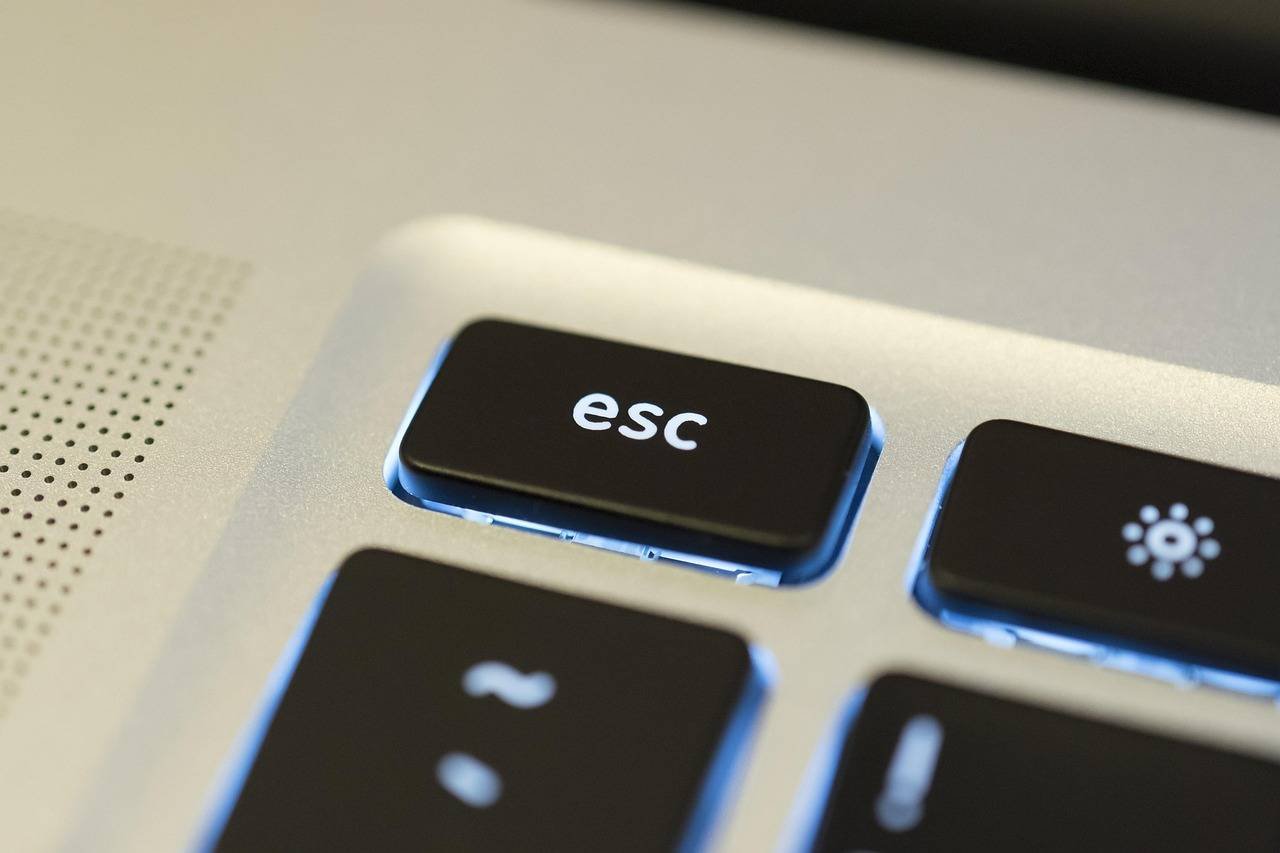
Imagine you’re in the middle of an important project. You need to cancel a dialog box, close a menu, or exit a game mode in a hurry. You press the Escape key—and nothing happens. That single, unresponsive key can bring your workflow to a screeching halt, turning a minor annoyance into a major frustration.
If your Esc key has stopped working in Windows 11, you’re not alone. It’s a surprisingly common issue that can stem from software glitches, driver problems, or even hardware faults. The good news is that in most cases, it’s a problem you can fix yourself without needing to rush to a repair shop.
In this comprehensive guide, we’ll walk you through every possible fix, from the quickest software checks to more advanced hardware diagnostics. We’ll not only help you restore your Esc key but also explain the why behind each step, empowering you with the knowledge to troubleshoot future issues.
Keywords: Fix Esc Key Not Working, Windows 11 Escape Key, Keyboard Troubleshooting, Esc Key Unresponsive
Why is the Escape Key So Important?
Before we dive into the fixes, let’s appreciate the Esc key. It’s one of the oldest keys on the keyboard, originally designed to allow users to “escape” from a mode or operation. In modern computing, it’s crucial for:
- Canceling operations and closing dialog boxes.
- Exiting full-screen modes in applications, browsers, and games.
- Accessing boot menus or BIOS/UEFI settings during startup.
- Serving as a vital shortcut in professional software like Adobe Premiere Pro, Blender, and Visual Studio Code.
An non-functional Esc key breaks a fundamental interaction model in Windows and other software, making its repair a priority.
Systematic Troubleshooting: Start Simple, Then Advanced
Always begin with the simplest solutions. This process of elimination saves time and helps isolate the root cause.
Step 1: The Instant Checks (5-Minute Fixes)
These are the first things you should try.
1. Restart Your Computer: It’s a cliché for a reason. A simple restart can clear temporary system glitches and software conflicts that might be disabling the key. It’s the most effective first step.
2. Test the Key in Different Applications:
Open Notepad and press Esc. Then, try it in your web browser (to stop a page from loading) and a different program, like File Explorer (to cancel a rename operation). This tells you if the problem is system-wide or confined to a specific app.
- App-Specific Issue: If it only fails in one program (e.g., a game or Photoshop), check that application’s keyboard settings or reset its preferences.
- System-Wide Issue: Move to the next steps.
3. Check for Physical Obstructions and Clean the Key:
Turn off your keyboard or laptop. Gently pop off the Esc keycap (if it’s removable) using a plastic tool or your fingers. Look for dust, crumbs, or debris. Use a can of compressed air to blow out any particles and gently clean the area with a cotton swab dipped in a small amount of isopropyl alcohol. Let it dry completely before reattaching the keycap.
Step 2: Software and Driver Solutions
If the quick checks fail, it’s time to look deeper into Windows.
4. Run the Keyboard Troubleshooter:
Windows 11 has a built-in troubleshooter designed for this.
- Go to Settings > System > Troubleshoot > Other troubleshooters.
- Find Keyboard and click Run.
- Follow the on-screen instructions. The tool will attempt to detect and fix common issues automatically.
5. Update or Reinstall Your Keyboard Driver:
A corrupted or outdated driver can cause key malfunctions.
- Press Win + X and select Device Manager.
- Expand the Keyboards section.
- Right-click on your keyboard device (e.g., “Standard PS/2 Keyboard” or your keyboard model) and select Update driver.
- Choose Search automatically for drivers.
- If that doesn’t help, right-click again and select Uninstall device. Restart your computer. Windows will automatically reinstall the generic driver upon reboot.
6. Check for Sticky Keys or Filter Keys:
Ease of Access features can sometimes interfere.
- Go to Settings > Accessibility > Keyboard.
- Ensure Sticky keys and Filter keys are toggled OFF.
- Click into each setting and make sure shortcut keys (like pressing Shift five times) are disabled to prevent accidental activation.
7. Perform a Clean Boot:
Third-party software running in the background can conflict with your keyboard. A clean boot starts Windows with minimal drivers and startup programs.
- Press Win + R, type
msconfig, and hit Enter. - In the System Configuration window, go to the Services tab.
- Check Hide all Microsoft services, then click Disable all.
- Go to the Startup tab, click Open Task Manager, and disable all startup items.
- Close Task Manager, click OK in System Configuration, and restart.
If the Esc key works after a clean boot, you enabled a service/startup item at a time to find the culprit.
Step 3: Advanced System Fixes
8. Scan for System File Corruption:
Windows has built-in tools to repair corrupted system files that might affect hardware functionality.
- Run an SFC Scan: Open Command Prompt as Administrator (search for
cmd, right-click, select “Run as administrator”). Typesfc /scannowand press Enter. Let it complete and repair files. - Run a DISM Scan: In the same Admin Command Prompt, after SFC, run:
DISM /Online /Cleanup-Image /RestoreHealth. This fixes the Windows image used for SFC repairs.
9. Check for Windows Updates:
Manufacturers often release fixes through Windows Update. Go to Settings > Windows Update and click Check for updates. Install any available updates, especially optional driver updates.
10. Create a New User Profile:
A corrupted user profile can cause bizarre hardware issues.
- Go to Settings > Accounts > Other users.
- Click Add account and set up a new local administrator account.
- Log out and into the new account. Test the Esc key.
If it works in the new profile, your main profile is corrupted. You’ll need to migrate your files and settings to the new account.
Step 4: Hardware Diagnostics
If all software solutions fail, the issue is likely physical.
11. Test with an External Keyboard (For Laptops):
Connect a USB keyboard to your laptop. If the Esc key on the external keyboard works perfectly, the problem is almost certainly with your laptop’s internal keyboard hardware.
12. Test Your Keyboard on Another PC (For External Keyboards):
Connect your external keyboard to a different computer. If the Esc key still doesn’t work, the keyboard itself is faulty.
13. Inspect for Physical Damage (Advanced Users):
- For Laptops: Look for signs of liquid spills, cracks near the key, or a warped chassis. Keyboard replacement is often required.
- For Mechanical Keyboards: The Esc key might have a faulty switch. You can use a key switch tester or gently swap the Esc switch with a less-used key (like Pause/Break) to confirm. Replacing a single switch is a common repair.
14. Check BIOS/UEFI:
Restart your PC and press the key to enter BIOS/UEFI (often F2, Del, or F10). Navigate using your arrow keys and see if the Esc key works to go back or exit menus here.
- If it works in BIOS: The problem is strictly within Windows, confirming a software/driver issue.
- If it doesn’t work in BIOS: This strongly points to a hardware failure.
Preventative Measures and Final Tips
- Keep Your System Clean: Regularly use compressed air to clean your keyboard.
- Update Regularly: Keep Windows and your drivers (especially from your laptop or keyboard manufacturer’s website) up to date.
- Use On-Screen Keyboard as a Temporary Workaround: If you need to use the Esc function immediately while troubleshooting, enable the On-Screen Keyboard (Settings > Accessibility > Keyboard). You can click the virtual Esc key with your mouse.
When to Seek Professional Help:
If you’ve confirmed a hardware fault (keyboard doesn’t work on another PC, or no key works in BIOS) and you’re uncomfortable opening your device, it’s time to consult a professional technician. For laptops, internal keyboard replacement is a standard procedure.
Frequently Asked Questions (FAQ)
Q1: Could a recent Windows update have broken my Esc key?
A: Yes, it’s possible. Buggy updates can occasionally affect driver compatibility. You can try uninstalling the latest update via Settings > Windows Update > Update history > Uninstall updates. Look for recent “Feature Updates” or “Quality Updates.”
Q2: My Esc key works in BIOS but not in Windows. What does this mean?
A: This is a clear sign that your keyboard hardware is physically fine. The problem lies within Windows—likely a driver issue, software conflict, or a corrupted system file. Focus on the software solutions (Steps 2 & 3).
Q3: Is there a way to remap another key to function as Esc?
A: Absolutely. This is an excellent temporary or permanent workaround. You can use built-in tools like Microsoft PowerToys (specifically the Keyboard Manager utility) to remap, for example, the Caps Lock key to act as Esc. It’s a free, official Microsoft tool.
Q4: I spilled something on my keyboard, and now Esc doesn’t work. What should I do?
A: Immediately power off the device (for laptops, shut down and remove the battery if possible). Disconnect external keyboards. Tilt the device to drain the liquid. Do not use a hairdryer. Let it dry completely for at least 48-72 hours in a warm, dry place with silica gel packets. Be prepared that permanent damage may have occurred, requiring replacement.
Q5: Are some keyboard models more prone to this issue?
A: Not specifically the Esc key, but low-quality membranes or certain mechanical switch types can fail individually. Issues are more commonly linked to software/drivers (especially with gaming keyboards that use proprietary software) than a specific model’s hardware flaw.
By following this structured guide, you’ve not only learned how to fix a non-working Esc key but also gained a deeper understanding of how your computer’s input system works. Remember, patience and a process of elimination are your best tools for successful tech troubleshooting