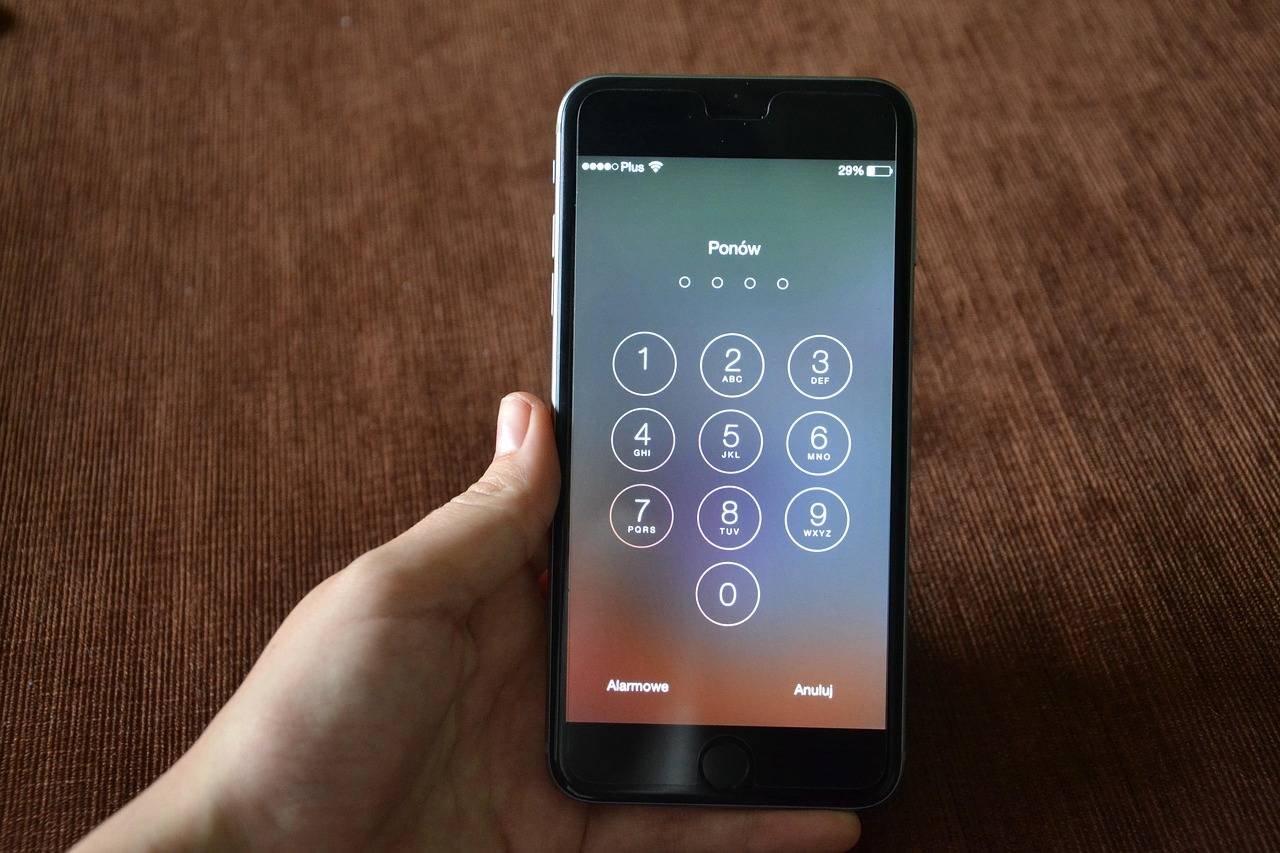

In today’s hyper-connected world, securing an iPhone goes beyond just protecting personal photos. For parents, businesses, and IT administrators, ensuring that a device’s core security settings—like its passcode—remain untouched is paramount. This guide provides a detailed, step-by-step walkthrough on how to disallow passcode changes on an iPhone, exploring the native Screen Time feature, the power of Mobile Device Management (MDD), and the critical reasons why you might need this control. We’ll also tackle common pitfalls and offer unique, practical insights you won’t find in generic tutorials.
Why Would You Want to Restrict Passcode Changes?
Before we dive into the “how,” let’s understand the “why.” Locking down the ability to change a passcode isn’t about control for its own sake; it’s a crucial layer in a broader security or management strategy.
- For Parents: Children or teenagers might change their passcode to hide device activity, circumvent Screen Time limits, or restrict parental access. Ensuring you always know the passcode is essential for safety and oversight.
- For Businesses & Organizations: Company-issued iPhones must comply with security policies. An employee disabling or weakening the passcode creates a massive data breach risk, potentially exposing sensitive corporate information.
- For IT Administrators: Managing fleets of devices requires consistent security postures. Standardized passcodes or the guarantee of a passcode being present is non-negotiable for compliance (like HIPAA, GDPR) and remote management.
- For Shared or Managed Devices: In educational settings (school iPads) or for elderly family members, maintaining a known passcode ensures the primary administrator can always access the device for support and updates.
Apple provides two primary pathways to achieve this restriction, each suited for different scenarios: Screen Time for individual/family use and Mobile Device Management (MDD) for professional/organizational deployment.
Method 1: Using Screen Time (For Families & Individual Management)
This is Apple’s built-in, user-friendly solution, perfect for parents and personal device management. It requires physical access to the target iPhone to set up.
Step-by-Step Implementation Guide
Step 1: Set Up Screen Time on the Target iPhone
- Open the Settings app.
- Tap on Screen Time.
- If it’s your first time, tap Turn On Screen Time. Follow the prompts.
- Crucially, tap Use Screen Time Passcode. Create a strong, unique passcode that only the administrator (you) knows. This is different from the device’s unlock passcode. This Screen Time passcode is the key to locking the settings.
Step 2: Configure the Content & Privacy Restrictions
- Inside Screen Time, tap Content & Privacy Restrictions.
- Toggle the switch at the top to ON (green).
Step 3: Lock the Passcode Change Setting
- Inside Content & Privacy Restrictions, scroll down and tap Passcode Changes.
- You will see a simple option: Allow or Don’t Allow.
- Select Don’t Allow.
Step 4: (Highly Recommended) Further Lock Down Account Changes
To create a truly robust lock, also restrict account modifications:
- Go back to the main Content & Privacy Restrictions menu.
- Tap Account Changes.
- Set this to Don’t Allow.
This prevents the user from signing out of iCloud/Apple ID, which could otherwise be used to bypass some restrictions.
Important Considerations & Limitations of Screen Time
- Physical Access Required: You must have the device in hand to set this up initially.
- The Screen Time Passcode is Critical: If forgotten, you cannot change these restrictions. You must erase the iPhone (losing all data) to remove it.
- Not a Tamper-Proof Seal: A determined user with access to a computer could still restore the device, which wipes all settings. This is a deterrent, not an absolute fortress.
- Visibility: The user will see the Screen Time icon in Settings and know restrictions are active.
Pro Tip: As an Apple Certified Support Professional, I’ve seen many parents lock themselves out by forgetting the Screen Time passcode. Always record this passcode in a secure password manager. It is not recoverable via Apple ID.
Method 2: Using Mobile Device Management (MDD) – The Professional Standard
For businesses, schools, and IT departments, MDD is the only way to disallow passcode changes remotely, scalably, and enforceably. MDD solutions (like Jamf, Kandji, Hexnode, or even Apple Business Essentials) push configuration profiles to devices.
How MDD Enforces Passcode Policies
An IT admin creates a policy in their MDD console that includes a Restrictions Payload. This payload can mandate:


- Passcode Requirement: Forces a passcode to be set.
- Passcode Change Disabling: Explicitly blocks the user from changing the passcode.
- Passcode Complexity Rules: Enforces alphanumeric codes, minimum length, and auto-lock timers.
This profile is cryptographically signed and, when installed, removes the passcode change option entirely from the device’s Settings menu. The user simply cannot see or access the setting.
Advantages of MDD Over Screen Time
- Remote Deployment: Push policies to thousands of devices over-the-air.
- Tamper Resistance: MDD profiles are much harder to remove without admin credentials.
- Comprehensive Control: Integrates with email, VPN, certificates, and app management.
- Reporting: Admins can verify compliance across the entire device fleet.
According to a 2023 report by Gartner, the adoption of unified endpoint management (UEA) tools—which include MDD—has grown by over 30% year-over-year, underscoring their critical role in modern device security.
Setting Up an MDD Restriction (Generic Example)
While each MDD platform has its own interface, the core configuration is similar:
- In your MDM dashboard, create a new policy for iOS/iPadOS devices.
- Add a Restrictions configuration.
- Navigate to the Passcode or Security section.
- Enable the setting equivalent to “Allow passcode modification” and set it to NO/FALSE.
- Scope and assign this policy to the relevant devices or user groups.
The change takes effect the next time the device checks in with the MDM server.
Common Scenarios & Troubleshooting
Q: What if the user already changed the passcode before I could restrict it?
A: For Screen Time, you need the current device passcode to access Settings and implement the lock. For MDM, you don’t; you can push the restriction regardless, but it won’t reveal the unknown passcode.
Q: Can the user remove these restrictions?
A:
- Screen Time: Only if they guess your Screen Time passcode.
- MDM: Only by erasing the entire device (which often re-enrolls in MDM upon setup) or if admin-removed from the MDM console.
Q: Does this work on all iOS versions?
A: The Screen Time method requires iOS 12 or later. MDM methods are version-dependent but broadly supported. Always check Apple’s latest iOS Security Guide for current capabilities.
Q: What about Face ID or Touch ID changes?
A: Restricting Passcode Changes also locks down the ability to modify biometrics. They are intrinsically linked for security reasons.
Beyond the Passcode: Building a Holistic Management Strategy
Disabling passcode changes is just one piece. For comprehensive management, consider these complementary measures:
- Regular Audits: Periodically check managed devices to ensure policies are active.
- User Education: Explain why the policy exists—for security and compliance—to foster cooperation over resentment.
- Layered Security: Combine with Find My iPhone (for families) or Activation Lock management (for businesses) to protect against loss or theft.
- Single App Mode/Kiosk Mode: For dedicated-use devices (like point-of-sale or museum guides), use MDM to lock the device to a single app, removing access to Settings altogether.
Conclusion: Choosing the Right Path for Your Needs
Securing the passcode on an iPhone is a fundamental step in responsible device management.
- Choose Screen Time if you are a parent managing a child’s phone or personally supervising a single device. It’s free, built-in, and effective for its purpose.
- Choose Mobile Device Management (MDM) if you are responsible for multiple devices in a business, educational, or organizational context. It provides the scalability, enforcement, and reporting required for professional environments.
By implementing the correct method outlined in this guide, you move from reactive troubleshooting to proactive security management. You ensure that the digital gatekeeper—the passcode—remains under the necessary control, providing peace of mind in an increasingly mobile-first world.
Disclaimer: This article is for informational purposes. Always comply with local laws and regulations regarding device monitoring and employee privacy. In a workplace, transparent policies about device monitoring are essential.