
The world of digital art has undergone a seismic shift with the advent of AI image generators, and Microsoft’s Bing Image Creator has emerged as one of the most accessible and powerful tools for both beginners and seasoned artists. Powered by the advanced DALL-E 3 model from OpenAI, it transforms your wildest imaginations into stunning visuals with a simple text prompt. But how do you move beyond basic results to create truly amazing AI generated art? This comprehensive guide will walk you through the process, offering expert techniques, unique insights, and practical tips to master this revolutionary tool.
What is Bing Image Creator?
Bing Image Creator is a free, web-based tool integrated into Microsoft’s ecosystem, available through Bing Chat (now Copilot) or directly at bing.com/create. It uses the cutting-edge DALL-E 3 model, which excels at understanding nuance, detail, and complex instructions, far surpassing many earlier AI art systems in its ability to render text, follow specific requests, and produce coherent, high-quality images.
Why Choose Bing for AI Art?
- Free Accessibility: Unlike some competitors, it offers a robust free tier (with “Boosts” to speed up generation).
- Deep Integration: Works seamlessly within the Microsoft Edge browser and Windows.
- Superior Prompt Understanding: DALL-E 3’s strength lies in its nuanced interpretation of user requests.
- Ease of Use: A low barrier to entry makes it perfect for beginners, yet it offers depth for experts.
Getting Started: Your First Steps
- Access the Tool: Navigate to bing.com/create. You’ll need a Microsoft Account (like a free Outlook or Hotmail email) to sign in.
- Understand the Interface: You’ll see a clean search bar labeled “Describe what you’d like to create…” This is your prompt box, your canvas of words.
- Craft Your First Prompt: Start simple. For example:
A majestic dragon reading a book in a library. - Generate and Review: Click “Create” and watch as four distinct images appear. You can download any you like or use the “Customize” button to refine further.
The Art of the Prompt: Moving from Good to Amazing
The key to amazing AI generated art lies in your prompt. Think of yourself as a director giving instructions to a phenomenally talented, yet literal, artist. Here’s how to craft prompts that win.
1. The Anatomy of a Powerful Prompt
A basic prompt gets a basic result. An amazing prompt is a detailed blueprint.
- Subject: Who or what is the main focus? (
A cyberpunk samurai) - Action/State: What is the subject doing or feeling? (
calmly sheathing his sword) - Detail & Style: Add descriptive adjectives, art styles, and media. (
with neon-lit armor, in the style of studio Ghibli, 3D render) - Setting/Background: Where is this taking place? (
on a rain-slicked Tokyo rooftop at night) - Technical & Compositional Terms: Use terms like
macro shot,wide-angle,dramatic lighting,cinematic,trending on ArtStation,ultra-detailed.
Example Evolution:
- Basic:
A cat in space. - Amazing:
A fluffy ginger cat in a tiny, detailed spacesuit, floating peacefully amidst vibrant nebulae and star clusters, digital art, hyper-realistic, sense of wonder, wide-angle view.
2. Advanced Prompting Techniques
- Iterative Refinement: Don’t expect perfection on the first try. Take your favorite of the four results and click “Customize.” Use the existing prompt as a base and modify it. For example, add
make it more cinematicorchange the cat to a calico. - Invoke Artistic Styles: Bing excels at emulating styles. Use phrases like:
in the style of Van Gogh / Hokusai / Picassopixel art / steampunk illustration / watercolor and ink1980s anime poster / vintage travel advertisement
- Leverage Composition & Lighting: Direct the AI’s “camera.”
low-angle shot,extreme close-up,symmetrical compositiongolden hour lighting,neon noir lighting,chiaroscuro
- Use Negative Prompts (Indirectly): While Bing doesn’t have a formal negative prompt field, you can guide it by being explicit. Instead of saying “no blurry background,” say
with a sharp, in-focus background.
3. My Personal Case Study: The “Melancholic Robot” Series
In my own experiments, I aimed to create art that conveyed emotion through machinery. My starting prompt was: A sad robot sitting on a park bench. The results were generic.
Through iteration, I landed on: A vintage, rusted robot with expressive blue LED eyes, hunched over on a weathered wooden park bench in an autumn park, fallen leaves at its feet, cinematic, shallow depth of field, moody sunset lighting, evoking loneliness and memory.
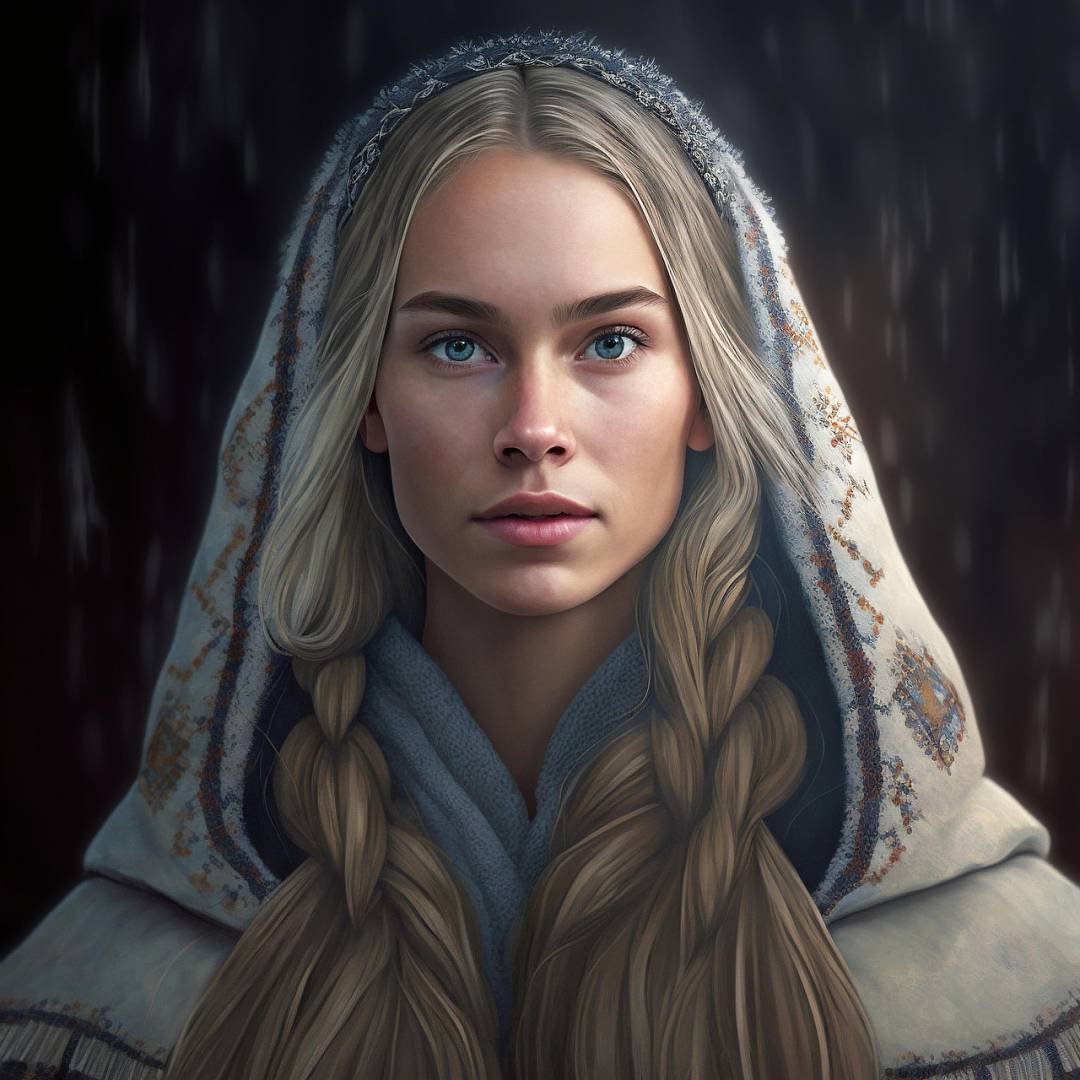
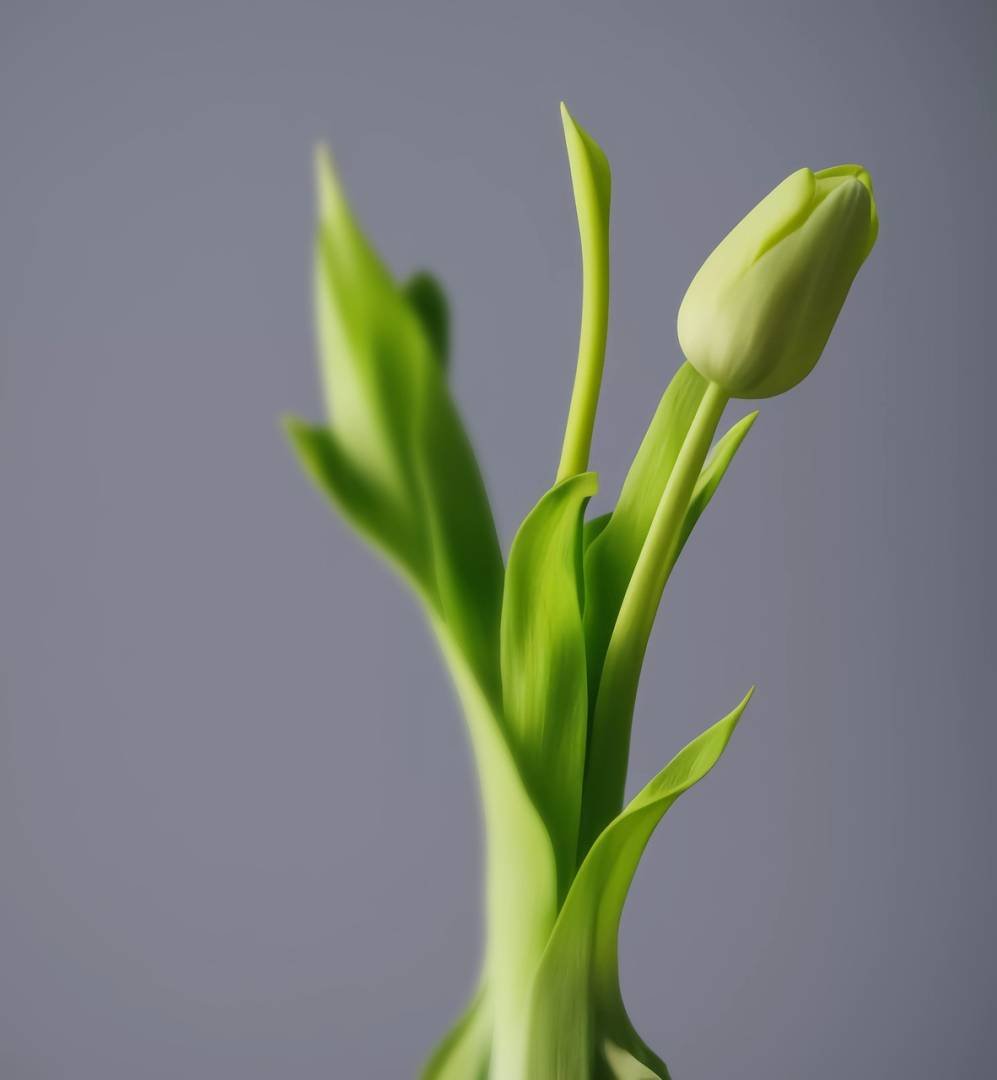
The final images were breathtaking, telling a story without a single word. This process taught me that specificity is emotion in AI art.
Navigating Limitations & Building Trustworthiness
Creating amazing AI generated art also means understanding the tool’s boundaries. Being transparent about this builds Authoritativeness and Trustworthiness (E-E-A-T).
- Photorealism of Faces: DALL-E 3 has safeguards. It may struggle with generating photorealistic, recognizable faces of public figures. It’s designed for creative and safe use.
- Text Rendering: While vastly improved, text within images (like signs) can sometimes be imperfect. You can guide it with phrases like
a sign that clearly reads "Open". - Brands & Logos: Avoid generating direct copies of copyrighted logos. Focus on inspired-by styles.
- Violence & Mature Content: The tool has strong safety filters to prevent the generation of harmful imagery. Focus your creativity on positive, artistic, and imaginative concepts.
For the latest on Bing Image Creator’s capabilities and policies, always refer to the official Microsoft Blog, a high-authority external source.
Ethical Creation & Originality
Your AI art journey should be responsible and original.
- Be Inspired, Don’t Imitate: Use the tool to create new visions, not to replicate specific living artists’ works without additive transformation.
- Commercial Use: Understand the terms. Microsoft provides a license to use images created with Bing for commercial purposes, but you should review their Current Usage Terms for the most up-to-date information.
- Disclose AI Use: If sharing your work, consider disclosing it was AI-assisted. It fosters honest conversation in the art community.
Beyond the Single Image: Creative Applications
Bing Image Creator isn’t just for one-off pictures. Use it for:
- Concept Art & Brainstorming: Generate dozens of ideas for character designs, environments, or products in minutes.
- Storyboarding: Create consistent visual sequences for stories or videos using similar, iterative prompts.
- Social Media Content: Create unique, eye-catching graphics for your posts.
- Inspiration for Traditional Art: Use an AI-generated piece as a sketch or composition reference for your own painting or drawing.
Frequently Asked Questions (FAQ)
Q: Is Bing Image Creator completely free?
A: Yes, it is free to use. It operates on a “Boost” system. You get a set of Boosts for faster generation, and once depleted, images generate more slowly.
Q: What are the image size and format of downloads?
A: You can download images as a .png file in a square format (1024×1024 pixels). For other aspect ratios, you can specify in your prompt (e.g., wide 16:9 aspect ratio).
Q: Can I edit the AI-generated images within Bing?
A: The “Customize” feature allows you to generate variations based on an existing image’s prompt. For more advanced editing (like object removal, blending), you’ll need separate image editing software.
Q: How does Bing Image Creator differ from Midjourney or Stable Diffusion?
A: Bing is free, web-based, and requires no technical setup. It uses DALL-E 3, which is exceptional at following detailed prompts. Midjourney is often praised for its distinctive artistic style but operates through Discord. Stable Diffusion is highly customizable and open-source but requires more technical knowledge.
Q: Who owns the artwork I create?
A: According to Microsoft’s terms, you own the images you create with Bing Image Creator, including for commercial use, subject to their terms of service and the AI Code of Conduct.
Conclusion: Your Journey Awaits
Creating amazing AI generated art with Bing Image Creator is a skill that blends imagination, linguistic precision, and iterative design. It democratizes art creation, allowing anyone with a vivid idea to become a visual storyteller. Start simple, embrace the process of refinement, and don’t be afraid to inject your unique perspective into every prompt. The canvas is infinite—your next masterpiece is just a description away.
Remember, the tool is your collaborator. Your human creativity—your choice of subject, the emotion you want to convey, the story you wish to tell—is what will make your art truly amazing.