
Introduction
If you’ve ever been in the middle of an important task only to be interrupted by a sudden “Power Surge on the USB Port” error on your Windows 11 PC, you know how frustrating it can be. This cryptic message not only disconnects your vital USB device but also hints at potential hardware problems. This comprehensive, step-by-step guide will demystify this error. We’ll explain what it truly means, walk you through a systematic troubleshooting process—from simple quick fixes to advanced hardware checks—and provide unique insights to get your USB ports working safely again. By the end, you’ll not only have solved the issue but also gained the knowledge to prevent it from happening in the future.
What Does the “Power Surge on the USB Port” Error Actually Mean?
Contrary to what the name implies, this error is rarely about an external power surge from your wall outlet. Instead, it’s a protective warning from your computer’s motherboard and Windows itself.
In simple terms: Your USB port has detected that a connected device is drawing more electrical current (measured in amps) than the port is designed to safely provide.
The standard limit for a USB port is:
- USB 2.0: 0.5A (500mA)
- USB 3.0/3.1/3.2: 0.9A (900mA)
- USB-C with Power Delivery (PD): Can negotiate much higher power (e.g., 1.5A, 3A, or more).
When a device exceeds this limit, Windows triggers the error to prevent damage to your motherboard’s sensitive USB controller chips, potentially saving you from a costly repair.
Systematic Troubleshooting: How to Fix the USB Power Surge Error
Follow these steps in order, starting with the simplest and safest solutions.
Step 1: The Immediate & Safe First Actions
- Disconnect and Reconnect: Unplug the device causing the error. Shut down your PC completely (not just restart). Wait 60 seconds, then power it back on and reconnect the device. This clears temporary electrical states.
- Try a Different USB Port: Connect the device to another port, preferably on the opposite side of your computer. This rules out a single faulty port.
- Check the Device on Another PC: Plug the problematic device into another computer. If it triggers the same error there, the fault likely lies with the device or its cable.
Step 2: Software & Driver Solutions
A. Update or Reinstall USB Controllers
Corrupted or outdated drivers are a common culprit.
- Press
Win + Xand select Device Manager. - Expand the Universal Serial Bus controllers section.
- Right-click on each item named “USB Root Hub” or “USB Host Controller” and select Update driver > “Search automatically for drivers.”
- If the error persists, right-click and choose Uninstall device. Restart your PC. Windows will automatically reinstall fresh drivers upon reboot.
B. Disable USB Selective Suspend Setting
This power-saving feature can sometimes cause unstable power delivery.
- Go to Settings > System > Power & battery.
- Click on Power mode and set it to Best performance temporarily.
- For a finer control, go to Control Panel > Hardware and Sound > Power Options. Next to your active plan, click Change plan settings > Change advanced power settings.
- Expand USB settings > USB selective suspend setting and set it to Disabled. Click Apply and OK.
C. Run Windows Hardware Troubleshooter
Windows has a built-in tool for this.
- Go to Settings > System > Troubleshoot > Other troubleshooters.
- Find Hardware and Devices and click Run.
Step 3: Advanced System & Registry Checks
Warning: Editing the registry can be risky. Always create a system restore point first.
A. Modify the USB Port Power Threshold (For Advanced Users)
Sometimes, the default threshold is set too low.
- Press
Win + R, typeregedit, and press Enter. - Navigate to:
HKEY_LOCAL_MACHINESYSTEMCurrentControlSetEnumPCI - Here, you’ll find complex subfolders named after your hardware IDs. Look for folders containing “USB” and “ROOT_HUB” in their names. You may need to explore carefully.
- Within a relevant folder, look for a key called
DeviceDescthat identifies a USB Root Hub. - In that same folder, look for a DWORD (32-bit) Value named
RTCurrentLimit. If it exists, its value represents the current limit in milliamps (e.g.,0x4b0= 1200mA). Consult your motherboard manual before changing this. If it doesn’t exist, creating it incorrectly can cause instability. This step is best done after consulting official forums for your specific PC model.
B. Check for Windows Updates & BIOS/UEFI Updates
- Go to Settings > Windows Update and install all updates. Critical system patches can fix USB controller bugs.
- Updating BIOS/UEFI: Visit your PC or motherboard manufacturer’s website (e.g., Dell, HP, ASUS, MSI). Find your exact model and download the latest BIOS file. Follow their instructions exactly. A failed BIOS update can brick your motherboard, so proceed only if you are confident and the update notes mention USB fixes.
Step 4: Physical & Hardware Investigations
This is where most persistent problems are found.
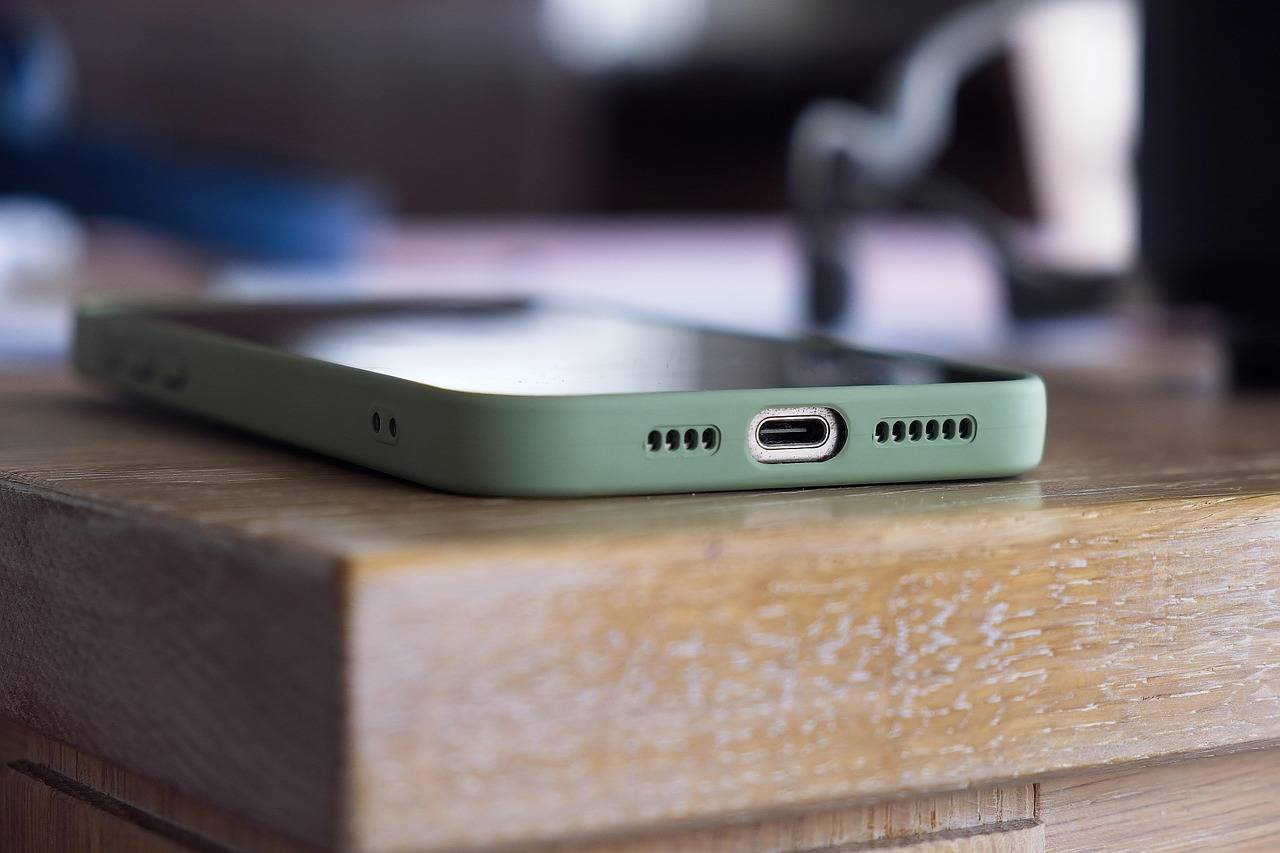

A. Inspect for Physical Damage
- Look inside the USB port with a flashlight. Are the pins bent, dirty, or corroded? Is there debris (lint, dust) packed at the back?
- Carefully clean the port using compressed air. Do not use a metal object. A dry, soft-bristled brush can help.
A Case Study from Experience: The Lint Blockage
I once worked on a laptop that threw this error with every mouse. Visually, the port looked fine. Only under bright light and magnification did we see a dense wall of fabric lint compressed at the back, shorting the data pins and causing power instability. A careful pick with a plastic toothpick (never metal!) removed it, solving the error completely. Always check for this simple issue.
B. The Cable & Device Test
- Faulty cables are the #1 hardware cause. Try a different, high-quality cable. Cheap cables often have thin wires that can’t handle the required current.
- Is the device itself damaged? A short circuit inside a flash drive or external hard drive enclosure will cause an instant overload.
C. Diagnose with a Powered USB Hub
A powered USB hub has its own external power adapter. Connect it to your PC, then plug the problematic device into the hub.
- If the error stops: The device was indeed drawing too much power for your PC’s built-in ports. The powered hub solves this.
- If the error continues on the hub: It strongly points to a fault in the device or its cable, not your PC.
D. The Ultimate Hardware Test: Linux Live USB
To completely rule out Windows software issues, boot your computer from a Linux Live USB (like Ubuntu).
- Create a bootable Ubuntu USB on another computer.
- Boot from it (you may need to change the boot order in BIOS).
- Choose “Try Ubuntu.”
- Connect your problematic device. If it works flawlessly in Linux for an extended period, the issue is likely Windows driver or registry-related. If the error persists (or the device isn’t recognized), it’s almost certainly a physical hardware fault.
Step 5: When All Else Fails: The Last Resorts
-
Perform a Clean Boot: This starts Windows with minimal drivers and startup programs, helping identify software conflicts.
- Press
Win + R, typemsconfig, and hit Enter. - Go to the Services tab, check “Hide all Microsoft services,” then click Disable all.
- Go to the Startup tab, click Open Task Manager, and disable all startup items.
- Restart. If the error is gone, re-enable services/startup items in batches to find the culprit.
- Press
-
System Restore: If the error started recently, roll back to a point before it began via Start > type “Create a restore point” > System Restore.
- Consider Professional Repair: If you’ve reached this point and the error persists across multiple devices and cables, the issue is likely a failed USB controller chip on the motherboard. This requires component-level repair or a motherboard replacement, best left to professionals.
Prevention: How to Avoid the USB Power Surge Error
- Use High-Quality Cables & Devices: Avoid no-name, ultra-cheap accessories.
- Invest in a Powered USB Hub: Essential for power-hungry devices like external hard drives, high-end webcams, or VR headsets.
- Eject Devices Properly: Always use “Safely Remove Hardware” for storage devices.
- Keep Ports Clean: Regularly check for and remove dust and debris.
- Don’t Overload Ports: Avoid cheap, unpowered multi-port splitters for multiple high-power devices.
Frequently Asked Questions (FAQ)
Q1: Is the “Power Surge on USB Port” error dangerous for my computer?
A: The error itself is a safety feature preventing danger. Ignoring it and repeatedly forcing devices into a faulty port can lead to permanent motherboard damage.
Q2: Can a virus cause this error?
A: It’s extremely rare, but malware corrupting system files or drivers could theoretically cause instability. Run a scan with Windows Security or a reputable antivirus to rule it out.
Q3: I get the error on multiple ports with any device. What does this mean?
A: This strongly suggests a problem with the motherboard’s USB controller or its power delivery circuitry. A BIOS update might help, but hardware failure is likely.
Q4: Does this error mean my USB device is broken?
A: Not necessarily. The device could be fine, but its cable might be faulty, or it might simply require more power than your PC can provide (solved by a powered hub). Always test the device with a different cable on another PC first.
Q5: Where can I find reliable technical specifications for my USB port’s power limits?
A: The best source is the official Technical Product Specification or manual from your PC or motherboard manufacturer. Sites like Intel’s ARK Database or USB.org provide the official USB standards.
Conclusion
The “Power Surge on the USB Port” error in Windows 11 is less of a catastrophe and more of a helpful—if alarming—diagnostic tool. By understanding that it’s an over-current warning, you can methodically work through the solutions: starting with simple reboots and driver updates, moving through system settings, and finally investigating physical hardware like cables and ports. Remember, the most common fixes are often the simplest: try a different cable, use a different port, or employ a powered USB hub.
By following this structured guide, you equip yourself not just to fix this error, but to understand and maintain the health of your computer’s entire USB ecosystem. If the problem points to a serious motherboard fault, consulting a professional technician is the wisest and most cost-effective final step.