
Introduction
Have you ever looked up at the night sky, spotted the glowing Moon, and wondered, “Is that a waxing gibbous or a waning crescent?” Or perhaps you’re planning a moonlit hike, a night of astrophotography, or a quiet beach evening and need to know precisely when the Moon will rise. Your iPhone, especially with iOS 17, holds a powerful, built-in secret: a comprehensive, easy-to-use moon tracker and calendar. This guide will walk you through everything you need to know about checking moon phases, moonrise, moonset, and accessing a full lunar calendar directly from your pocket. Whether you’re a stargazer, a photographer, or simply moon-curious, this feature transforms your iPhone into a personal planetarium.
Why Track the Moon? More Than Just a Pretty Light
Before we dive into the “how,” let’s explore the “why.” Understanding the Moon’s cycle is not just poetic; it’s practical.
- Photography: Plan the perfect shot. A full moonrise against a city skyline or a thin crescent at dusk requires precise timing.
- Astronomy: Darker skies around the new moon are ideal for observing faint galaxies and nebulae.
- Outdoor Activities: Time your camping trips, night runs, or fishing expeditions (some believe fishing is better during certain phases).
- Gardening: Biodynamic gardeners often plant by the lunar calendar.
- Cultural & Personal: Many cultures and individuals follow lunar cycles for festivals, meditation, or simply feeling connected to natural rhythms.
iOS 17’s Weather app and World Clock have seamlessly integrated this celestial data, making it more accessible than ever.
Part 1: Your Primary Tool – The Weather App Moon Phase Card
The most direct and visually stunning way to check the moon phase is through the redesigned Weather app.
Step-by-Step Guide:
- Open the Weather App on your iPhone. Ensure it’s updated to iOS 17 for the full experience.
- Swipe or Navigate to your current location or any saved location for which you want moon data.
- Scroll Down through the hourly forecast and detailed information panels.
- Find the “Moon” Card. You’ll see a beautifully rendered, real-time 3D model of the Moon’s current phase. It’s interactive!
- Tap on the Moon Graphic. This expands the view, showing you:
- Current Phase: Named (e.g., “Waxing Gibbous”).
- Illumination Percentage: Exactly how much of the Moon’s face is lit by the Sun (e.g., “92% illuminated”).
- Moonrise & Moonset Times: For the current day.
- A Visual Timeline: A bar showing when the Moon is above the horizon (lit portion) versus below.
Pro Tip: The 3D model is not static. You can drag your finger on it to rotate the Moon and see the lit area from different angles, a fantastic feature for understanding lunar libration.
Part 2: The Secret Hub – Moon Data in the World Clock
For a more data-centric view and the crucial Moon Phase Calendar, the World Clock is your go-to. This is often overlooked but is incredibly powerful.
How to Access It:
- Open the Clock App on your iPhone.
- Tap the “World Clock” tab at the bottom.
- Add Your Location if it’s not already listed (tap the
+icon). - Tap on the name of your city/location. Don’t just look at the time display; tap the text label.
- Voilà! You’ll now see a detailed screen showing:
- Sunrise & Sunset times.
- Moonrise & Moonset times.
- And most importantly, a visual monthly Moon Phase Calendar.
Understanding the Moon Phase Calendar:
This compact calendar is a goldmine of information.
- Each day is represented by a small moon icon showing its phase.
- Scroll horizontally to move through the months.
- Tap on any day to see the exact moonrise and moonset times for that date.
- This allows for long-term planning. Want to know when the next new moon (darkest skies) is three months from now? Just scroll and tap.
Part 3: Putting It All Together – A Practical User’s Guide
Let’s contextualize this with real-world scenarios.
Scenario 1: Planning a Full Moon Photoshoot
- Open Clock > World Clock > tap your city.
- Look at the phase calendar. Find the icon that’s a full circle (Full Moon).
- Tap that date. Note the moonrise time. It will rise around sunset.
- Now, open the Weather app for that day. Check the cloud forecast to ensure skies will be clear.
- You now have your perfect shoot date and time.
Scenario 2: Finding the Best Stargazing Night (New Moon)
- In the World Clock moon calendar, look for the black or mostly dark circle (New Moon).
- Tap that date. Note that there will be no moonrise or moonset listed in the main summary because the moon rises and sets with the sun and is invisible. This means the night will be darkest.
- Cross-reference with the Weather app for cloud cover on that night.
Scenario 4: Understanding Daily Changes
Check the Weather app’s moon card daily. Observe how the illumination percentage changes by 1-2% each day. A “Waxing Crescent” (growing) will have an increasing percentage, while a “Waning Gibbous” (shrinking) will have a decreasing percentage. This daily check builds an intuitive sense of the 29.5-day lunar cycle.
Deep Dive: Understanding What You’re Seeing
To move from casual observer to informed enthusiast, let’s decode the terminology.
The Eight Moon Phases:
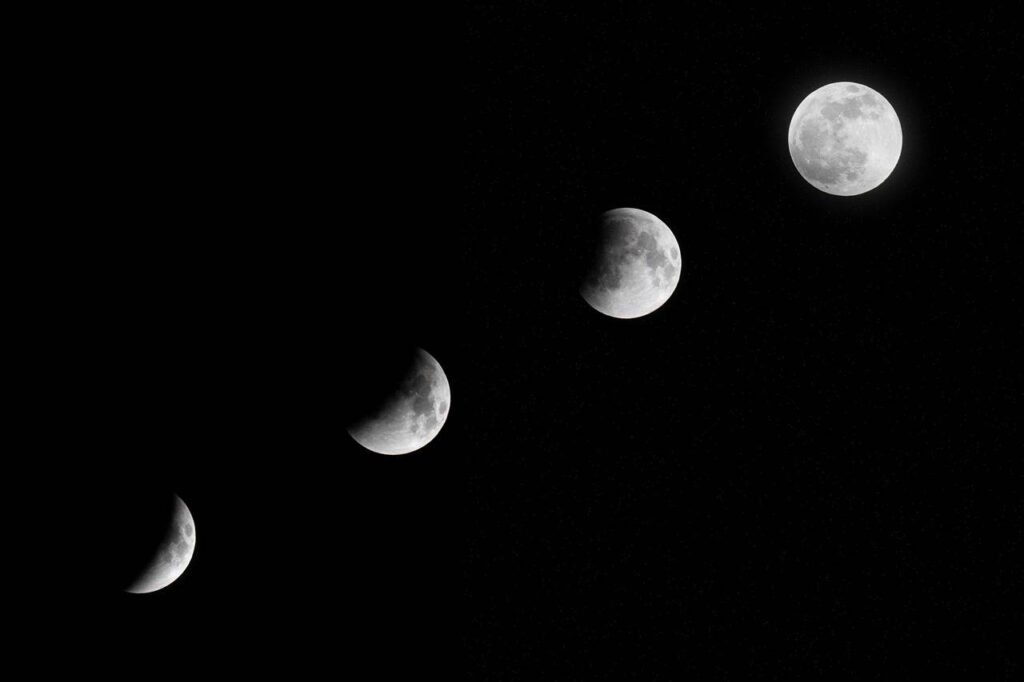
- New Moon: The Moon is between Earth and the Sun. It’s invisible from Earth (0% illuminated).
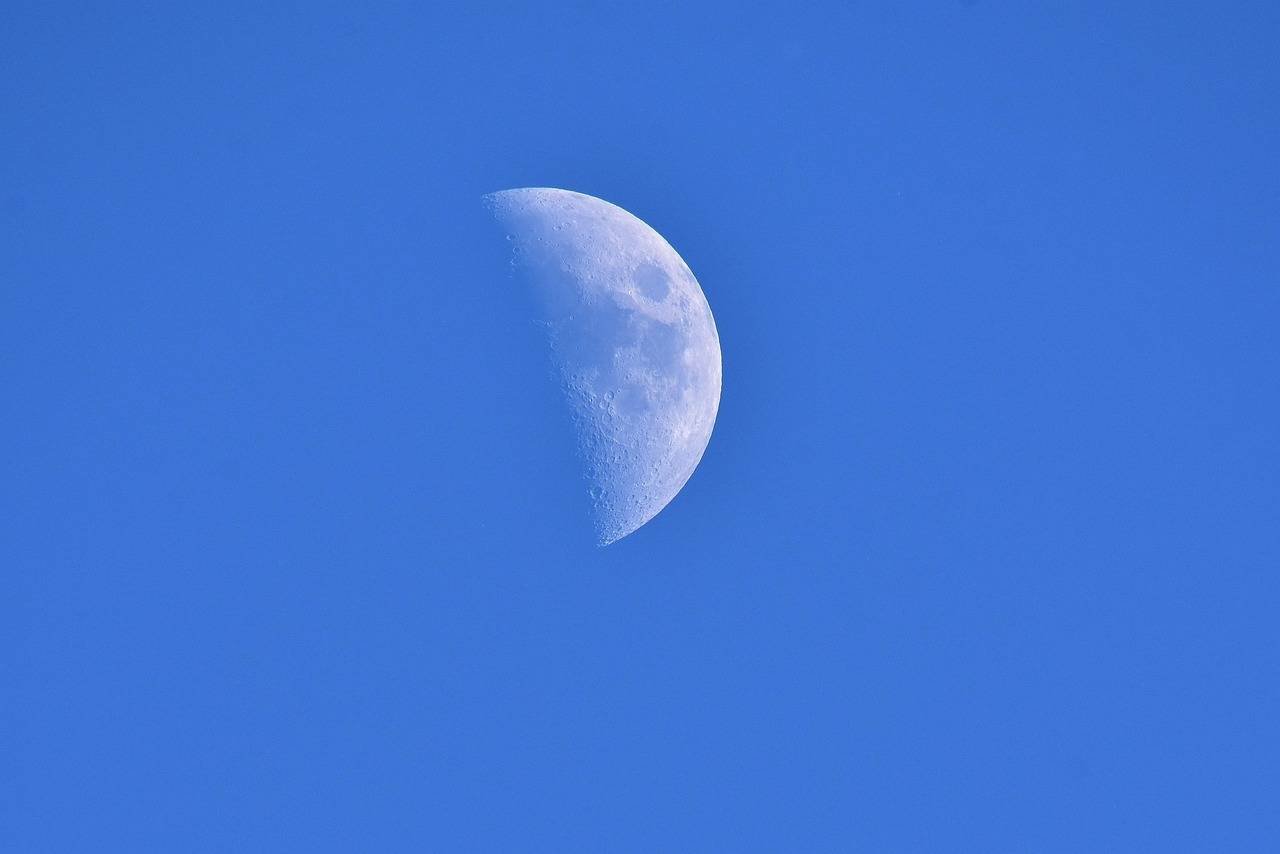
- Waxing Crescent: A sliver of the right side is lit (in the Northern Hemisphere).
- First Quarter: Exactly half of the right side is illuminated.
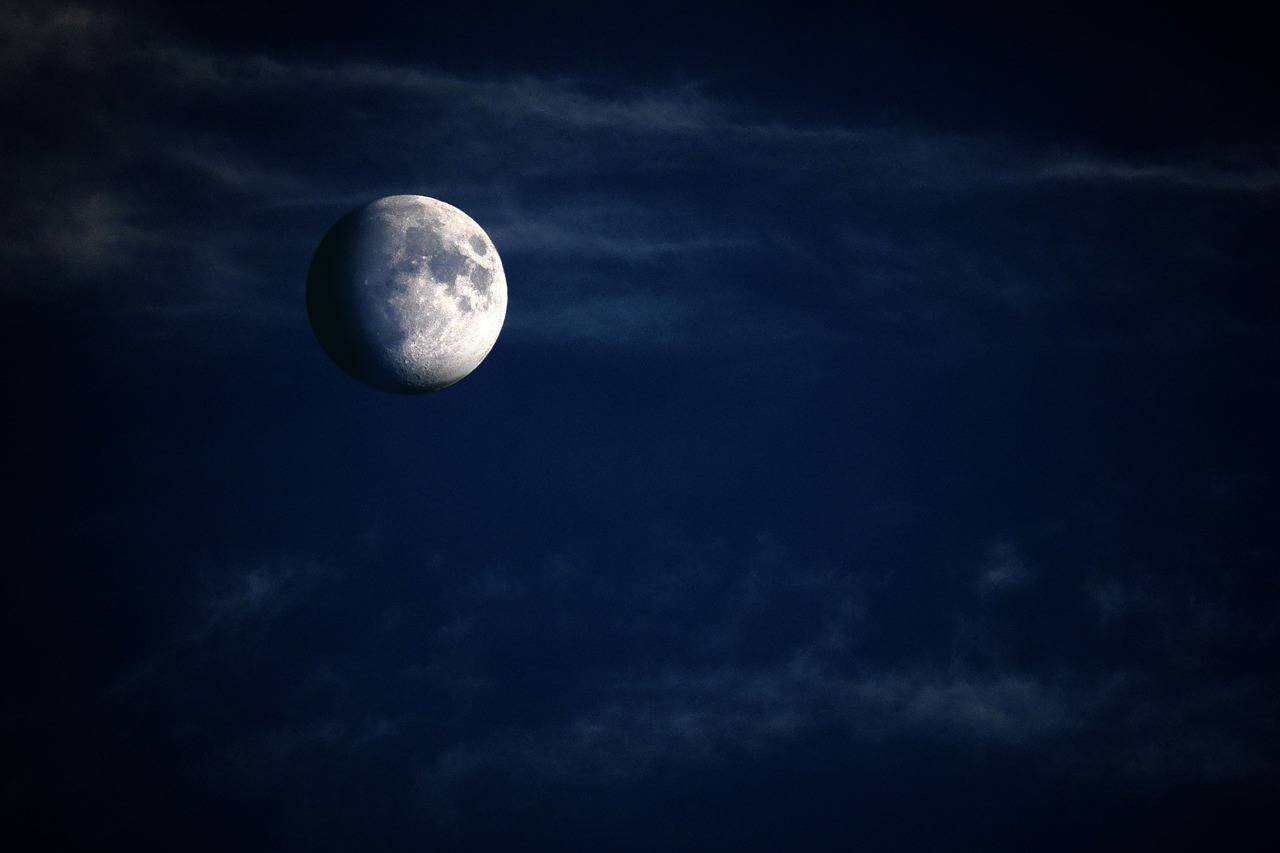
- Waxing Gibbous: More than half, but not full, is lit.
- Full Moon: The entire face is illuminated by the Sun.
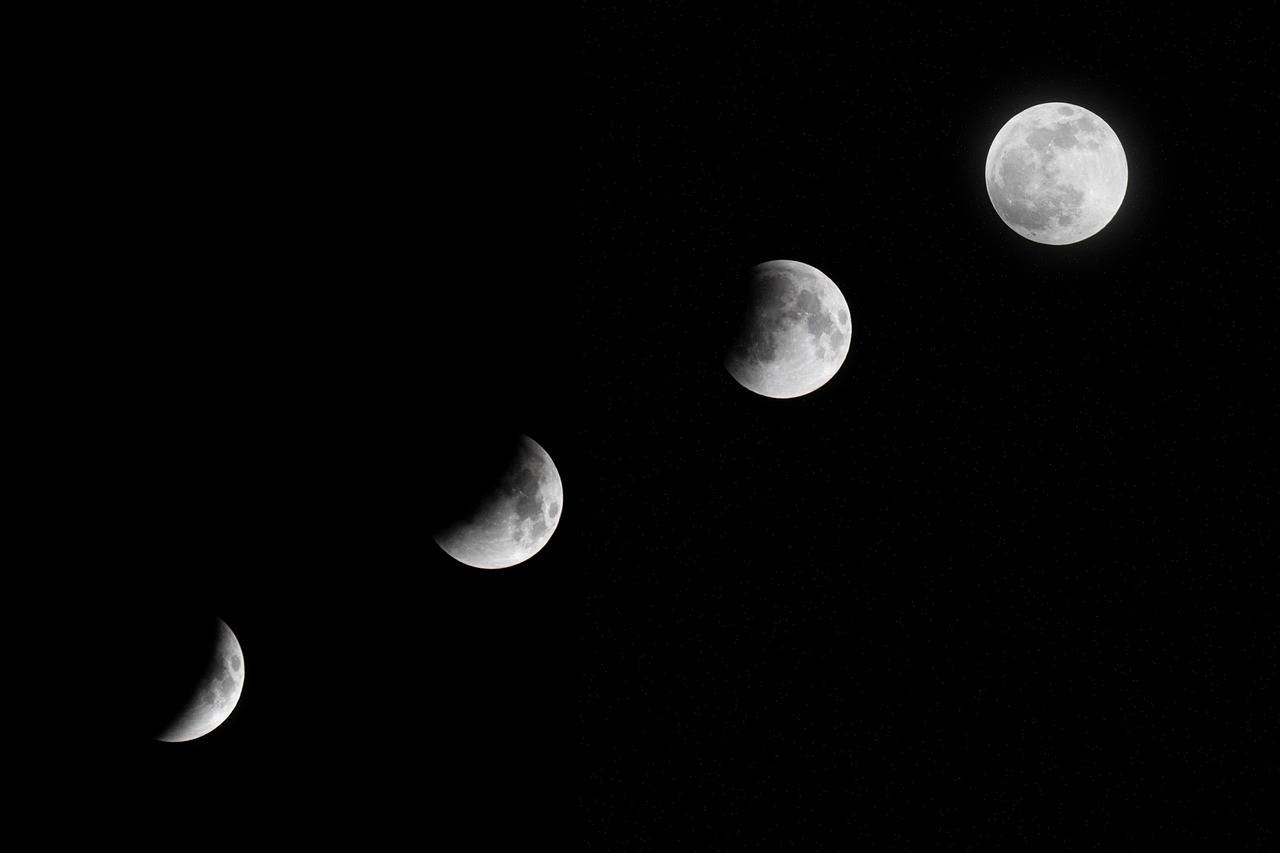
- Waning Gibbous: The illumination starts to decrease from the left side.
- Last Quarter: The left half is illuminated.
- Waning Crescent: A final sliver on the left before returning to New Moon.
Key Times:
- Moonrise: The time the Moon’s upper limb appears above the eastern horizon.
- Moonset: The time it disappears below the western horizon.
- “Above Horizon” Bar: In the Weather app, the solid bar shows when the Moon is up. This helps you quickly gauge if the Moon will be visible during your evening plans.
Beyond the Built-in Apps: Enhancing Your Lunar Experience
While iOS 17’s native tools are excellent, power users might appreciate these tips:
- Siri Shortcuts: Create a shortcut that says “Hey Siri, what’s the moon phase?” or “When is moonrise tonight?”
- Third-Party Apps: For more detailed data (like exact azimuth of moonrise, supermoons, blue moons, or eclipse paths), apps like Sky Guide or The Photographer’s Ephemeris offer advanced features and link with your phone’s compass.
- Widgets: Add the Weather widget to your Home Screen or Lock Screen. While it doesn’t show the moon phase by default, it gives quick access to the app where it’s just a tap away.
FAQ: Your Lunar Questions Answered
Q1: Is the moon phase data on my iPhone accurate?
A: Yes. Apple sources its astronomical data from reputable providers. The times and phases are calculated for your specific geographical location, making them highly accurate for practical purposes.
Q2: Why are there no moonrise/moonset times for the New Moon?
A: During the New Moon phase, the Moon rises and sets approximately with the Sun. It’s too close to the Sun’s glare in the sky to be visible, so it’s not typically listed as a distinct “moonrise” event in the simple view.
Q3: Can I see past or future moon phases for any date?
A: Absolutely. The Moon Phase Calendar in the World Clock allows you to scroll months into the future and presumably into the past (limited by the app’s design). It’s a perfect long-term planner.
Q4: Does this work for any location in the world?
A: Yes. Add any city in the World Clock, and you will get precise lunar data for that location. This is fantastic for planning trips or understanding the moon’s cycle from a different part of the globe.
Q5: My Weather app doesn’t show the moon card. What’s wrong?
A: First, ensure you’re on iOS 17. Second, scroll down thoroughly—it’s below the air quality and UV index cards. If it’s genuinely missing, try restarting the app or your iPhone.
Conclusion: Your Pocket-Sized Planetarium
With iOS 17, Apple has elegantly embedded a sophisticated lunar tracker into the everyday Weather and Clock apps. You no longer need separate apps or websites to connect with our celestial neighbor. From the interactive 3D model in Weather to the planning-friendly calendar in World Clock, you have all the tools to track the Moon’s graceful dance around Earth.
So tonight, before you step outside, pull out your iPhone. Check the phase. Note the time it rises. Understand its journey. This simple act transforms a casual glance at the sky into an informed experience, connecting you to the ancient rhythms that have guided humans for millennia—all powered by the modern marvel in your pocket.
External Resources for the Curious Mind:
- NASA’s Scientific Moon Page: For the latest lunar science and exploration missions. (https://moon.nasa.gov)
- Timeanddate.com Moon Phase Calculator: A deeper dive into global lunar data and explanations. (https://www.timeanddate.com/moon/phases/)
- The Old Farmer’s Almanac: For traditional moon lore, gardening by the moon, and more. (https://www.almanac.com/astronomy/moon/calendar)