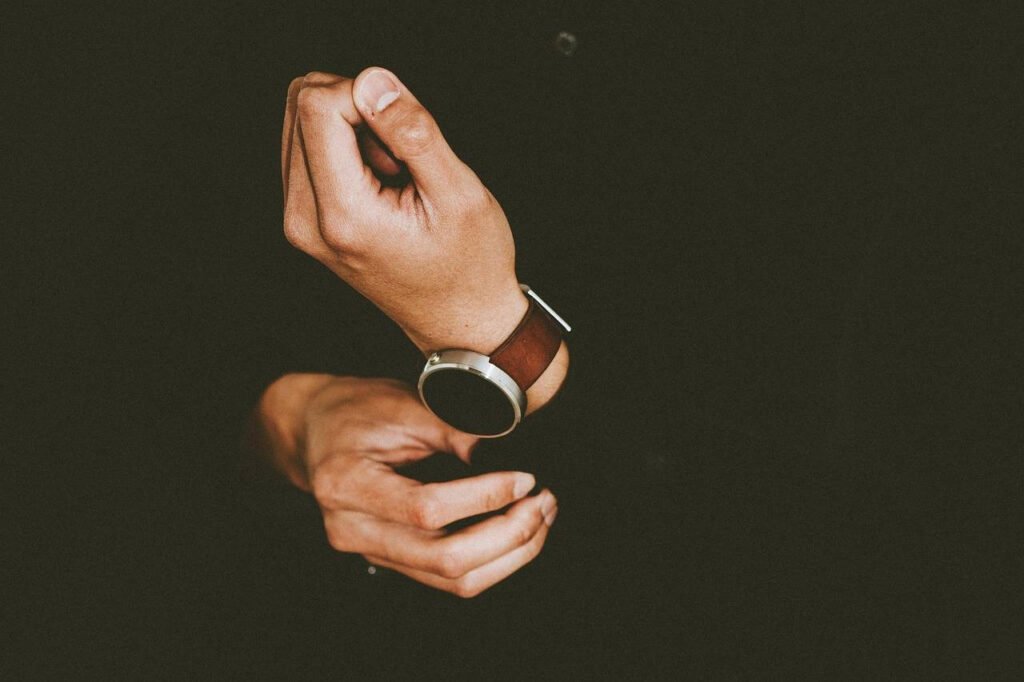

The Apple Watch has always been a marvel of miniaturized technology, but sometimes the most exciting features are the simplest gestures. With the release of watchOS 10.1 and a special update for Apple Watch Series 9 and Ultra 2, Apple introduced a game-changing new way to interact with your device: the Double Tap gesture. This isn’t just a new button; it’s a fundamental shift towards a more intuitive, hands-free Apple Watch experience.
Forget fumbling with the Digital Crown or trying to tap a small screen with your opposite hand while holding groceries, a dog leash, or a yoga pose. The Double Tap feature on Apple Watch uses the advanced sensors and a powerful new machine learning algorithm to detect the tiny movements in your fingers and wrist when you simply tap your thumb and index finger together twice. It’s magic you can control. This comprehensive guide will dive deep into how to use it, customize it, and master it to make your Apple Watch more responsive than ever.
What is the Double Tap Gesture on Apple Watch?
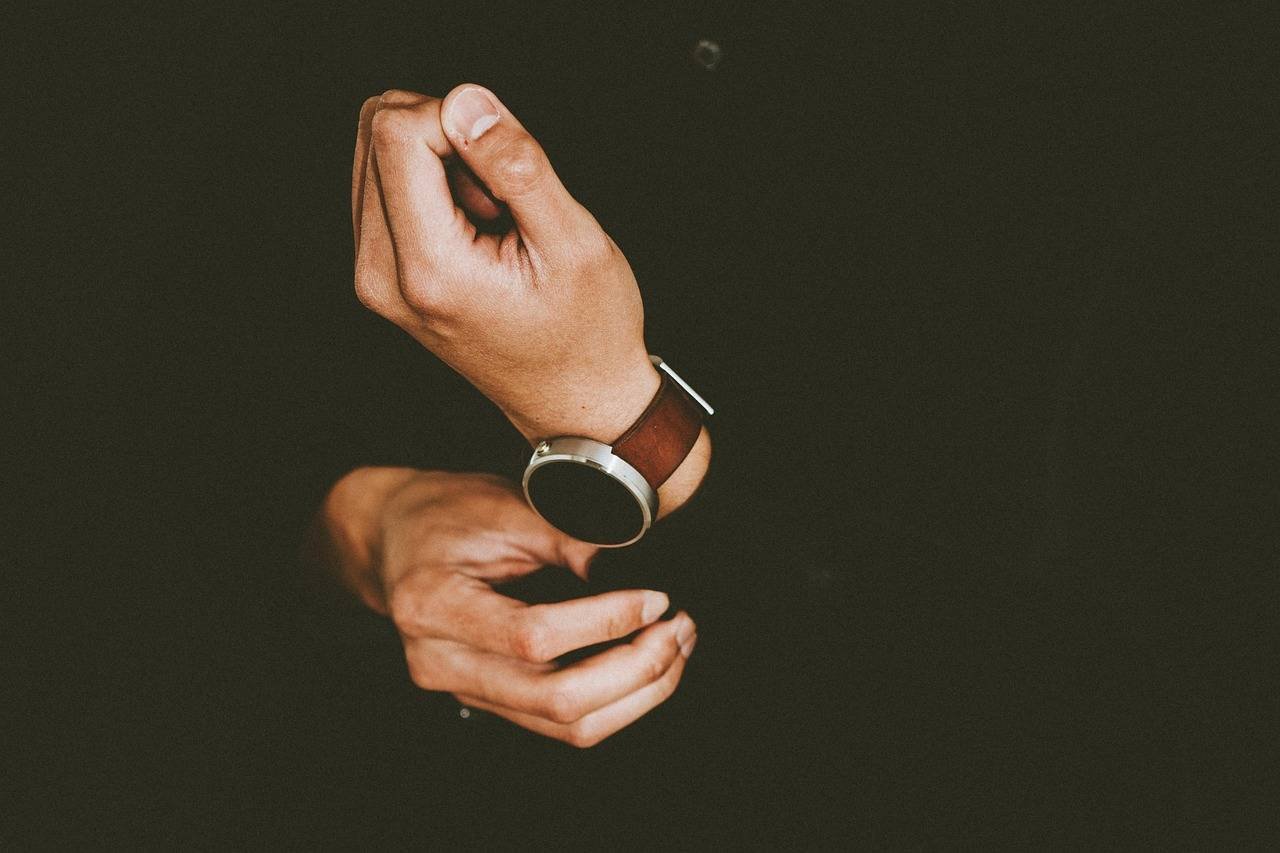
At its core, Double Tap is an accessibility feature turned mainstream powerhouse. It allows you to perform the primary action in an app or notification with a quick, one-handed gesture—a double pinch of your index finger and thumb on the hand wearing the watch.
Imagine you’re on a call and need to mute yourself, but your other hand is busy. Just double tap. You get a notification and want to scroll through it without touching the screen? Double tap. You’re using the Smart Stack and want to cycle through widgets? Double tap. This gesture essentially acts as a virtual “select” button, triggering the most logical next action based on the context you’re in.
Which Apple Watches Support Double Tap?
This is a crucial detail. The Double Tap feature is powered by the new S9 SiP’s (System in Package) enhanced Neural Engine, which can process machine learning tasks directly on the device. This requires the advanced hardware found in:
- Apple Watch Series 9
- Apple Watch Ultra 2
It is not available on older models like the Series 8, Ultra (1st gen), or SE, even with the latest watchOS updates. This hardware exclusivity is what allows the gesture to be incredibly fast and responsive, as it processes data from the accelerometer, gyroscope, and optical heart sensor locally on your wrist, ensuring your privacy and speed.
How to Set Up and Enable Double Tap
The good news is, if you have a compatible watch, Double Tap is likely already on and waiting for you. It’s enabled by default when you set up your new Apple Watch Series 9 or Ultra 2 with watchOS 10.1 or later. However, it’s wise to check and customize it to your liking.
Here’s a step-by-step guide:
- Open the Settings App on your Apple Watch.
- Scroll down and tap “Gestures.”
- Select “Double Tap.”
- Here, you’ll find the main toggle to ensure it’s On. You can also watch a helpful demo video right here on the watch.
- You have two control options:
- Default: This is the standard setting where Double Tap performs the “primary action.”
- Quick Actions: This gives you more granular control, allowing you to choose which action (like Play/Pause or Snooze) Double Tap performs, often overriding the contextual default.
My personal experience has been that the “Default” option is the most intuitive for day-to-day use, as it intelligently adapts. However, “Quick Actions” is fantastic if you find yourself repeatedly wanting a specific action, like using Double Tap only to play/pause media.
What Can You Actually Do With Double Tap? (A Practical Guide)
This is where the feature comes to life. Let’s break down the most common and useful scenarios, moving beyond the marketing to real-world utility.
1. Managing Calls & Notifications Hands-Free
This is arguably the killer app for Double Tap.
- Answering a Call: When a call comes in, a double tap will answer it. No more frantic swiping to the green button.
- Ending a Call: During an active call, double tap to hang up. This feels incredibly natural.
- Dismissing Notifications: View a notification, and when you’re done, a double tap will dismiss it and return you to your watch face.
- Scrolling Long Notifications: If you receive a long text or email preview, successive double taps will scroll down the content, line by line. It’s perfect for reading a message while stirring a pot on the stove.
2. Mastering the Smart Stack and Widgets
Introduced in watchOS 10, the Smart Stack is a vertical list of intelligent widgets. Double Tap integrates seamlessly.
- Scroll Through Widgets: From your watch face, swipe up to enter the Smart Stack. Now, instead of swiping, simply use Double Tap to cycle through each widget one by one.
- Interact with Widgets: On some interactive widgets (like a Timer), a double tap might perform the main action, like stopping the timer.
3. Controlling Music, Podcasts, and Timers
Media control is a major win for convenience.
- Play/Pause: Whether you’re listening to music on Spotify, a podcast in Overcast, or an audiobook, a double tap will play or pause the audio. This works both from the Now Playing complication and within media apps.
- Snooze Alarms & Timers: Your morning alarm is blaring. Instead of slapping the screen, a gentle double tap will snooze it. The same gesture stops a running timer when the alert goes off.
4. Using Double Tap with the Primary Action
This is the “catch-all” mode. In many apps, a primary button is highlighted (often with a blue ring or a pulsing animation). A double tap acts as a virtual press of that button.
- Stopwatch: Start and stop the stopwatch with a double tap.
- Workout App: Start a new workout segment (like a new running interval) or pause/resume your session.
- Camera Remote: When using your watch as a viewfinder for your iPhone’s camera, a double tap takes the photo.
- Voice Memos: Start and stop recording without making a sound.
Pro Tips and Troubleshooting: Mastering the Gesture
After months of daily use on my Apple Watch Ultra 2, I’ve learned a few nuances that aren’t in the manual.
- The Gesture is Subtle: You don’t need a loud, exaggerated pinch. A light, quick double tap of the thumb and index finger is enough. The sensors are detecting the muscle movement and blood flow change, not necessarily a loud sound.
- Wrist Position Matters: For the most reliable detection, try to keep your wrist relatively still and in a natural position when performing the gesture. Wildly swinging your arm while double tapping might confuse the sensors.
- It’s Contextual, Not Universal: Remember, Double Tap doesn’t do the same thing everywhere. It’s designed to do the smartest thing based on what’s on screen. This contextual intelligence is its greatest strength.
- Troubleshooting: If it’s not responding:
- Ensure your watch is on your wrist snugly (but comfortably). The sensors need good contact.
- Check the Gestures settings menu to confirm it’s enabled.
- Try the gesture slightly slower or faster. Find your natural rhythm.
- Restart your Apple Watch. This can resolve temporary software glitches.
Double Tap vs. AssistiveTouch: What’s the Difference?
This is a common point of confusion. Apple has had a similar AssistiveTouch feature in Accessibility settings for years. Here’s the key distinction:
- Double Tap: A mainstream, system-wide gesture focused on convenience and one-handed control. It’s simple, context-aware, and designed for everyone. Its actions are predefined by Apple based on the app you’re in.
- AssistiveTouch: An accessibility feature designed for users with limited mobility. It is highly customizable, allowing you to create complex gesture sequences, control an on-screen cursor, and perform virtually any function. It can be more powerful but also more complex to set up.
Think of Double Tap as the easy, intuitive version of a much more powerful tool. As noted by accessibility experts, features like this often start in the Accessibility menu before becoming mainstream, a process known as the “curb-cut effect” – where designs for disabled people end up benefiting everyone (Source: SSB Bart Group).
The Future of Wearable Interaction
The introduction of Double Tap is more than just a feature update; it’s a signal of Apple’s direction. It moves us closer to a world where we interact with technology through subtle, natural gestures rather than taps and swipes on a tiny screen. This aligns with broader industry research into human-computer interaction, which emphasizes intuitive, less intrusive control methods (Source: ACM Digital Library).
Could we see a “Triple Tap” or “Fist Clench” gesture in future watches? Given Apple’s patent history and the hardware capabilities of the S9 chip, it’s entirely possible. Double Tap lays the groundwork for a vocabulary of wrist-based gestures.
Final Verdict: Is Double Tap a Game-Changer?
Having used it extensively, my answer is a resounding yes—for the right person. If you frequently find yourself with one hand occupied (parents, cyclists, cooks, healthcare workers), this feature transitions from a neat trick to an indispensable tool. It makes the Apple Watch feel more like an extension of your body and less like a computer on your wrist.
However, its hardware exclusivity means most current Apple Watch users won’t benefit from it. For those with a Series 9 or Ultra 2, I highly recommend spending a week consciously trying to use Double Tap in the scenarios outlined above. It has a learning curve, but once it becomes muscle memory, you’ll wonder how you ever managed your watch without it.
To enable it, simply head to Settings > Gestures > Double Tap on your compatible Apple Watch. Start with answering a call or pausing your music. Before long, you’ll be effortlessly controlling your world with a simple, silent pinch.