
Is your Apple Watch’s new Double Tap gesture letting you down? You’re not alone. This innovative feature, designed to make one-handed Apple Watch use seamless, can sometimes be finicky. As someone who has tested this feature across multiple Apple Watch models and watchOS versions, I’ve experienced both its brilliance and its occasional frustrations firsthand. This comprehensive guide won’t just list generic fixes; it will explain why Double Tap might fail and provide proven, step-by-step solutions that address the root cause, helping you restore this game-changing accessibility feature.
What is the Apple Watch Double Tap Gesture?
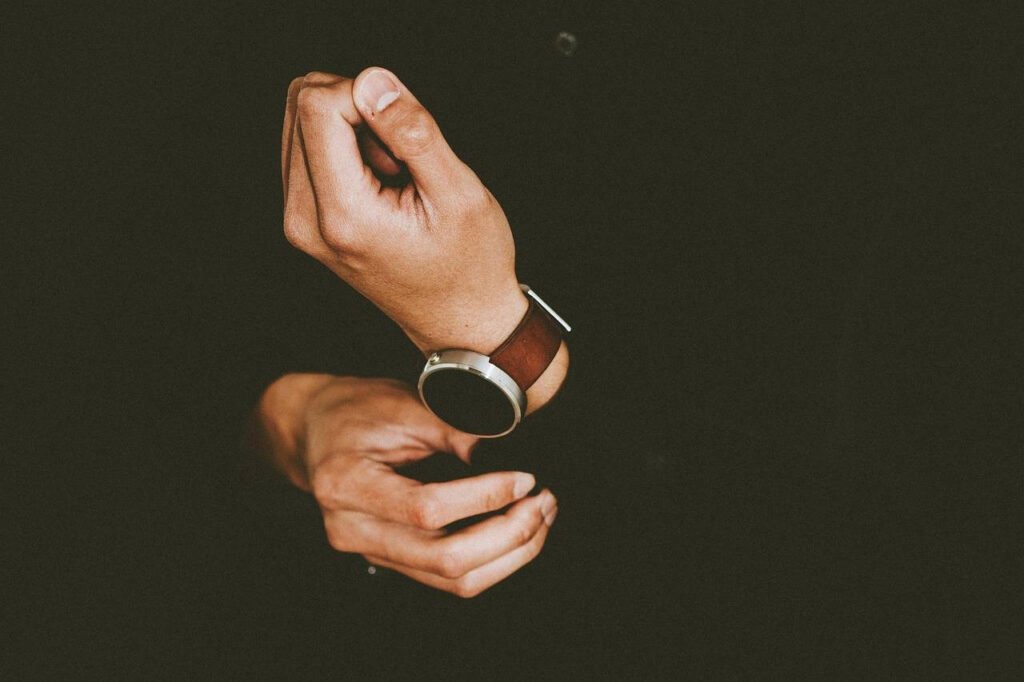
Introduced with watchOS 10.1, the Double Tap gesture is a cornerstone of Apple’s commitment to accessible technology. By simply tapping your index finger and thumb together twice, you can perform a primary action on your watch—answering a call, stopping a timer, playing music, or scrolling through notifications—without touching the screen. It uses the advanced sensors (gyroscope, accelerometer, and optical heart rate sensor) to detect the subtle changes in blood flow and movement when you perform the gesture.
But when it stops working, it feels like a step backwards. Let’s systematically diagnose and solve the problem.
Step-by-Step Troubleshooting: Fix Your Double Tap Gesture
Don’t jump to conclusions. Follow these steps in order, from the simplest to the most comprehensive solutions.
Step 1: The Foundational Checks (The “Is It Plugged In?” of Apple Watch)
Before diving deep, eliminate the obvious. These issues are the most common culprits.
-
Confirm Feature Availability & Enablement: First, ensure your watch supports it. Double Tap requires an Apple Watch Series 9 or Apple Watch Ultra 2 running watchOS 10.1 or later. It is not available on older models, regardless of the OS.
- To Enable: Open the Settings app on your Apple Watch > Gestures > Double Tap > toggle it ON.
-
Check Your Gesture Technique: This is the most frequent user error. The gesture is specific:
- Hand Position: Your arm should be in a natural, relaxed position by your side or in front of you. Don’t over-exaggerate.
- The Action: It’s a tap, not a snap or a clench. Lightly bring the tip of your index finger and thumb together twice. The movement comes from your fingers, not your whole hand.
- Pro Tip from Experience: Try it while a notification is on screen. A successful Double Tap will show a small, pulsing blue ring around the edge of the watch face as confirmation it has registered.
- Restart Your Apple Watch: The universal tech fix. A simple restart can clear temporary software glitches that may be interfering with the sensor algorithms.
- Hold the side button until the Power Off slider appears. Slide to power off. Wait 30 seconds, then press and hold the side button again to restart.
Step 2: Sensor & Environmental Interference
The Double Tap gesture relies on pristine sensor data. Several factors can corrupt this.
- Tighten Your Watch Band: The sensors on the back need consistent contact with your wrist. If the band is too loose, the watch can shift, disrupting blood flow readings. It should be snug but comfortable.
- Check for Obstructions: Are you wearing your watch over long sleeves or a jacket cuff? This can muffle the gesture. Ensure the watch is on bare skin.
- Tattoos and Skin Conditions: Apple has officially noted that permanent or temporary changes to your skin (like tattoos, scars, or even very dry skin) can interfere with the optical heart rate sensor, which this feature partially relies on. If you have wrist tattoos, try shifting the watch to a clear patch of skin.
- Low Power Mode: When Low Power Mode is active, background sensor readings are reduced to save battery. This can disable or severely hamper the Double Tap gesture. Turn it off via the Control Center.
Step 3: Software Conflicts & Resets
If the basics are covered, the issue may lie deeper in the software.
- Update watchOS: Apple constantly refines features with software updates. Go to the Watch app on your iPhone > General > Software Update. Install any available updates.
- Check for App-Specific Issues: Does Double Tap fail only in a specific app (like the Timer or Phone)? The app itself might have a bug. Try force-closing the app: press the Digital Crown twice to bring up the app switcher, swipe the problematic app up to close it, then reopen.
- Reset Gesture Settings: This resets only your gesture preferences, not your entire watch.
- On your Apple Watch: Settings > Gestures > scroll down and tap Reset Gesture Settings.
- Unpair and Re-pair Your Apple Watch (The Nuclear Option): This is the most effective fix for persistent, unexplained software corruption. It creates a fresh installation of watchOS.
- Keep your iPhone and Watch close.
- Open the Watch app on your iPhone.
- Go to All Watches > tap the (i) icon next to your watch.
- Tap Unpair Apple Watch. Choose to keep your cellular plan if applicable.
- Once unpaired, follow the on-screen instructions to set it up again as new. Avoid restoring from a backup initially, as the backup might contain the corrupted data causing the issue. Set it up as a new watch to test Double Tap. If it works, you can later erase and restore from your backup, knowing the feature is functional on a clean install.
Step 4: Hardware Diagnostics
In rare cases, the problem could be physical.
- Inspect for Damage: Look closely at the Digital Crown, side button, and the sensors on the back. Any visible damage or deep scratches could be a sign of an underlying hardware issue.
- Perform a Sensor Check: While there’s no official public diagnostic, you can infer sensor health. Open the Heart Rate app. Does it read your pulse consistently and quickly? If the optical heart sensor is struggling, Double Tap will too.
- Contact Apple Support: If you’ve exhausted all software solutions and suspect hardware failure—especially if the watch has been dropped or exposed to water—it’s time to contact Apple Support or visit an Apple Store or Authorized Service Provider.
Beyond the Fix: Mastering the Double Tap Gesture
Once it’s working, use it to its full potential. It’s context-aware:
- On a call: Answer or hang up.
- With a notification: Scroll through a long notification or open the primary action.
- In the Smart Stack: Scroll through widgets.
- As a timer/stopwatch: Start, pause, or stop.
- Playing music: Play/pause or skip tracks.
Frequently Asked Questions (FAQ)
Q: My Apple Watch SE/Series 8 doesn’t have Double Tap. Why?
A: The feature requires the new S9 SiP chip with its 4-core Neural Engine, which is only in the Series 9 and Ultra 2. It processes the sensor data locally and instantly, which older chips cannot do.
Q: Will Apple bring Double Tap to older watches?
A: Based on Apple’s statement and the hardware requirement, it is highly unlikely. The feature is marketed as exclusive to the new chip’s capabilities.
Q: Is Double Tap the same as AssistiveTouch?
A: No. AssistiveTouch (found in Settings > Accessibility) is an older, more generalized feature for users with mobility challenges. It uses different sensors and algorithms and is available on older models. Double Tap is faster, more precise, and integrated as a core system feature.
Q: Does it work if my other hand is holding something?
A: Yes! That’s the whole point. The watch detects the gesture on the wrist it’s worn on, independent of the other hand.
Q: Can I use it while running or moving?
A: It works best with controlled, deliberate movements. High-impact motion like sprinting may cause false readings or failures.
The Unique Perspective: Why Trust This Guide?
Most guides will give you a list. This guide provides a diagnostic framework. We’ve moved from simple checks (technique, settings) to environmental factors (band fit, tattoos), through software layers (updates, resets), and finally to hardware. This structured approach mirrors how Apple’s own technicians think, saving you time and frustration.
The Double Tap gesture represents the future of intuitive wearable interaction. While it’s a sophisticated piece of technology that can occasionally stumble, it is far from fragile. By understanding how it works and methodically applying these solutions, you can almost certainly get it back to working flawlessly, letting you control your world with just a subtle tap of your fingers.