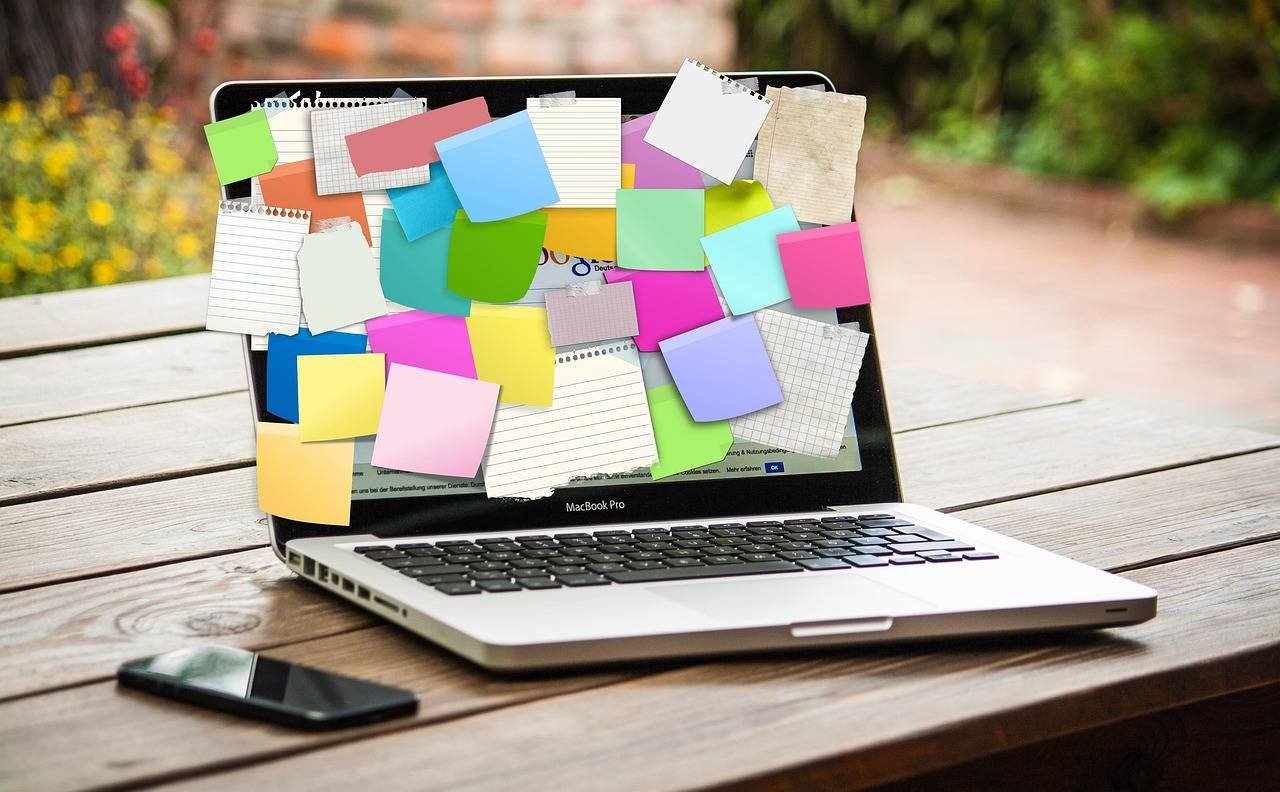

Imagine you’ve just spent an hour meticulously planning a project in Apple’s Freeform app. Your digital whiteboard is covered with sticky notes containing brilliant ideas, sensitive client data, and crucial next steps. Then, an accidental swipe during a collaborative session sends your perfect layout into chaos. This frustration is precisely why learning how to lock sticky notes in Freeform on iPhone, iPad, and Mac is a game-changer for productivity and peace of mind.
Whether you’re a student brainstorming a thesis, a designer mapping a user journey, or a project manager coordinating a team, locking elements in Freeform protects your work from unintended edits. This comprehensive guide will walk you through every step, explore why this feature matters, and provide expert tips to master digital organization across your Apple devices.
Why Locking Sticky Notes in Freeform is Essential
Freeform is Apple’s powerful, infinite-canvas collaboration tool integrated into iOS, iPadOS, and macOS. It’s designed for free-flowing ideation, where you can add text, links, documents, sticky notes, and drawings. However, its collaborative and fluid nature means elements can be easily moved or deleted.
Locking a sticky note (or any object) anchors it in place. Once locked, it cannot be moved, resized, edited, or deleted unless you explicitly unlock it. This is critical for:
- Preserving Layout Integrity: Maintain the structure of complex brainstorms or diagrams.
- Preventing Accidental Edits: Safeguard important information during active collaboration or personal use.
- Creating Templates: Lock header notes, section titles, or instructional elements to create reusable board templates.
- Enhancing Focus: Lock background reference materials so you can freely work on other elements without disruption.
Step-by-Step: How to Lock a Sticky Note in Freeform
The process is intuitive and consistent across iPhone, iPad, and Mac, with minor interface differences.
On iPhone and iPad
- Open Your Freeform Board: Launch the Freeform app and open the board containing the sticky note you want to lock.
- Select the Sticky Note: Tap once on the sticky note. You’ll see selection handles appear around it.
- Access the Format Menu: Tap the paintbrush icon in the top-right corner of the screen. This opens the formatting sidebar.
- Find and Tap “Lock”: Scroll down in the format sidebar until you see the “Arrange” section. Tap the “Lock” button.
- Confirmation: The sticky note is now locked. You’ll notice the selection handles change to a lock symbol, and you can no longer move or edit it by touch.
Pro Tip: To lock multiple sticky notes at once, tap and drag to select them all, or tap one, then tap others while holding. Then, tap the paintbrush and select “Lock.”
On Mac
- Open Your Freeform Board: Open the Freeform app from your Applications folder or Launchpad.
- Select the Sticky Note: Click once on the sticky note to select it.
- Access the Context Menu: Right-click on the selected sticky note. Alternatively, you can click the Format button (paintbrush icon) in the top-right toolbar.
- Choose “Lock”: From the right-click menu or the “Arrange” tab in the format sidebar, select “Lock.”
- Confirmation: The sticky note is locked. Like on iOS, it will display lock symbols and resist movement or editing.
What “Locked” Means: A locked sticky note cannot be moved, dragged, resized, or its text edited. It also cannot be deleted. However, it is not password-protected or encrypted. Anyone with access to the board can unlock it (see steps below). For sensitive data, consider the security of the Freeform board itself (shared links, participant access).
How to Unlock, Edit, and Manage Locked Sticky Notes
Need to make a change? Unlocking is just as simple.
- On iPhone/iPad: Tap the locked sticky note. In the format sidebar (paintbrush icon), tap “Unlock.”
- On Mac: Right-click the locked sticky note and select “Unlock,” or select it and click “Unlock” in the format sidebar.
Once unlocked, you can edit the text, move it, or format it as normal. Remember to re-lock it if needed.
Beyond Locking: Advanced Freeform Sticky Note Management
Mastering the lock feature is just the beginning. Here’s how to truly harness the power of Freeform sticky notes.
1. Organizing with Colors and Styles


Use color coding before you lock. A consistent system (e.g., yellow for ideas, blue for tasks, pink for questions) makes your board instantly readable. Change colors via the format sidebar.
2. Layering and Arrangement
Sticky notes can be layered. Use the “Arrange” options in the format menu to:
- Bring Forward / Send Backward: Adjust the stacking order.
- Group and Lock: Select multiple items (sticky notes, shapes, text boxes), Group them (from the Arrange menu), and then Lock the entire group. This is perfect for creating complex, fixed diagram components.
3. Collaboration Best Practices
When sharing a board:
- Lock Foundational Elements: Lock headers, legends, and key reference notes before sharing the link.
- Communicate: Let collaborators know which elements are locked and why.
- Use Activity View: Tap the people icon to see who else is on the board and their cursor location in real-time.
Troubleshooting Common Issues
- “I Can’t Find the Lock Option!” Ensure you have the latest version of iOS/iPadOS 16.2+ or macOS Ventura 13.1+. The Freeform lock feature was introduced with these updates.
- Locked Note is Still Moving? If a locked note is inside a Group that is not locked, moving the group will move the note. Lock the group itself.
- Can’t Select Anything on a Crowded Board? Use a two-finger pinch gesture on iPhone/iPad to zoom out for a broader view, or use the lasso tool (in the markup toolbar) to select specific items.
Unique Perspective: The Psychology of a “Fixed” Canvas
What makes locking so powerful isn’t just technical—it’s psychological. David Allen’s Getting Things Done (GTD) methodology emphasizes the need for a “trusted system.” When elements on your digital canvas are fixed, your brain stops worrying about accidentally ruining the layout. This cognitive offloading reduces mental clutter and frees up RAM for creative thinking and problem-solving. Locking sticky notes transforms Freeform from a fleeting sketchpad into a trusted, structured workspace.
Frequently Asked Questions (FAQ)
Q: Can I password-protect a locked sticky note?
A: No. Locking is a UI/UX feature to prevent accidental edits, not a security feature. For confidential data, control who has access to the entire Freeform board via share settings.
Q: Does locking work in the Freeform web app on iCloud.com?
A: Yes. The functionality is consistent across Apple’s ecosystem, including the web app. The right-click or format menu will contain the Lock/Unlock option.
Q: What other objects can I lock in Freeform?
A: You can lock virtually any object: shapes, text boxes, inserted images, PDFs, video links, and drawings.
Q: Will locking prevent someone from deleting the entire Freeform board?
A: No. Locking only protects objects within a board. Board deletion or management is controlled by the board owner’s iCloud/device permissions.
Q: Are locked notes saved across devices?
A: Absolutely. Thanks to iCloud synchronization, a note locked on your Mac will appear locked when you open the same board on your iPhone.
Conclusion: Lock Down Your Best Ideas
Learning how to lock sticky notes in Freeform on iPhone, iPad, and Mac is a simple yet profound skill that elevates your use of Apple’s collaboration canvas. It moves you from chaotic brainstorming to structured, reliable planning. By securing your key elements, you foster a safer environment for both solo deep work and dynamic team collaboration.
Start by locking the core pillars of your next Freeform board. Notice how it changes your workflow, allowing you to interact with confidence. In a digital world where ideas are precious, a simple lock might be the key to keeping them safe and sound.
Authoritative Sources & Further Reading:
- Apple Official Support: Use Freeform on your iPhone, iPad, and Mac – For official feature documentation.
- Nielsen Norman Group: Interaction Cost and Cognitive Load – The psychology behind reducing UI friction.
- Getting Things Done® Methodology – The framework for trusted productivity systems.