

Introduction: The Smart Charging Feature You Didn’t Know Your Mac Had
If you’re a Mac user who wants complete control over when and how your device charges, you’ve likely encountered Apple’s Optimized Battery Charging feature. Designed to extend your MacBook’s battery lifespan, this intelligent system sometimes feels a bit too smart, leaving you with an unexpected low battery when you need a full charge for a meeting or travel. This comprehensive guide will not only show you how to disable Optimized Battery Charging on Mac but will also dive deep into the reasons why you might want to, the science behind it, and the best practices for battery health if you choose to turn it off. By the end of this article, you’ll be equipped with expert knowledge to make the perfect decision for your workflow.
What is Optimized Battery Charging on Mac?
First, let’s demystify the technology. Optimized Battery Charging is a machine learning feature introduced by Apple in macOS Catalina 10.15.5 and later. Its primary goal is to reduce battery aging.
How it works: Your Mac learns your daily charging routine. If you typically plug in your Mac overnight, the feature will charge it to around 80% initially and then complete the final 20% just before you usually unplug it in the morning. This is because lithium-ion batteries (the kind in your Mac) suffer the most stress when kept at 100% charge for prolonged periods.
Think of it like filling a glass of water to the very brim and leaving it there for hours—there’s a higher chance of spillage (degradation). The feature aims to keep your battery in its “comfort zone” for longer, thereby preserving its maximum capacity over time.
Why Would You Want to Disable Optimized Battery Charging?
While the feature is beneficial for long-term health, it’s not a perfect fit for every user. Here are the most common reasons you might consider disabling it:
- Unpredictable Schedules: If your daily routine is erratic, your Mac’s predictions will often be wrong. You might grab your laptop for an impromptu trip only to find it’s purposely held at 80%.
- Frequent Travel: When you’re moving between locations, airports, or client sites, you need the assurance of a full battery whenever you unplug.
- Inconsistent Charging Patterns: Using your Mac on battery and plugged in at various, non-predictable times throughout the day confuses the algorithm.
- The “Need it Now” Moment: Few things are more frustrating than seeing your battery at 80% with a “Full Charge Available by 5:00 AM” notification when you need to leave at 2:00 PM.
- Perceived Lack of Control: Some users simply prefer to know their device will charge to 100% whenever it’s plugged in, accepting the trade-off for immediate readiness.
Step-by-Step Guide: How to Disable Optimized Battery Charging on Mac
Turning off the feature is straightforward. Follow these steps.
Method 1: Through System Settings (macOS Ventura & Later)
- Click on the Apple menu () in the top-left corner of your screen.
- Select System Settings (formerly System Preferences).
- In the sidebar, click on Battery.
- On the right, find the Battery Health section and click the Info button (i) next to it.
- You will see the Optimized Battery Charging option. Toggle the switch to OFF (gray).
- A confirmation dialog may appear. Click “Turn Off” to confirm.
Method 2: Through System Preferences (macOS Monterey & Earlier)
- Click on the Apple menu ().
- Select System Preferences.
- Click on Battery (or “Energy Saver” on some older versions).
- In the bottom-left corner, click Battery Health.
- Uncheck the box next to Optimized Battery Charging.
- Click “OK” to confirm.
Important Note: It may take a few days for your Mac to “unlearn” your previous charging patterns after disabling the feature. Initially, it might still exhibit slight hesitation, but it will soon charge to 100% consistently.
What Happens When You Turn It Off? The Trade-offs

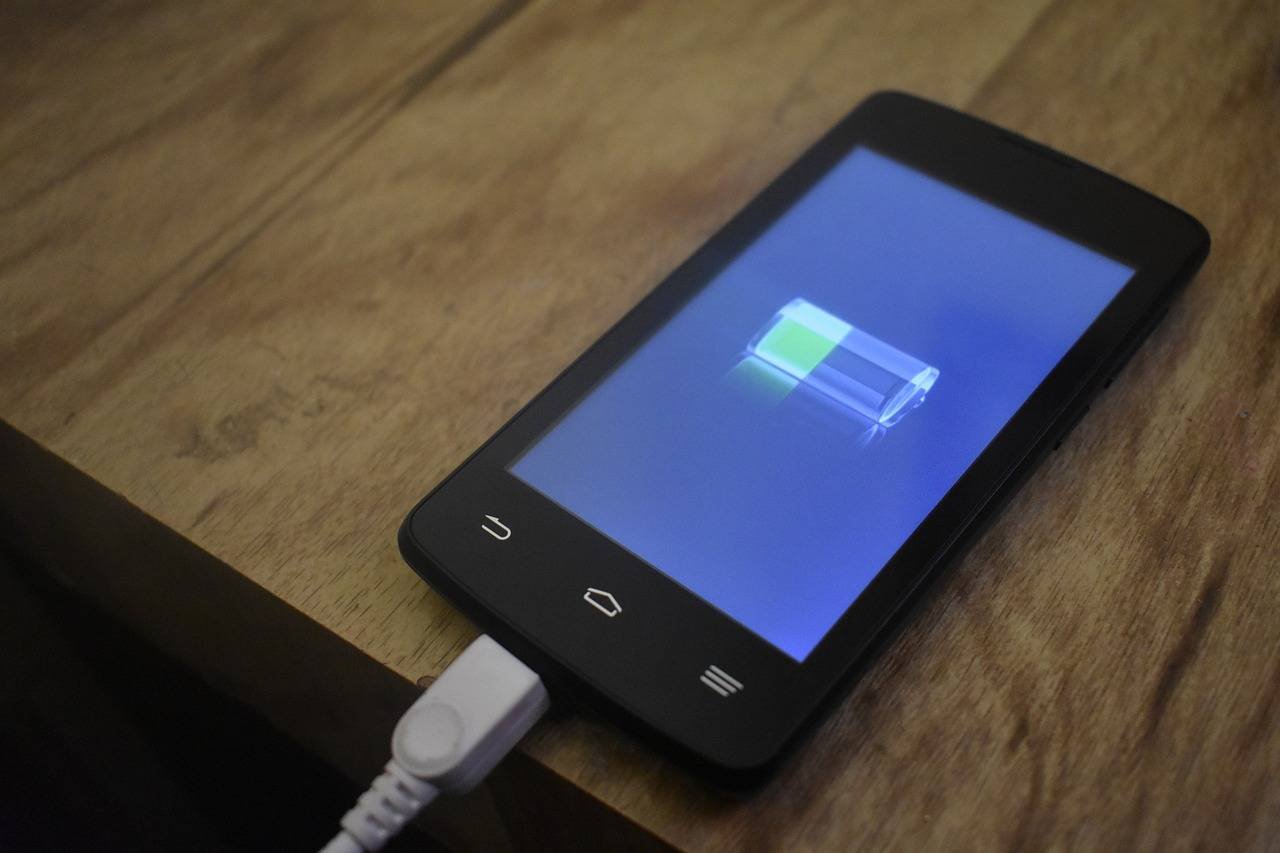
Disabling the feature is a conscious choice between immediate battery availability and long-term battery preservation.
- The Upside: Your Mac will now charge to 100% every single time you plug it in. You gain predictability and immediate readiness.
- The Downside: By consistently charging to full capacity and leaving it plugged in for long periods, you are putting more chemical stress on the battery cells. Over 1-2 years, you may notice your maximum battery capacity dropping faster than if you had left the feature enabled.
Expert Perspective: For users who replace their Mac every 2-3 years or who rely on it as a desktop replacement (mostly plugged in), disabling the feature has minimal downside. The battery will still be very functional. However, for users planning to keep their Mac for 4+ years, leveraging Optimized Charging is one of the best ways to ensure the battery remains healthy for longer.
Best Practices for Battery Health if You Disable Optimized Charging
If you choose to disable Apple’s smart feature, adopting manual good habits can help mitigate accelerated wear.
- Avoid Constant 100% Charge: When using your Mac as a desktop for extended periods, consider using a third-party app like AlDente (Free and Pro versions available). This tool allows you to set a custom charge limit (e.g., 80%), manually replicating what Optimized Charging does automatically. This is the single most effective practice.
- Use Original or MFi-Certified Chargers: Poor-quality chargers can deliver inconsistent voltage, harming battery health.
- Manage Heat: Extreme heat is a battery’s worst enemy. Avoid leaving your Mac in direct sunlight or in a hot car. Ensure vents are not blocked during intensive tasks.
- Practice Regular Discharge Cycles: Don’t keep it plugged in 24/7. Let it run on battery down to 20-30% at least a couple of times a week to keep the electrons moving.
- Calibrate Occasionally: For older Macs with removable batteries, a full calibration (drain to 0%, charge to 100% uninterrupted) was advised. For modern Macs with built-in batteries, this is less critical, but doing it once or twice a year can help the battery percentage indicator stay accurate.
Frequently Asked Questions (FAQ)
Q: Will disabling Optimized Battery Charging harm my Mac?
A: No, it will not cause immediate harm. It simply removes a protective layer that slows long-term battery aging. The battery will function normally.
Q: Can I temporarily override it without disabling it?
A: Yes! When you see the notification that charging is paused, hover over the battery icon in the menu bar. A tooltip will appear with an option to “Charge to Full Now.” Click it, and your Mac will immediately complete the charge to 100%.
Q: My Optimized Battery Charging isn’t working/activating. Why?
A: The feature requires:
- macOS 10.15.5 or later.
- Your Mac to be in a frequently visited location (like your home or office) for a period of time to learn your routine.
- Consistent charging patterns. If your schedule is highly variable, it may never engage.
Q: Should I disable it on my iPhone and iPad too?
A: The same principles apply. If you need your iOS devices at 100% reliably, you can disable it in Settings > Battery > Battery Health & Charging. However, the impact may be more noticeable on devices you tend to keep plugged in all night, every night.
Q: Where can I check my battery’s current maximum capacity?
A: Go to System Settings > Battery > Battery Health. It will show a percentage (e.g., “100%”).
A: For a more detailed report, you can use System Information: Hold the Option key, click the Apple menu, select System Information, go to Power, and look at “Health Information.”
Conclusion: Making the Right Choice for You
The decision to disable Optimized Battery Charging on your Mac is not a simple right or wrong. It’s a personal optimization based on your lifestyle.
- Keep it ON if: You have a predictable routine, use your Mac primarily as a laptop with regular discharge cycles, and plan to keep it for many years. It’s a fantastic “set it and forget it” feature for long-term care.
- Turn it OFF if: Your life is unpredictable, you rely on a full charge at a moment’s notice, or you simply prefer direct control over your hardware. Just be mindful of the potential for faster battery capacity loss and consider adopting the manual best practices outlined above.
Technology should adapt to you, not the other way around. By understanding the mechanics behind Optimized Battery Charging, you empower yourself to configure your Mac to serve your needs perfectly, ensuring it’s always ready when you are.
Author’s Note: This guide is based on extensive personal use across multiple MacBook models (Intel and Apple Silicon) and analysis of Apple’s official battery guidelines. The recommendations aim to translate technical specifications into practical, everyday advice for real users.