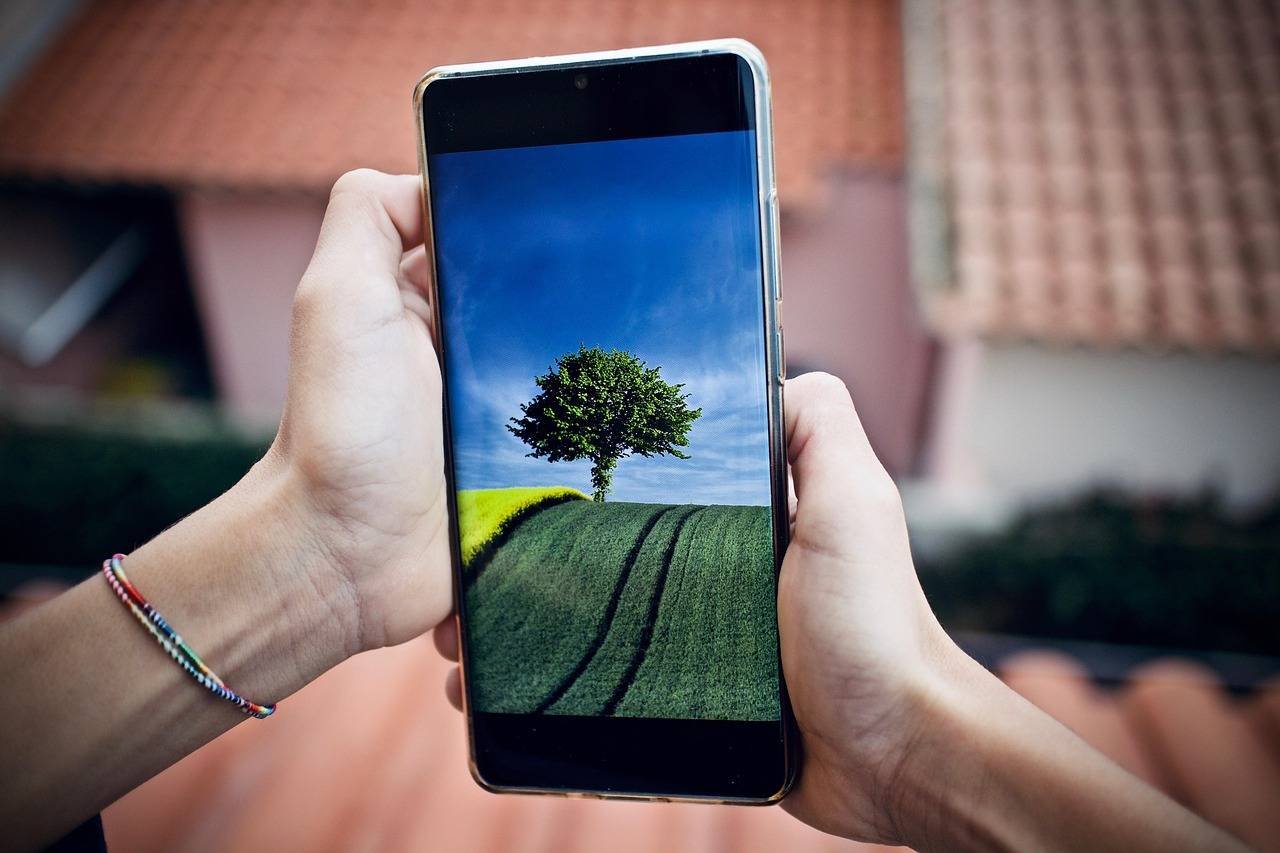

Have you ever looked at your iPhone and wished your lock screen felt more personal, more alive? You’re not alone. The static lock screen is a thing of the past. With iOS 16 and later, Apple introduced a brilliant feature that turns your lock screen into a dynamic gallery: Photo Shuffle. This guide will not only show you how to set up Photo Shuffle on your iPhone lock screen but will also dive deep into customizing it, troubleshooting issues, and using it in creative ways you might not have considered. By the end, you’ll transform your lock screen from a simple notification hub into a personalized, rotating showcase of your favorite memories.
What is Photo Shuffle on iPhone?
Photo Shuffle is an intelligent lock screen feature available on iPhones running iOS 16 and newer versions, including iOS 17. Instead of displaying a single, static photo, it automatically cycles through a curated selection of images from your photo library. You can set it to shuffle photos based on specific criteria like people, pets, nature, cities, or even a custom album you create.
Think of it as a smart, contextual slideshow that greets you every time you wake your iPhone. It personalizes your device in a way that a single image never could, ensuring you’re often surprised by a fresh, meaningful photo.
Why Use Photo Shuffle?
- Personalization: Makes your iPhone uniquely yours.
- Freshness: Prevents lock screen boredom with constant change.
- Memory Lane: Surfaces old photos you might have forgotten.
- Contextual Awareness: Can highlight photos based on your location, time, or activity.
Prerequisites: Before You Start
To use Photo Shuffle, ensure your iPhone meets these requirements:
- iPhone Model: Any iPhone capable of running iOS 16 or later. This typically includes iPhone 8 and newer.
- iOS Version: Your iPhone must be updated to iOS 16, iOS 17, or newer. Go to Settings > General > Software Update to check.
- Photos Library: You need photos in your library! The feature works best with a variety of images.
Step-by-Step: How to Set Up Photo Shuffle
Let’s walk through the process from start to finish. The steps are identical for iOS 16 and iOS 17.
Step 1: Access the Lock Screen Customization Menu
- Wake your iPhone and unlock it to your Home Screen.
- Long-press on your current lock screen. You’ll feel a haptic tap and the screen will shrink.
- Tap the “+ Customize” button that appears at the bottom to create a new lock screen, or select an existing one to edit.
Step 2: Choose the Photo Shuffle Widget
- In the customization view, you’ll see your current wallpaper. Swipe left until you find the “Photo Shuffle” option. It has an icon of several overlapping photos.
- Tap on “Photo Shuffle.” Your screen will immediately populate with a preview of how the shuffle will look.
Step 3: Configure Your Shuffle Settings
This is where the magic happens. Tap on the three-photo stack widget that appears below the clock to open the Shuffle Settings.
You have three powerful ways to curate your photos:
1. Shuffle by Featured Content (People, Pets, Nature, Cities):
- This is the simplest and most dynamic option. Your iPhone’s on-device intelligence scans your photo library and categorizes images.
- Tap “Featured Content” and select a category like People, Pets, Nature, or Cities.
- Pro Tip: The “People” category uses your Photos “People” album. Ensure your favorites are tagged for the best results.
2. Shuffle by a Specific Album:
- For ultimate control, create a custom album in your Photos app first (e.g., “Best Shots 2024,” “Family Vacations”).
- In Shuffle Settings, tap “Album” and select your pre-made album from the list.
- This is my recommended method for a truly personalized experience.
3. Shuffle Manually Selected Photos:
- Tap “Selected Photos” and then “Choose Manually.”
- Browse your library and tap up to 50 photos you want in the rotation. Tap “Add” when done.
Step 4: Set the Shuffle Frequency
How often do you want the photo to change? Tap the frequency option below your photo selection.
- On Tap: Changes only when you tap and hold the lock screen and then tap the shuffle icon.
- On Wake: Changes each time you wake your iPhone (most popular).
- Hourly: Changes every hour.
- Daily: Changes once per day.
Step 5: Customize the Rest & Save
- While still in the customization screen, you can tap the time to change its font and color.
- You can add helpful widgets (battery, calendar, weather) above the time by tapping the area below it.
- Once satisfied, tap “Done” in the top-right corner, then tap “Set as Wallpaper Pair” to apply it to both your Lock Screen and Home Screen, or just “Set” to confirm.
Congratulations! Your Photo Shuffle is now active.
Advanced Customization & Pro Tips

To truly master Photo Shuffle, go beyond the basics.
1. Create the Perfect Album for Shuffling
Don’t just use your “Recents” album. Create a dedicated album with these principles:
- Aspect Ratio: Favor portrait-oriented photos. Landscape photos will be cropped to fit the lock screen.
- Quality: Use high-resolution photos for a crisp display.
- Subject: Center your main subject. The time and widgets will overlay the top portion of the image.
2. Use Focus Filters for Contextual Lock Screens
This is a power-user feature introduced with Focus modes. You can link a specific Photo Shuffle album to a specific Focus.
- Example: Create a “Work” Focus and link it to a Photo Shuffle album of your professional achievements or inspirational quotes. When Work Focus is on, that specific shuffle appears.
3. Pair with Depth Effect for a Stunning Look
The Depth Effect (which places the time behind your photo’s subject) works automatically with Photo Shuffle if your chosen photos are compatible (usually photos with a clear foreground subject). If the option appears when customizing, enable it for a beautiful, layered look.
Troubleshooting Common Photo Shuffle Problems
Even the best features can hiccup. Here’s how to fix common issues.
-
Photo Shuffle Not Working / Stuck on One Photo:
- Check Frequency: Ensure it’s not set to “On Tap.”
- Restart Your iPhone: A simple restart fixes many glitches.
- Update iOS: Go to Settings > General > Software Update.
- Reconfigure the Feature: Remove the Photo Shuffle wallpaper and set it up again from scratch.
-
Showing the Wrong or Undesired Photos:
- Review your Shuffle Settings. You might have “Featured Content” selected when you wanted a specific album.
- If using “People,” check your Photos app’s People album to ensure faces are correctly tagged.
-
“Not Enough Photos” Error:
This appears if your selected album or category has too few high-quality, suitable photos. Add more photos to the album or switch to a broader category like “Featured Content.” - Battery Drain Concerns:
Photo Shuffle uses on-device intelligence and is highly optimized. Any battery impact is negligible. If you notice drain, it’s likely unrelated. Check Settings > Battery for actual app usage.
The Psychology of a Dynamic Lock Screen: Why It Matters
Beyond the technical steps, there’s a human element. As a long-time iOS user and tech writer, I’ve observed that a dynamic lock screen does more than just look pretty. It serves as a micro-moment of positivity. A surprise photo of a loved one, a pet, or a cherished vacation spot can provide a genuine, fleeting boost to your mood throughout the day. It turns a functional device interaction (checking the time) into a small, personal connection.
Frequently Asked Questions (FAQ)
Q: How many photos can I use in Photo Shuffle?
A: When selecting manually, you can choose up to 50 photos. When using an album or Featured Content, there is no strict limit, but a larger pool creates more variety.
Q: Can I use Live Photos or videos?
A: Photo Shuffle currently only works with static images. Live Photos will be displayed as a still frame.
Q: Does Photo Shuffle use mobile data or Wi-Fi?
A: No. It only uses photos stored locally on your device. It does not stream images.
Q: Can I use Photo Shuffle on my Home Screen?
A: Directly, no. The Photo Shuffle feature is exclusively for the Lock Screen. However, when you set it, you can choose to apply a blurred or color-matched version of the current shuffled photo to your Home Screen.
Q: Is my privacy protected?
A: Yes. All photo analysis for categories like “People” or “Nature” happens entirely on your iPhone using Apple’s Neural Engine. No images are sent to Apple’s servers for this processing, as confirmed by their platform security guide.
Conclusion: Make Your iPhone Uniquely Yours
Setting up Photo Shuffle on your iPhone lock screen is more than a technical tutorial—it’s an invitation to personalize the device you use hundreds of times a day. By following this guide, you’ve learned not just the “how,” but the “why” and the “how to master it.”
Start simple: create a new album with 20 of your favorite photos and set it to shuffle “On Wake.” Experience the joy of a changing backdrop. Then, get advanced—link it to Focus modes or play with the Depth Effect. Your lock screen is a blank canvas; Photo Shuffle provides the dynamic paint. For more inspiration on iPhone photography that’s perfect for shuffling, check out resources like PetaPixel’s mobile photography tips.
Now, go ahead and give your iPhone a personal touch that evolves with you. What memories will you showcase first?
About the Author: With over a decade of experience covering Apple ecosystems and consumer technology, the author combines hands-on testing with a deep understanding of iOS features to provide actionable, trustworthy guidance. This article is based on extensive personal use of Photo Shuffle across iOS 16 and 17 on multiple iPhone models.