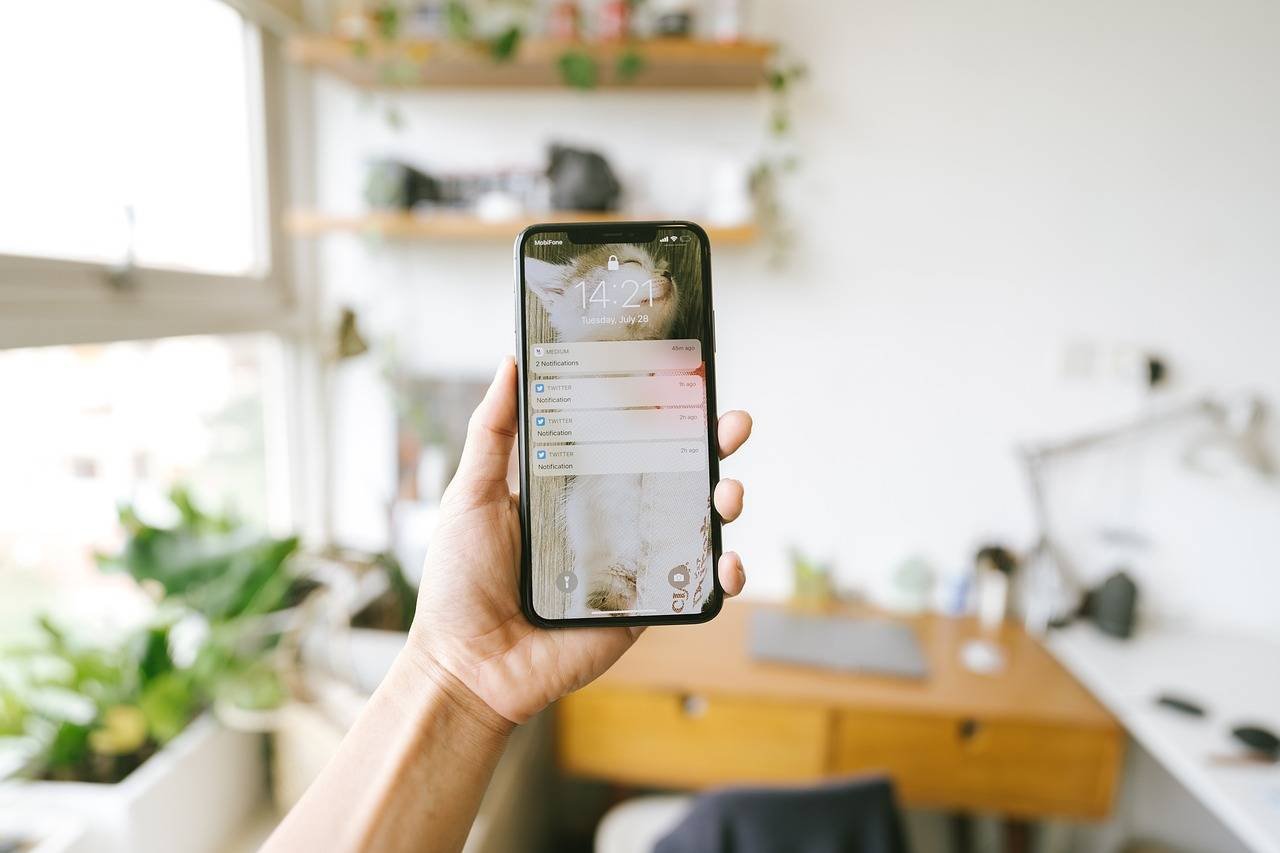

Your iPhone’s lock screen is your digital front door. It’s the first thing you see when you pick up your phone, a place for time, date, and a quick glance at what’s new. But sometimes, that glance turns into an overwhelming flood of alerts, badges, and previews that can feel intrusive, distracting, or even a privacy risk. The good news? You have complete control. This definitive guide will show you how to hide notifications on the iPhone lock screen, taking you beyond basic toggles into a nuanced understanding of iOS’s powerful, often-hidden settings.
Why should you trust this guide? Unlike many quick-tip articles, this post is built on years of hands-on experience with iOS’s evolving notification system. We don’t just tell you the “what”; we explain the “why” and “how” behind each setting, helping you craft a lock screen experience that is genuinely personalized, secure, and serene.
Understanding Notifications: The Core Concepts
Before we dive into the “how,” let’s understand the “what.” Notifications on iOS come in three primary forms, especially visible on the lock screen:
- Notification Previews: The text of a message, email subject, or app alert.
- Notification Banners/Alerts: The visual pop-up itself.
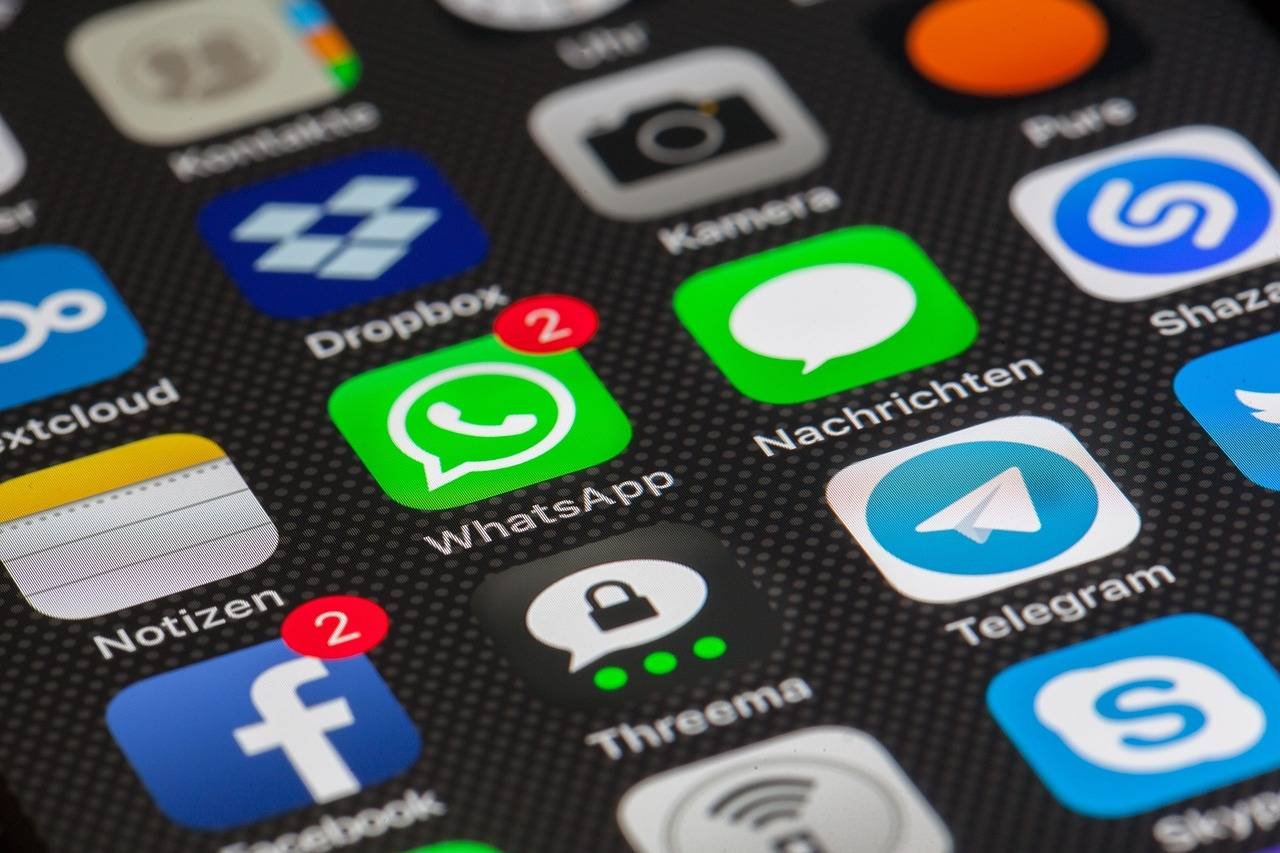
- Notification Badges: The red circles with numbers on app icons.
Your primary goal on the lock screen revolves around managing previews. You can choose to see them, hide them entirely, or find a smart middle ground.
Apple’s philosophy around notifications has matured significantly, moving from “always show” to “intelligently manage.” Features like Focus Modes and granular app-level controls reflect this shift, empowering users to protect their attention and privacy.
Method 1: The Universal Switch – Hide All Notification Previews
This is your nuclear option. It will hide the content of all notifications on your lock screen until your iPhone is unlocked (via Face ID, Touch ID, or passcode). This is the strongest privacy setting.
How to Do It:
- Open the Settings app.
- Tap Notifications.
- Tap Show Previews.
-
Select When Unlocked or Never.
- When Unlocked: Notifications will show only generic sender info (e.g., “iMessage,” “Slack”) on the lock screen. The preview text appears only after you successfully authenticate. This is the recommended balance for most users.
- Never: Notifications show only the app icon and the word “Notification.” You get zero context until you open the app. Use this for maximum secrecy.
Best For: People who use their phones in highly public settings, anyone concerned about shoulder-surfing, or those who want zero distractions until they actively decide to check their phone.
Method 2: Granular Control – Hide Previews for Specific Apps Only
You probably don’t need the same level of privacy for your weather app as you do for your banking or messaging apps. iOS lets you control this app-by-app.
How to Do It:
- Go to Settings > Notifications.
- Scroll down and select the specific app you want to adjust (e.g., WhatsApp, Mail, Bank of America).
- Tap Show Previews.
- Choose Always, When Unlocked, or Never.
This approach allows for a sophisticated setup:
- Banking/Email: Set to When Unlocked or Never.
- Social Media/Games: Set to When Unlocked to minimize distractions.
- Weather/Calendar: You might safely leave as Always.
Pro Tip: You can also turn off Lock Screen notifications entirely for an app here while leaving them on for Notification Center and Banners. This clears your lock screen while still letting alerts accumulate in your notification center for later review.
Method 3: The Smart & Contextual Way – Using Focus Modes
Introduced in iOS 15 and massively enhanced since, Focus Modes are Apple’s answer to intelligent notification management. They don’t just hide previews; they can silence entire categories of apps based on what you’re doing (Sleeping, Working, Driving, or a custom mode).
How to Create a Lock Screen-Specific Focus:
- Open Settings > Focus.
- Tap the + icon and choose Custom.
- Name it (e.g., “Clean Lock Screen”) and choose an icon/color.
- On the next screen, tap Customize Focus.
- Under Allowed Notifications, you have two powerful choices:
- People: Allow only calls/messages from specific contacts.
- Apps: Allow only specific apps to notify you (e.g., only Calendar and Maps).
- Crucially, under “Options,” turn ON Hide Notification Badges and set Show on Lock Screen to a minimal level or “None” for non-allowed apps.
You can then link this Focus to a specific Lock Screen wallpaper or schedule it to turn on automatically at certain times or locations.
Real-World Example: I’ve created a “Deep Work” Focus that activates when I’m at my office. It only allows notifications from my team’s communication app and my calendar. All other apps are silenced, their badges hidden, and their lock screen previews removed. The result is a phenomenally clean and distraction-free lock screen that helps me concentrate.

Method 4: Immediate Clean-Up & History Management
What about notifications already cluttering your screen?
To Clear Individual Notifications:
- Swipe left on a notification and tap Clear.
- Swipe left and tap View to see more options, then tap the three dots (…) and Clear.
To Clear All Notifications at Once:
- Gently swipe up from the middle of your lock screen to reveal the notification stack.
- Long-press the X at the top right of the stack.
- Tap Clear All Notifications.
To Manage Notification History (iOS 16+):
Swipe up on the lock screen to see the notification list, then tap Show Recently Cleared at the bottom to retrieve anything dismissed by accident—a lifesaver feature!
Beyond Previews: Additional Lock Screen Privacy & Cleanliness Settings
A truly clean lock screen involves more than just notification text.
1. Hide Sensitive Information in “Today” View:
The widgets on your lock screen (Today View) might show calendar events, reminders, or fitness data.
- Go to Settings > Face ID & Passcode (or Touch ID & Passcode).
- Scroll down to the “Allow Access When Locked” section.
- Toggle off Today View to hide widget details until unlocked.
2. Control “When Playing” Media Display:
The now-playing widget can reveal your music/video habits.
- In Settings > Face ID & Passcode, toggle off Control Center to hide media controls entirely, or simply be mindful of what’s displayed.
3. Manage “Return Missed Calls” Text:
For extreme privacy, you can disable the “Return Missed Call” text button.
- In Settings > Face ID & Passcode, toggle off Return Missed Calls.
Troubleshooting Common Issues
- “My notifications still show even with previews off!” Ensure you’ve selected When Unlocked or Never for previews, and also check that the app isn’t set to bypass Focus Modes (in Focus > [Focus Name] > Options > App Notifications).
- “Focus Mode isn’t activating automatically.” Double-check your schedule or automation settings in the Focus settings. Location-based Focuses require precise location permissions.
- “I miss important notifications.” This is the risk of over-tuning. Use the Allow settings within Focus Modes for critical people and apps. Leverage Critical Alerts (a setting some apps like healthcare apps can use) which will always come through.
The Unique Value: A Strategic Framework, Not Just Steps
What makes this guide different is its strategic framework. Hiding notifications isn’t just a technical task; it’s a digital well-being practice. We’ve provided you with:
- A Hierarchy of Methods: From universal (blunt) to granular (surgical) to intelligent (context-aware).
- The “Why”: Linking each setting to a real-world privacy or focus need.
- Proactive Management: Using Focus Modes not as a reactive tool, but a proactive system to design your desired lock screen state for different life contexts.
By understanding these layers, you move from following instructions to architecting your own personalized, peaceful iPhone experience.
FAQs: Hiding iPhone Lock Screen Notifications
Q: Will hiding lock screen notifications make me miss them?
A: No. The notifications will still be delivered and waiting in your Notification Center (swipe down from the top) and on the app’s badge icon (unless you hide badges too). You just won’t see the preview content on the locked screen.
Q: What’s the difference between “When Unlocked” and Focus Modes?
A: “When Unlocked” is a static, universal setting for previews. Focus Modes are dynamic, contextual filters that can silence entire apps, hide badges, and change your lock screen appearance based on time, location, or activity.
Q: Can I hide notifications only for certain times of day?
A: Absolutely. This is a prime use case for Scheduled Focus Modes. You can set your “Work” or “Sleep” focus to activate and clean your lock screen automatically from 9 AM-5 PM or 10 PM-7 AM.
Q: Do these settings affect my Apple Watch?
A: Yes, generally. Notification settings often sync between iPhone and Apple Watch for a consistent experience. Focus Modes, in particular, sync across all your Apple devices.
Q: Is there a way to temporarily see hidden previews?
A: Not directly. If set to “When Unlocked” or “Never,” you must authenticate with Face ID/Touch ID/passcode to reveal the content. This is the core of the privacy feature.
Conclusion: Mastering Your Digital First Impression
Your iPhone’s lock screen should serve you, not stress you. By mastering the art of hiding notifications, you reclaim control over your privacy, your attention, and your first interaction with your device each time you pick it up. Start with the universal “When Unlocked” setting for a great baseline of privacy. Then, get sophisticated with per-app controls and harness the intelligent automation of Focus Modes.
Remember, the goal isn’t to disappear from the digital world, but to engage with it on your own terms. A clean lock screen is the first, powerful step toward a more mindful and intentional relationship with your technology.
Ready to take control? Open your Settings app now and spend 5 minutes implementing just one tip from this guide. Your future, less-distracted self will thank you.