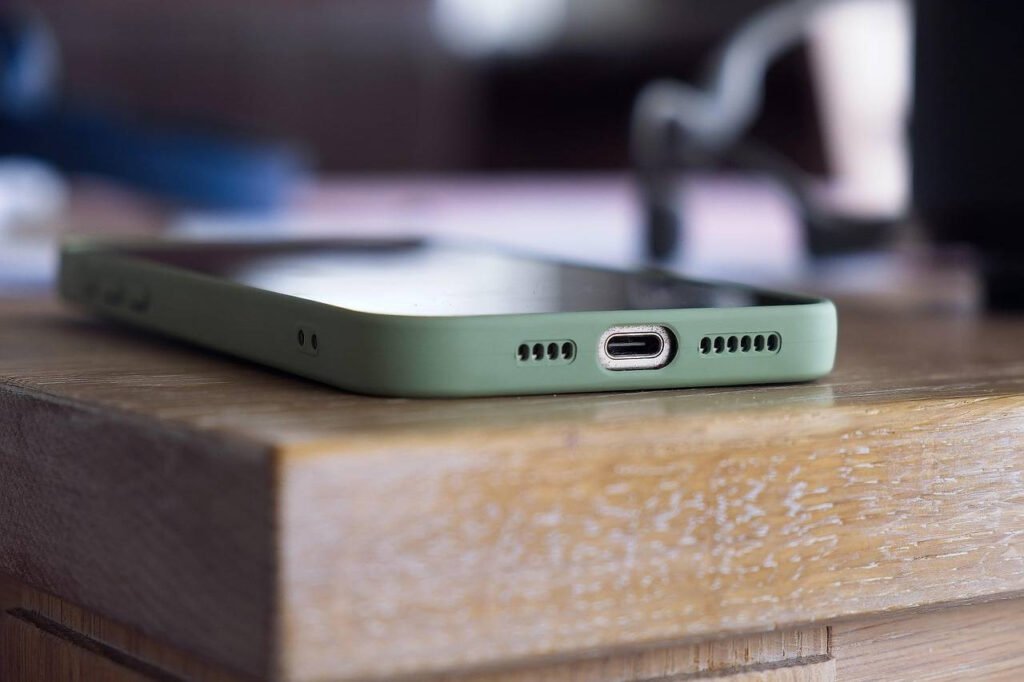

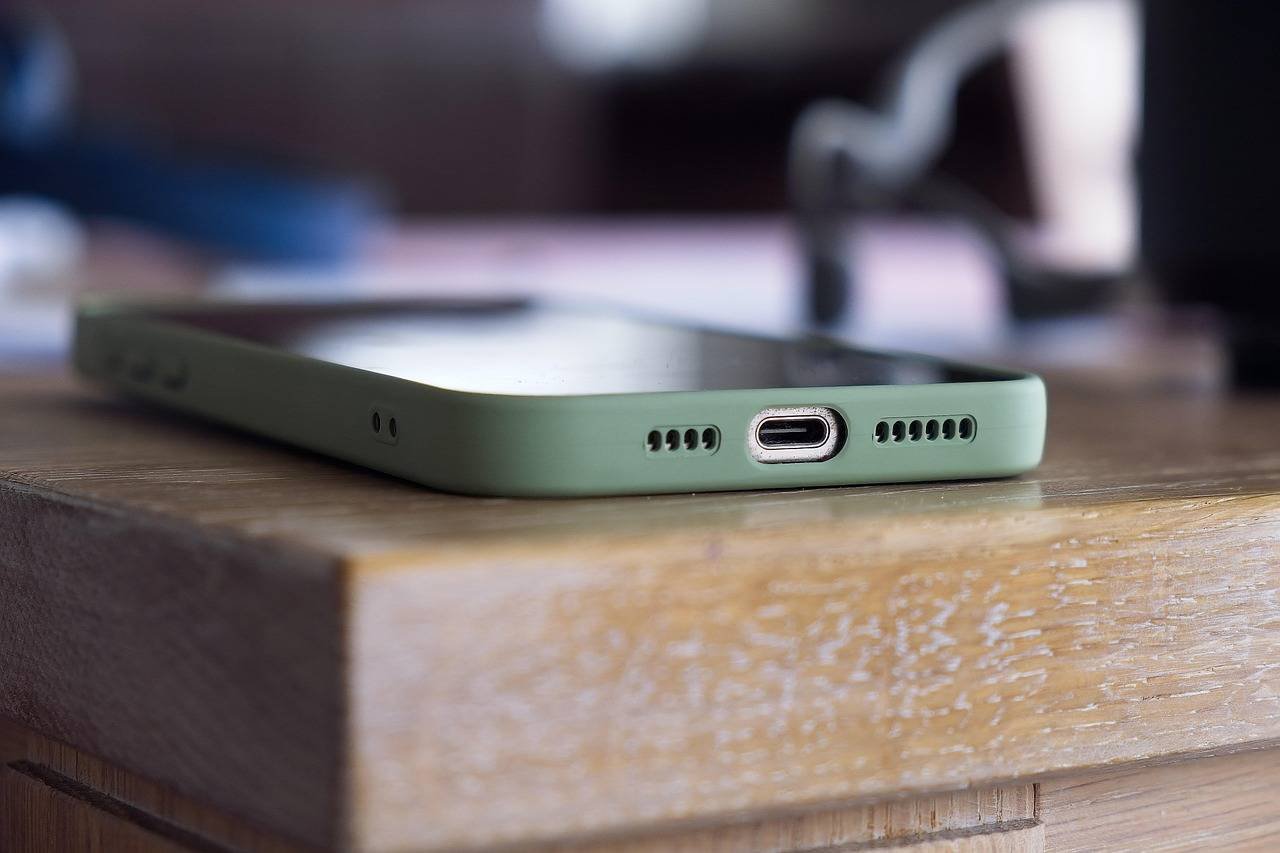
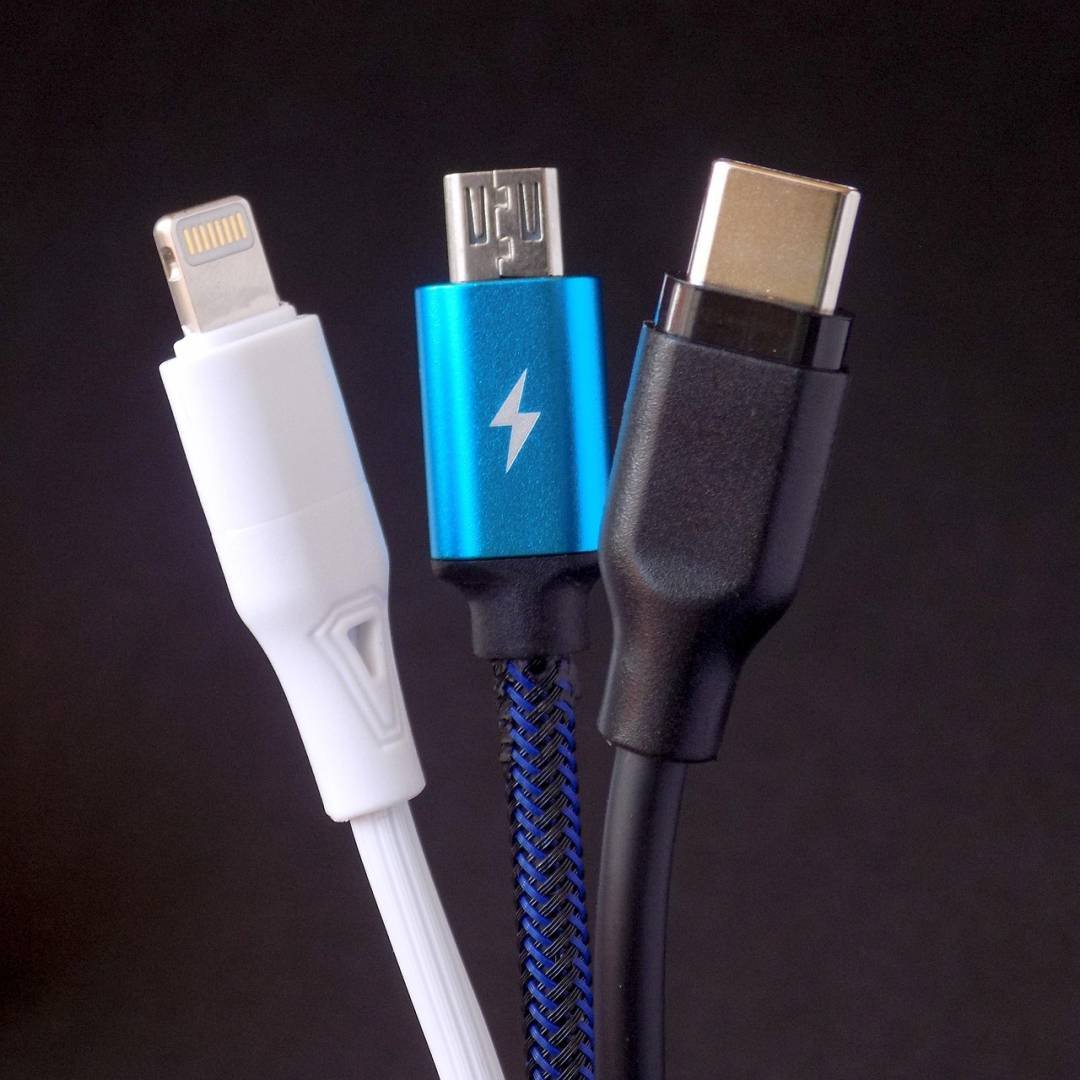
That dreaded warning. You plug in your iPhone to charge, and instead of the familiar chime, a stark alert fills your screen: “Liquid Detected in Lightning Connector” or its USB-C counterpart on newer models. A wave of panic might hit. Is your phone ruined? Will it stop working? Don’t worry—this error is a protective feature, not a death sentence. This comprehensive guide will explain why it happens, walk you through safe, step-by-step fixes, and equip you with the knowledge to prevent future scares.
Understanding the “Liquid Detected” Alert: It’s a Safety Feature, Not a Bug
First, let’s demystify the message. Since the iPhone XS, XR, and later models, Apple has integrated liquid detection in the charging port. This is a sophisticated safeguard designed to protect your device and you from potential short circuits, corrosion, and damage that can occur when you attempt to charge a wet connector.
The phone uses tiny, moisture-sensitive Liquid Contact Indicators (LCIs) inside the port. When these indicators come into contact with moisture or liquid, they trigger the software alert and temporarily disable charging and accessory connections. Think of it as your iPhone’s conscientious objector, refusing to cooperate to save itself from harm.
Immediate Steps to Take When You See the Error
DO NOT ATTEMPT TO CHARGE YOUR PHONE. This is the most critical rule. Forcing a connection can push liquid deeper, cause corrosion, or create an electrical short.
Here is your immediate action plan, presented in a clear, numbered list:
- Unplug Immediately: If a cable is connected, gently disconnect it.
- Power Down (Optional but Recommended): Turn off your iPhone to prevent any potential electrical activity near the port. Press and hold the side button and either volume button, then slide to power off.
- Disconnect All Accessories: Remove any cases, dock connectors, or dongles.
- Gently Tap Your Phone: Hold your iPhone with the connector facing downward and give it a gentle tap against your palm. This can help dislodge larger droplets.
- Leave It to Dry: This is the core of the fix. Place your iPhone in a dry, well-ventilated area. Do not use artificial heat sources like hair dryers, microwaves, ovens, or compressed air, as these can cause permanent damage.
The Right Way to Dry Your iPhone: Patience Over Haste
The official, safest method recommended by Apple is simple: air drying. However, there’s a technique to it.
- Positioning is Key: Place your iPhone in an upright position, with the connector port facing down. This allows gravity to help pull any residual moisture out.
- The 48-Hour Rule: Apple suggests allowing at least 48 hours for the port to fully dry out before attempting to charge again. Ambient airflow is sufficient. Rushing this process is the number one reason people face persistent errors or damage.
- What About Silica Gel? Placing your phone in a sealed bag with silica gel packets (those little “do not eat” packets found in shoeboxes and electronics packaging) can help. These packets are excellent desiccants that absorb ambient moisture. This can potentially speed up the drying process in a controlled environment.
A Personal Note from Experience: I once spilled a few drops of coffee near my iPhone 12’s port. The alert appeared. I impatiently tried a hair dryer on a cool setting after just 12 hours, which seemed to work momentarily. The next day, the error was back, and the port felt gritty. After finally committing to a full 48 hours of air drying (with silica gel), it worked perfectly and has for years since. Patience truly is the most effective tool.
Advanced Troubleshooting: When the Alert Won’t Go Away
If 48 hours have passed and the alert persists, don’t panic. Try these advanced, safe steps before considering a repair.
1. The “Emergency Override” – Use With Extreme Caution
iOS offers an “Emergency Override” option on the alert screen. This allows you to charge despite the detection, but Apple explicitly warns this can damage your iPhone. Only use this if you are in a genuine emergency and have no other way to power your device. Understand that you assume all risk.
2. Clean the Port Meticulously
Often, the issue isn’t a puddle but a small amount of moisture trapped with lint and debris, which holds dampness. You need non-conductive, gentle tools.
- Tools to Use: A brand-new, soft-bristled toothbrush (completely dry) or plastic toothpick. Never use metal like a paperclip, as it can scratch the delicate pins.
- The Technique: With your phone off, gently brush or pick around the inside of the port under good light. You’ll be surprised how much pocket lint can compact in there. This alone has resolved the error for me and countless others when simple drying didn’t.
3. Force Restart Your iPhone
A simple software glitch can sometimes cause a false positive. Perform a force restart to clear the device’s memory:
- iPhone 8 & Later (including USB-C models): Quickly press and release the Volume Up button, then the Volume Down button, then press and hold the Side button until you see the Apple logo.
When to Seek Professional Help: Recognizing the Limits
If you’ve tried all the above methods—full 48-hour dry, careful cleaning, and a restart—and the error remains, it’s time to consult a professional.
- Persistent Moisture: The liquid may have seeped deeper than the port indicators.
- Corrosion Damage: If the liquid was corrosive (salt water, sugary drinks), the metal contacts inside the port may have begun to corrode. This requires cleaning with specialized tools and solutions.
- Damaged Pins: Physical damage from incorrect cleaning attempts can bend or break the tiny pins in the connector.
Your Options:
- Apple Support or an Authorized Service Provider: This is the safest route. They can run diagnostics and perform repairs with genuine parts. Check if your device is still under Apple’s limited warranty or AppleCare+.
- Reputable Third-Party Repair Shops: Look for shops with certified technicians and good reviews. They can often replace the charging port assembly for less, but ensure they use high-quality components.
Proactive Prevention: Keeping Your Port Dry and Functional
An ounce of prevention is worth a pound of cure. Here are simple habits to adopt:
- Be Mindful of Your Environment: Keep your phone away from the edges of sinks, bathtubs, pools, and drink glasses.
- Use Protective Accessories: Consider a high-quality waterproof case if you’re often near water. Use a charging port dust plug when not in use to prevent lint and moisture accumulation.
- Dry Your Hands and Phone: After being in a humid environment or light rain, dry your hands and your phone before plugging it in.
- Regular Maintenance: Every few months, visually inspect and gently clean your charging port with the dry brush method mentioned above.
Frequently Asked Questions (FAQ)
Q: Can I use rice to dry my iPhone?
A: It’s not recommended. Rice dust can get inside the port, and modern studies show rice is a very poor desiccant. Silica gel packets are far more effective and cleaner.
Q: The alert is gone, but my cable won’t “click” in or charge reliably. What’s wrong?
A: This is almost certainly debris in the port. The compacted lint prevents the cable from seating fully. Follow the gentle cleaning steps with a toothbrush or plastic pick.
Q: Does this error mean water damaged my internal components?
A: Not necessarily. The detection system is very sensitive and is designed to trigger before internal damage occurs. If you follow the correct drying procedures promptly, the damage is often contained to the port area.
Q: My iPhone got wet, but I never got the alert. Is it fine?
A: Possibly. The alert only triggers if the specific LCIs in the port get wet. Other parts of your phone could be exposed without triggering it. iPhones have varying degrees of water resistance (IP68 rating), but it’s not a guarantee against all liquid damage.
Q: Are USB-C iPhones (iPhone 15 & later) less prone to this?
A: The USB-C port itself is not inherently more water-resistant. However, the universal standard means you might have more options for wireless charging or using accessories in a pinch if the port is temporarily out of commission.
Final Thoughts: Stay Calm and Dry Methodically
The “Liquid Detected” error is your iPhone’s early warning system. By responding not with panic, but with a calm, methodical approach—unplug, dry vertically for 48 hours, clean the port gently—you will almost always resolve the issue without costly repairs. Your phone is smarter than you think, and this feature is there to ensure it stays with you for a long time. Treat it with patience, and it will reward you with continued service.