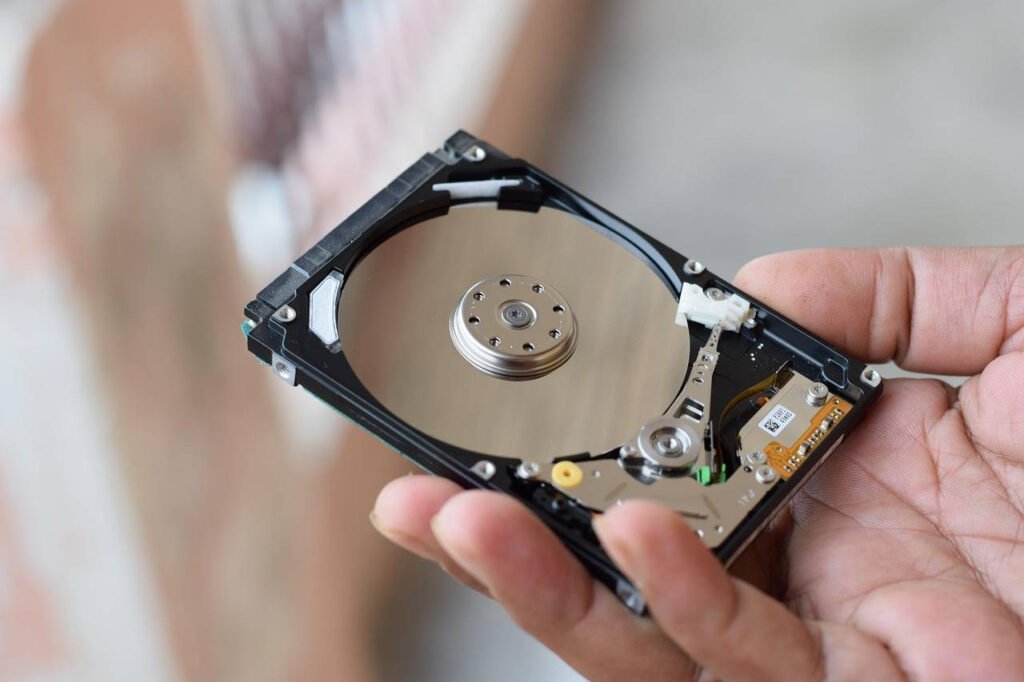

Your hard drive is the heart of your computer, silently storing every precious photo, important document, and critical application. In Windows 11, keeping a vigilant eye on its health isn’t just tech-savvy—it’s essential for preventing catastrophic data loss. This comprehensive guide will walk you through every native and professional method to diagnose your drive’s health, interpret the warnings, and take proactive steps to secure your digital life.
Why Hard Drive Health Monitoring is Non-Negotiable
All storage drives have a finite lifespan. Unlike a sudden software crash, drive failure often whispers before it screams. Ignoring these whispers can lead to the dreaded “click of death” or a system that simply won’t boot. Regularly checking your hard drive health in Windows 11 allows you to:
- Prevent Data Loss: Identify failing drives before they take your files with them.
- Avoid Downtime: Schedule replacements during convenient times, not during a critical work project.
- Diagnose Performance Issues: A failing drive can cause unexplained slowdowns, freezes, and long boot times.
- Maximize Drive Lifespan: Proper monitoring can help you manage drive stress.
Method 1: Using Windows 11’s Built-in Tools (The First Line of Defense)
Windows 11 comes equipped with powerful, no-cost utilities perfect for routine check-ups.
1. Check Disk Utility (chkdsk): The Classic Troubleshooter
Chkdsk (Check Disk) is a veteran command-line tool that scans your drive’s file system integrity for errors like bad sectors and logical file system issues.
How to Run Check Disk:
- Open Command Prompt as Administrator: Right-click the Start button and select “Terminal (Admin)” or “Command Prompt (Admin).”
- Run the Basic Scan: Type
chkdskand press Enter. This will perform a read-only scan. -
Run a Repair Scan: To find and fix errors, you need to specify a drive letter. For example, to scan and repair drive C:, use:
chkdsk C: /f /r /x/ftells it to fix errors./rlocates bad sectors and recovers readable information./xforces the drive to dismount before the scan (necessary for your system drive).
⚠️ Important: If you scan your main
C:drive, Windows will schedule the scan for the next reboot since the drive is in use.
What to Look For: After the scan, chkdsk will report a summary. A clean bill of health shows “Windows has scanned the file system and found no problems.” If bad sectors are found, it’s an early warning sign. While chkdsk can “repair” them by marking them as unusable, a growing number of bad sectors indicates a physically deteriorating drive.
2. Windows Resource Monitor & Performance Monitor
These tools are excellent for real-time health and performance assessment.
-
Resource Monitor: (Press
Win + R, typeresmon)
Navigate to the “Disk” tab. Here, you can see the active processes using your disk, the response time (a key health indicator), and the active disk queue length. Consistently high response times (e.g., >50ms for an SSD or >20ms for an HDD under light load) can signal a struggling drive. - Performance Monitor: (Press
Win + R, typeperfmon)
You can create a Data Collector Set to log critical disk counters over time, such as% Idle Time,Avg. Disk sec/Read, andAvg. Disk sec/Write. Trend analysis here is more valuable than a single snapshot.
3. Optimize Drives (Defragmentation)
While Windows 11 automatically optimizes drives on a schedule, a manual check is wise, especially for traditional Hard Disk Drives (HDDs).
- Search for “Defragment and Optimize Drives” in the Start Menu.
- Select your drive and click “Analyze.”
- Interpretation:
- For HDDs: If fragmentation is high (above 10%), click “Optimize.” High fragmentation slows down read/write speeds.
- For SSDs: The tool will run a TRIM command, which is essential for maintaining SSD performance and longevity. Windows handles this automatically, but a manual run doesn’t hurt.
Method 2: Unleashing S.M.A.R.T. Data with Third-Party Software
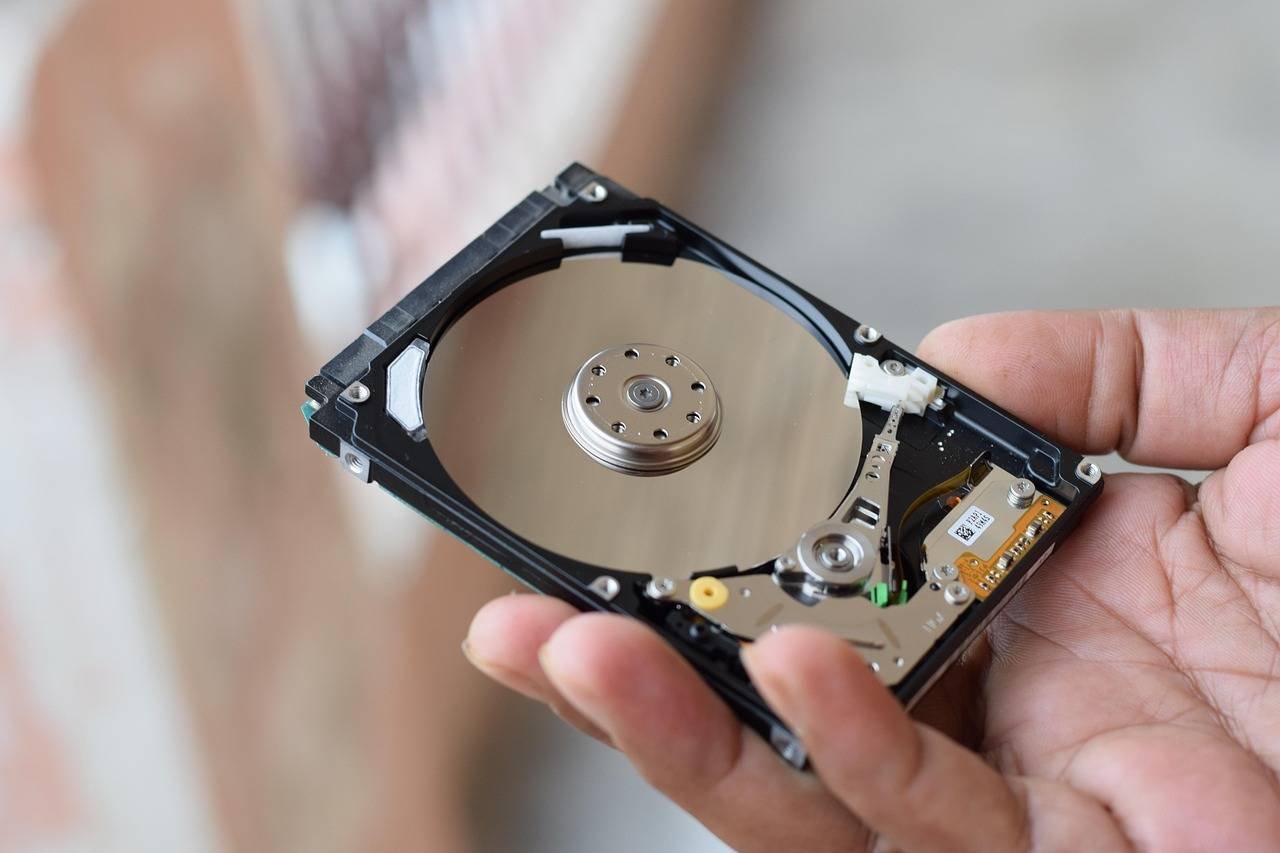
Built-in S.M.A.R.T. (Self-Monitoring, Analysis, and Reporting Technology) data is the drive’s own internal health diary. Windows doesn’t surface this data in a user-friendly way, so we need specialized tools.
Top Free & Reliable S.M.A.R.T. Monitoring Tools:

-
CrystalDiskInfo: My personal, go-to recommendation for its simplicity and power.
- What it does: Presents all raw S.M.A.R.T. attributes (like Power-On Hours, Reallocated Sectors Count, Temperature) in an easy-to-read interface with a clear health status (“Good,” “Caution,” “Bad”).
- How to use: Simply install and run it. It immediately shows the drive’s temperature, health status, and any cautionary attributes. A drive showing “Caution” is a candidate for immediate backup and replacement.
-
HDDScan: A versatile toolkit for advanced users.
- What it does: Offers detailed S.M.A.R.T. reports, surface tests (to find bad sectors), and various erase features.
- How to use: Great for running extended read/write tests to stress-test a drive and uncover intermittent issues that quick scans might miss.
- Hard Disk Sentinel (Trial): A professional-grade option with extensive features.
- What it does: Provides the most detailed analysis, including performance degradation tracking and predicted failure date based on S.M.A.R.T. trends.
- How to use: The trial version gives full functionality for a limited time, perfect for a deep, one-time diagnosis.
⚠️ Crucial Interpretation Guide: Not all S.M.A.R.T. warnings are equal. Key attributes to watch:
- Reallocated Sectors Count: A rising number here is one of the strongest indicators of physical wear.
- Current Pending Sector Count: Sectors waiting to be remapped. A non-zero value is a serious red flag.
- Uncorrectable Sector Count: Sectors that have permanently failed. Immediate action required.
- SSD Specific – Media Wearout Indicator / Available Spare: Shows the remaining life of an SSD’s NAND flash. Below 10% is critical.
Method 3: Advanced Diagnostics & Manufacturer Tools
Drive manufacturers provide brand-specific tools that can sometimes run more precise diagnostics and even firmware updates.
- Seagate: SeaTools for Windows
- Western Digital: WD Drive Utilities (within WD Dashboard)
- Samsung: Samsung Magician (for Samsung SSDs)
- Crucial: Crucial Storage Executive
Pro Tip: I once worked on a laptop with strange freezing issues. Windows tools showed nothing, but the Samsung Magician software revealed the SSD was failing to complete its internal “garbage collection” due to a firmware bug. A firmware update via the tool resolved it completely—a fix no generic tool could have provided. Always check your manufacturer’s toolkit.
Creating a Proactive Health Monitoring Routine
Don’t wait for a sign. Integrate these checks into your digital hygiene.
- Monthly: Run
chkdskand open CrystalDiskInfo for a quick S.M.A.R.T. check. - Quarterly: Perform a manual “Optimize Drives” run and check the Event Viewer (
eventvwr.msc) under Windows Logs > System for disk-related errors (Source:DiskorStorport). - Bi-Annually: Run your drive manufacturer’s extended diagnostic tool.
FAQ: Your Hard Drive Health Questions Answered
Q: My drive is reporting “Caution” in CrystalDiskInfo. Is it failing?
A: Not necessarily immediately, but it is actively degrading. Consider it a high-priority warning. Back up all data immediately and start planning for a replacement.
Q: Can a failing hard drive be fixed?
A: Logical errors (file system corruption) can often be fixed with chkdsk. Physical failures cannot be “fixed” by software. The drive needs to be replaced. Data recovery is a separate, expensive process.
Q: What’s the difference between checking an HDD vs. an SSD?
A: The principles are similar (S.M.A.R.T. is key), but the failure modes differ. HDDs suffer from mechanical issues (head crash, bearing failure). SSDs fail due to NAND wear-out or controller failure. Tools like CrystalDiskInfo differentiate between them automatically.
Q: Are there any warning sounds I should listen for?
A: Yes, especially for HDDs. Listen for:
- Clicking/Ticking: The read/write head is struggling (the “click of death”).
- Grinding/Screeching: Severe mechanical failure.
- Unusual Whirring or Spinning Up/Down Repeatedly: Motor or power issues.
Final Verdict & Action Plan
Your hard drive’s health is the foundation of your PC’s reliability. In Windows 11, you have a powerful arsenal of tools at your disposal.
Here is your immediate action plan:
- Right Now: Download and run CrystalDiskInfo. Note your drive’s health status.
- This Week: Ensure your backup routine is active and tested. Use Windows 11’s File History or a third-party cloud service.
- This Month: Run a full
chkdsk /rscan on a non-boot drive, or schedule it for your main drive on reboot.
Technology should work for you, not create anxiety. By spending 10 minutes a month on these checks, you gain peace of mind, protect your irreplaceable data, and ensure your Windows 11 experience remains smooth and secure. Remember, in the world of data, an ounce of prevention is worth a terabyte of cure.