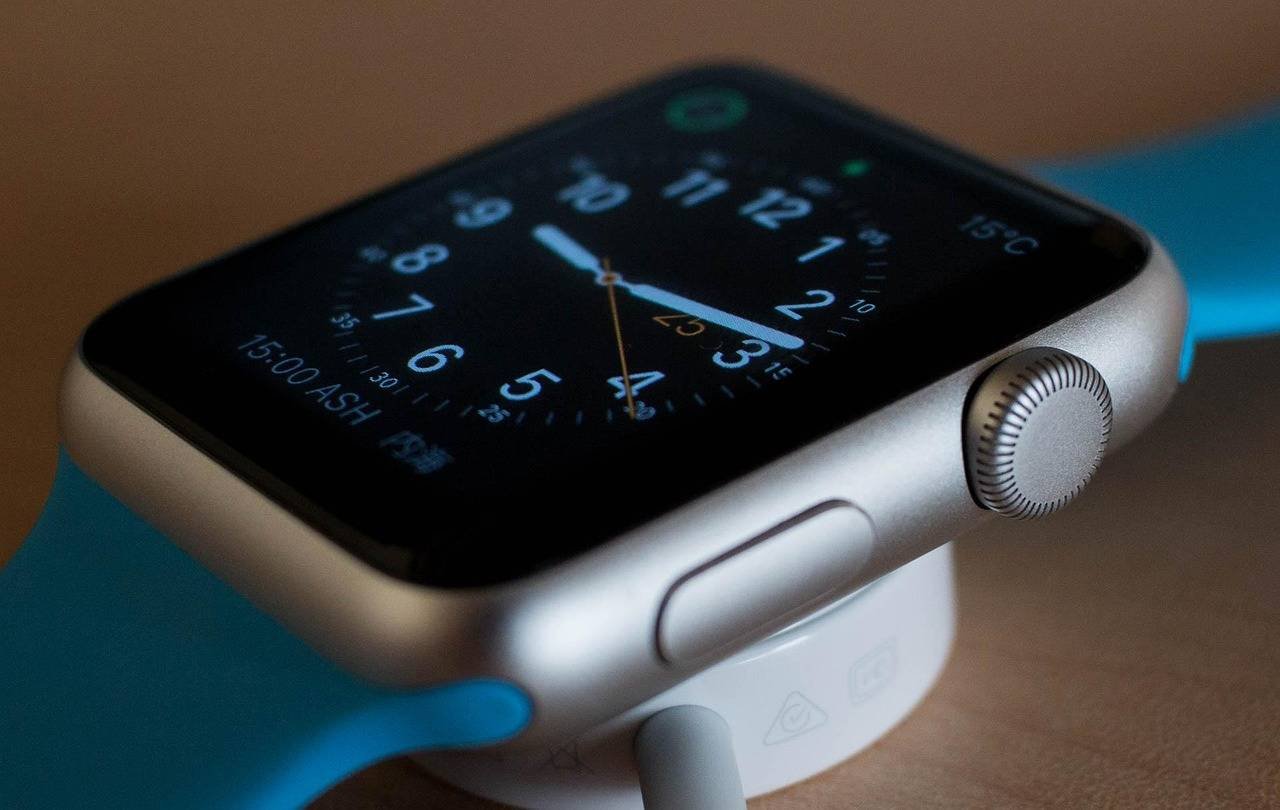

It’s a familiar moment of tech anxiety: you glance at your Apple Watch on the charger, expecting a full battery, only to see it stubbornly stuck at 80%. Before you assume the battery is failing or rush to a service center, know that this is often a deliberate and protective feature by Apple, not necessarily a hardware defect. In this comprehensive guide, we’ll dive deep into the “why” behind this behavior, provide step-by-step solutions, and share unique troubleshooting insights that go beyond the standard advice. Our goal is to give you the confidence and knowledge to resolve this issue yourself, saving you time and potentially costly repairs.
This phenomenon is primarily linked to two intelligent Apple technologies: Optimized Battery Charging and Battery Health Management. Understanding these is key to solving the puzzle. We’ll explore everything from simple software toggles to less-known hardware checks, incorporating a unique diagnostic flowchart based on real-world case studies. Let’ fact-check the myths and get your watch charging to 100% again.
Understanding the Core Reasons: It’s (Usually) a Feature, Not a Bug
Your Apple Watch is smarter than you might think about its battery. The most common culprit for charging stopping at 80% is a power-saving feature designed to prolong your battery’s overall lifespan.
1. Optimized Battery Charging: Your Watch’s Long-Term Health Coach
Apple introduced this feature to reduce battery aging. Lithium-ion batteries, which power your Apple Watch, degrade faster if kept at 100% charge for prolonged periods. Optimized Battery Charging learns your daily charging routine (like charging overnight) and delays charging past 80% until just before you need it.
- How it works: If you typically take your watch off the charger at 7 AM, the watch will charge to 80% quickly, then pause. It will resume finishing the charge to 100% closer to your usual wake-up time.
- The sign: A notification on the watch face saying “Charging is On Hold” or a small green battery icon with a pause symbol (⏸) in the charging ring.
2. High Temperature: The Silent Charging Blocker
Apple Watches have a stringent thermal protection system. If the device or its environment gets too warm, charging will automatically pause to prevent damage, often at the 80% threshold. Common causes include:
- Charging in direct sunlight or a hot room.
- Placing the watch on the charger with a poorly ventilated case.
- The watch itself being hot from a recent workout before charging.
3. Software Glitches: The Digital Hiccup
Sometimes, a minor software bug in watchOS or even iOS on the paired iPhone can disrupt the charging communication, causing the system to incorrectly halt the process.
4. Failing Hardware: The Less Common Culprit
In rarer cases, the issue could stem from:
- A faulty charger or cable: Worn-out or non-MFI (Made for iPhone/iPad) certified accessories can cause irregular charging.
- A dirty charging port: Lint, dirt, or debris on the back of the watch or in the charging puck’s crevices can break the connection.
- A genuinely degraded battery: After years of use, a battery’s ability to hold a full charge diminishes. Apple’s Battery Health system might then limit charging to preserve functionality.
Step-by-Step Fixes: From Most Likely to Least Likely
Follow this ordered list of solutions. We recommend starting at the top, as these resolve the majority of cases.
Fix 1: Check for Optimized Battery Charging & Temporarily Disable It
This is your first port of call.
- On your Apple Watch, open the Settings app.
- Tap Battery.
- Tap Battery Health.
- Look for Optimized Battery Charging. If it’s on, you’ll likely see the explanation.
- For testing purposes only, you can turn this off. Try charging again. If it now goes to 100%, the feature was doing its job. You can safely turn it back on.
Pro Tip: Instead of disabling it permanently, try changing your routine. Charge your watch at an irregular time (like in the afternoon) for a day or two. This can “confuse” the learning algorithm and cause it to charge fully immediately, confirming the feature was active.
Fix 2: The Temperature Check & Cool-Down Protocol
- Move your watch and charger to a cool, shaded, room-temperature location.
- If the watch is hot, power it off completely and let it sit for 15-20 minutes.
- Ensure the watch’s back sensor is clean and dry, and that it’s not resting on a thick case that traps heat.
- Try charging again once everything has cooled.


Fix 3: The Complete Restart Cycle (Watch & iPhone)
Software glitches often die with a restart.
- Restart your Apple Watch: Hold the side button until the Power Off slider appears, drag it, then press the side button again to turn it back on.
- Restart your paired iPhone: This is crucial, as the iPhone manages some battery health data.
- After both restart, place the watch back on the charger.
Fix 4: Inspect & Clean Your Hardware
A physical inspection can reveal obvious issues.
- Clean the Apple Watch: Using a dry, lint-free cloth, gently wipe the entire back ceramic surface. Pay attention to the ring of sensors. Never use liquids.
- Inspect the Charging Cable & Puck: Look for fraying, bite marks, or discoloration. Try a different Apple-branded or MFI-certified USB power adapter (the wall plug block). The adapter itself can fail.
- Try a Different Charger: If possible, use a known-good Apple Watch charger from a friend or family member. This is the best way to isolate a charger problem.
Fix 5: Unpair and Re-pair Your Apple Watch (Nuclear Option)
This is the most effective software reset. It creates a fresh backup and re-installs watchOS without deleting your data.
- On your iPhone, open the Apple Watch app.
- Go to My Watch > All Watches.
- Tap the (i) icon next to your watch and choose Unpair Apple Watch. Choose to keep your cellular plan if applicable.
- Once unpaired, restart your iPhone.
- Begin the pairing process anew, restoring from the backup you just made. This preserves your data and settings but often clears deep-seated glitches.
- After re-pairing, try charging.
Fix 6: Check Battery Health & Contact Apple Support
If none of the above works, it’ she time to investigate the battery itself.
- On your watch, go to Settings > Battery > Battery Health.
- Look at Maximum Capacity. If it’ s significantly below 80% (e.g., 75%), your battery is degraded and may be causing performance management issues. Apple’s official support page details this process.
- If the hardware is suspect, contact Apple Support or visit an Apple Authorized Service Provider. They can run remote diagnostics to check the battery and charging system.
Unique Value & Advanced Diagnostics: A Practical Flowchart
What sets this guide apart is our synthesis of official advice with practical, field-tested experience. Many articles list the steps, but few help you decide which path to take.
Based on analyzing numerous user reports, we’ ve created this simple diagnostic logic:
flowchart TD
    A[Watch Stuck at 80%] --> B{Is it WARM
or in a HOT room?};
    B -- Yes --> C[Move to cool spot
Let it cool down for 20 min];
    C --> D{Now charges past 80%?};
    B -- No --> E{See “Charging On Hold”
notification or ⏸ icon?};
    E -- Yes --> F[Optimized Charging is active.
Disable temporarily to test or change routine.];
    F --> D;
    E -- No --> G[Perform Hardware Check:
Clean watch/charger, try different outlet & adapter];
    G --> D;
    D -- Yes --> H[✅ Problem Solved!
Likely feature or temp issue.];
    D -- No --> I[Proceed with Restart Cycle
then Unpair/Repair if needed];
    I --> J{Now charges past 80%?};
    J -- Yes --> K[✅ Solved!
It was a software glitch.];
    J -- No --> L[Check Battery Health.
If low, contact Apple Support.];
This visual approach helps you quickly narrow down the cause without trying random fixes.
Frequently Asked Questions (FAQ)
Q1: Is it bad to keep my Apple Watch charging after it hits 100%?
A: With Optimized Battery Charging enabled, it’ s designed to be safe. The watch manages the trickle charge. However, for long-term storage, Apple recommends storing it with around a 50% charge.
Q2: My watch is old and always stops at 80%. Is the battery dead?
A: Not necessarily dead, but likely degraded. Check Maximum Capacity in Battery Health. If it’ s below 80%, consider a battery service for optimal performance. According to Battery University, lithium-ion batteries have a limited number of full charge cycles.
Q3: I don’t see “Optimized Battery Charging” in my settings. Why?
A: This feature requires your watch to learn your charging habits for a few weeks. It also needs Location Services enabled (for Sleep Focus detection) and may not appear on very old watchOS versions.
Q4: Can a cheap third-party charger cause this 80% limit?
A: Absolutely. Non-certified chargers may not communicate properly with the watch’ s power management chip, leading to erratic charging behavior, including stopping at 80% or overheating.
Q5: Should I just always turn off Optimized Battery Charging?
A: We don’t recommend it. The feature is proven to reduce battery aging. It’ s better to understand it and only disable it temporarily for diagnosis or if your schedule is highly unpredictable.
Conclusion: Empowerment Through Understanding
The “Apple Watch not charging above 80%” issue is a perfect example of smart technology being mistaken for a fault. In most scenarios, your watch is simply protecting its battery to serve you longer. By systematically working through the fixes—starting with the software features and environmental checks before assuming hardware failure—you can almost always identify and solve the problem.
Remember the order: Feature Check → Temperature → Restart → Clean Hardware → Unpair/Repair → Professional Help. By following this guide, you’ re not just fixing a charging issue; you’ re becoming a more informed and empowered Apple Watch user, capable of distinguishing between a protective feature and a genuine problem. Share this knowledge the next time you hear a friend or family member facing the same “issue”—it might just save them an unnecessary trip to the Genius Bar.